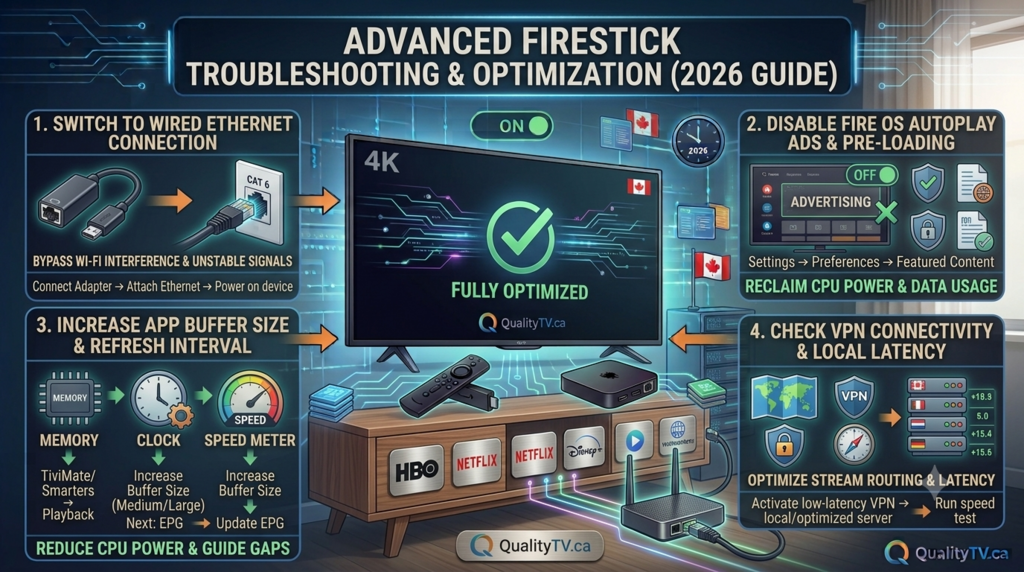
Amazon Firestick has become one of the most popular streaming devices for watching IPTV, movies, live television, and on-demand entertainment. However, even the best streaming setup can experience buffering, freezing, connection problems, app crashes, and poor playback quality.
If your IPTV service keeps buffering, your Firestick runs slowly, or your streaming apps constantly freeze, the problem may not be your IPTV provider. It could be related to device performance, internet connectivity, outdated software, storage limitations, or incorrect network settings.
In this Advanced Firestick Troubleshooting and Optimization Guide for 2027, we'll explain how to diagnose common Firestick problems, improve IPTV streaming performance, reduce buffering, and optimize your device for a smoother entertainment experience.
Whether you're a beginner or an experienced IPTV user, these practical solutions can help you get more out of your Amazon Fire TV Stick.
IPTV buffering is one of the most common complaints among streaming users. It happens when your device cannot receive video data quickly enough to maintain uninterrupted playback.
Several factors can contribute to IPTV buffering:
Slow or unstable internet connection.
Weak Wi-Fi signal.
Network congestion during peak hours.
Firestick overheating.
Limited available device storage.
Outdated IPTV applications.
Background applications consuming system resources.
Problems with the streaming source or IPTV provider.
How to troubleshoot IPTV buffering:
Restart your Firestick.
Restart your modem and router.
Check your internet speed.
Move your Firestick closer to your Wi-Fi router.
Close unnecessary applications.
Clear the cache of your IPTV application.
Test another channel or video stream.
If only certain channels buffer while others work normally, the issue may be related to the individual stream rather than your Firestick.
A reliable internet connection is essential for high-quality IPTV streaming.
Even if your internet package advertises high download speeds, an unstable Wi-Fi connection can cause interruptions.
| Streaming Quality | Suggested Speed |
|---|---|
| SD Streaming | 5 Mbps |
| HD Streaming | 10 Mbps |
| Full HD 1080p | 15–25 Mbps |
| 4K Ultra HD | 25–50 Mbps |
These are practical recommendations, not guaranteed minimums. Actual requirements depend on stream bitrate, network congestion, and device performance.
Use the 5 GHz Wi-Fi band when your Firestick is close enough to receive a strong signal.
Use 2.4 GHz when greater range is needed.
Avoid placing your router behind furniture or inside cabinets.
Reduce unnecessary devices competing for bandwidth.
Consider an Ethernet adapter for a more stable connection.
Restart your router periodically if it becomes unreliable.
For IPTV users who regularly watch live sports, 4K content, and high-definition channels, connection stability is often more important than simply having a high advertised internet speed.
Over time, streaming applications can accumulate temporary files and cached data.
Excessive application cache can contribute to sluggish performance and occasional application problems.
Open Settings on your Firestick.
Select Applications.
Choose Manage Installed Applications.
Select your IPTV application.
Choose Clear Cache.
Restart the application.
Important: Avoid selecting Clear Data unless necessary. Clearing data may remove application settings, saved information, and login details.
Regularly clearing unnecessary application cache can help keep your Firestick running smoothly.
If your IPTV application repeatedly crashes, freezes, or closes unexpectedly, several troubleshooting steps may help.
Try the following:
Update the IPTV application if an update is available.
Restart your Firestick.
Clear the application cache.
Check available device storage.
Update Fire OS.
Reinstall the application if other troubleshooting steps fail.
Also check whether the problem affects one application or multiple applications. If only one IPTV app crashes, the issue may be application-specific.
Firestick devices have limited internal storage. When available storage becomes low, applications may run poorly, updates may fail, and the overall experience can become frustrating.
Open Settings.
Select My Fire TV or Device & Software.
Open About or Storage, depending on your Fire OS version.
Check available storage.
Uninstall applications you no longer use.
Clear unnecessary application caches.
Avoid installing unnecessary applications or utilities that promise unrealistic performance improvements.
Keeping adequate free storage helps maintain a more responsive streaming device.
Overheating can cause performance problems, unexpected restarts, and interruptions during IPTV streaming.
Firesticks are compact devices that can generate heat during extended streaming sessions.
Keep your Firestick in a well-ventilated location.
Avoid placing it behind televisions where heat accumulates.
Use the HDMI extender supplied with compatible devices.
Keep ventilation areas unobstructed.
Use the correct power adapter and cable.
Avoid exposing your device to direct sunlight.
If your Firestick frequently becomes unusually hot or restarts unexpectedly, check its power supply and ventilation.
Optimizing your Firestick settings can help improve the viewing experience.
Consider checking these settings:
Navigate to Settings > Display & Sounds > Display.
Choose a resolution supported by your television. Automatic resolution is generally a good starting point.
If supported by your Firestick and television, enabling frame-rate matching can help compatible video content display at its original frame rate.
This can be especially useful for sports and other fast-moving content.
Make sure your Firestick is connected securely to an HDMI port that supports the device's capabilities.
If you experience display problems, try another HDMI port.
Navigate to Settings > My Fire TV > About > Check for Updates.
Installing available Fire OS updates can resolve compatibility problems and improve device stability.
IPTV users may occasionally encounter error messages when opening channels or accessing on-demand content.
Common problems include:
Playback Error: The selected stream may be unavailable or experiencing technical problems. Try another channel.
Authentication Error: Check your subscription status and account credentials.
Connection Timeout: Check your internet connection and restart your streaming application.
Black Screen: Try another stream, restart the application, and verify your HDMI connection.
Audio Without Video: Check display compatibility, restart the application, and test another channel.
If multiple channels experience the same issue, contact your IPTV provider to determine whether there is a service-side problem.
Getting the best IPTV experience involves maintaining both your streaming device and home network.
Follow these recommendations:
Keep Fire OS updated.
Use a stable internet connection.
Regularly clear unnecessary application cache.
Remove unused applications.
Avoid overheating.
Use compatible streaming applications.
Keep your IPTV subscription credentials secure.
Test your connection when buffering occurs.
Contact your provider when stream-specific problems persist.
Remember that no Firestick setting can eliminate buffering caused by an overloaded streaming server or an unreliable internet connection.
If you want to enjoy 4K IPTV content, your entire streaming setup must support the required resolution.
This includes:
A compatible Fire TV device.
A 4K television.
A compatible HDMI connection.
Sufficient internet bandwidth.
A 4K-capable streaming source.
An application that supports the content format.
Having a 4K television alone does not guarantee 4K IPTV playback.
Check your device specifications and streaming source before troubleshooting picture quality.
IPTV buffering can be caused by unstable Wi-Fi, network congestion, insufficient bandwidth, device overheating, application problems, or streaming server issues.
Clear unnecessary application cache, uninstall unused apps, maintain sufficient storage, install available software updates, and ensure adequate ventilation.
No. Clearing an application's cache normally does not remove subscription credentials. However, selecting Clear Data can remove saved application information.
A stable 10–25 Mbps connection is a useful starting point for HD and Full HD streaming. For 4K streaming, 25–50 Mbps or more may be appropriate depending on the content bitrate and network conditions.
Possible causes include an unavailable stream, application errors, HDMI connection problems, or display compatibility issues.
Restarting your Firestick occasionally can help resolve temporary software issues and refresh its system resources.
Your Amazon Firestick can provide an excellent IPTV streaming experience when properly maintained and configured.
From fixing buffering and freezing to improving Wi-Fi connectivity, clearing application cache, managing storage, and preventing overheating, the troubleshooting techniques in this guide can help you identify and resolve many common streaming problems.
Remember that successful IPTV streaming depends on three important factors: a properly functioning device, a reliable internet connection, and a dependable streaming source.
For more IPTV troubleshooting advice, Firestick optimization tips, streaming tutorials, and entertainment technology updates, continue exploring Quality TV.
Stay connected, stream smarter, and enjoy a better IPTV experience in 2027!