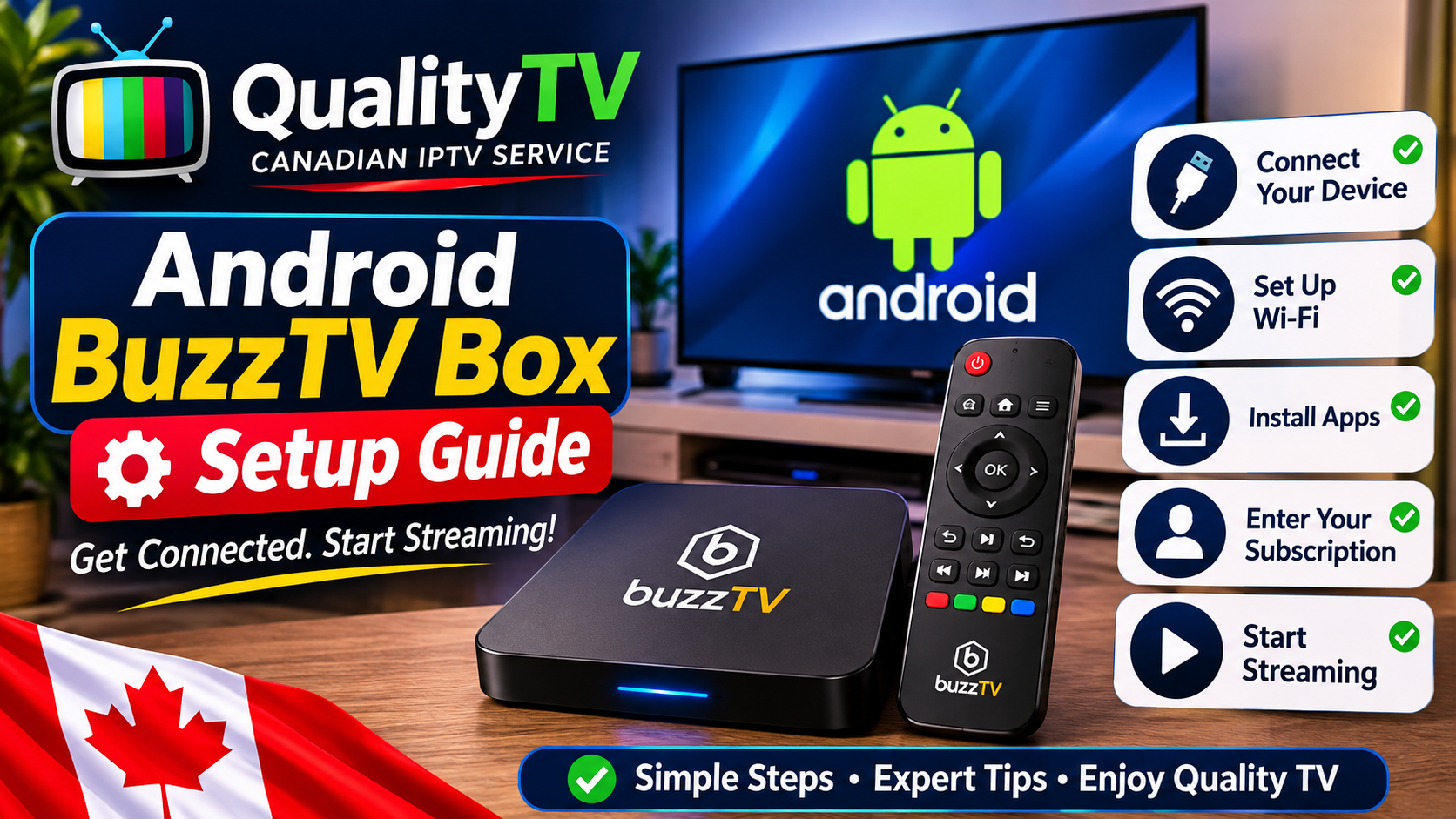
Setting up your Android BuzzTV box is straightforward. Follow this step-by-step guide to connect your device, configure its settings, install a compatible streaming application, and get ready to stream.
Connect the power adapter to your BuzzTV box.
Connect the box to your television using an HDMI cable.
Turn on your television.
Select the correct HDMI input using your TV remote.
Follow the on-screen instructions to complete the initial setup.
Tip: Use an Ethernet cable for a wired internet connection when possible. Otherwise, connect to your home Wi-Fi network.
Your BuzzTV box needs an internet connection to access online streaming applications.
Open the device's Settings menu.
Select Network or Wi-Fi.
Choose your wireless network.
Enter your Wi-Fi password.
Confirm that the device is connected.
If you experience connection problems, restart your router and BuzzTV box.
Check whether your BuzzTV box has a system update available.
Open Settings.
Look for About Device, System Update, or Software Update.
Follow the on-screen instructions if an update is available.
Allow the device to restart if required.
Menu names may vary depending on your BuzzTV model.
Open the device's available app store or use the official installation instructions supplied by the application developer.
Find a streaming application compatible with your device.
Download and install the application from a trusted source.
Open the application.
Follow its setup instructions.
Only install applications from sources you trust.
If you have a subscription with a compatible service:
Open your installed streaming application.
Select the appropriate login option.
Enter the subscription details provided by your service provider.
Follow the application's instructions to complete setup.
Keep your login details private and enter them only into applications you trust.
Once setup is complete, you can open your installed application and explore the content available through your subscription.
For the best experience, keep your device software updated and maintain a stable internet connection.
Check that the HDMI cable is securely connected.
Confirm that your television is on the correct HDMI input.
Try another HDMI port if available.
Restart your television and BuzzTV box.
Check that your Wi-Fi password is correct.
Restart your router.
Move the device closer to your router.
Try an Ethernet connection if available.
Restart the application.
Check your internet connection.
Check whether an application update is available.
Contact the application developer or service provider if the issue continues.
Restart your router and streaming device.
Close applications running in the background.
Use an Ethernet connection where possible.
Check your available internet speed.
QualityTV provides subscription information, device setup guidance, and customer assistance.
If you need help, contact us with your BuzzTV model and a description of the problem.
Email: michael@qualityiptv.ca
Explore More Setup Guides: Visit our QualityTV Setup Guides page for additional device instructions.
Ready to Get Started? Explore the available QualityTV Subscription Plans.