Choosing the right internet connection can make a significant difference in your IPTV streaming experience. Whether you watch live television, sports, movies, or international channels, having a stable internet connection helps reduce buffering, freezing, and unexpected interruptions.
One common question among IPTV users is whether Ethernet or Wi-Fi is better for streaming.
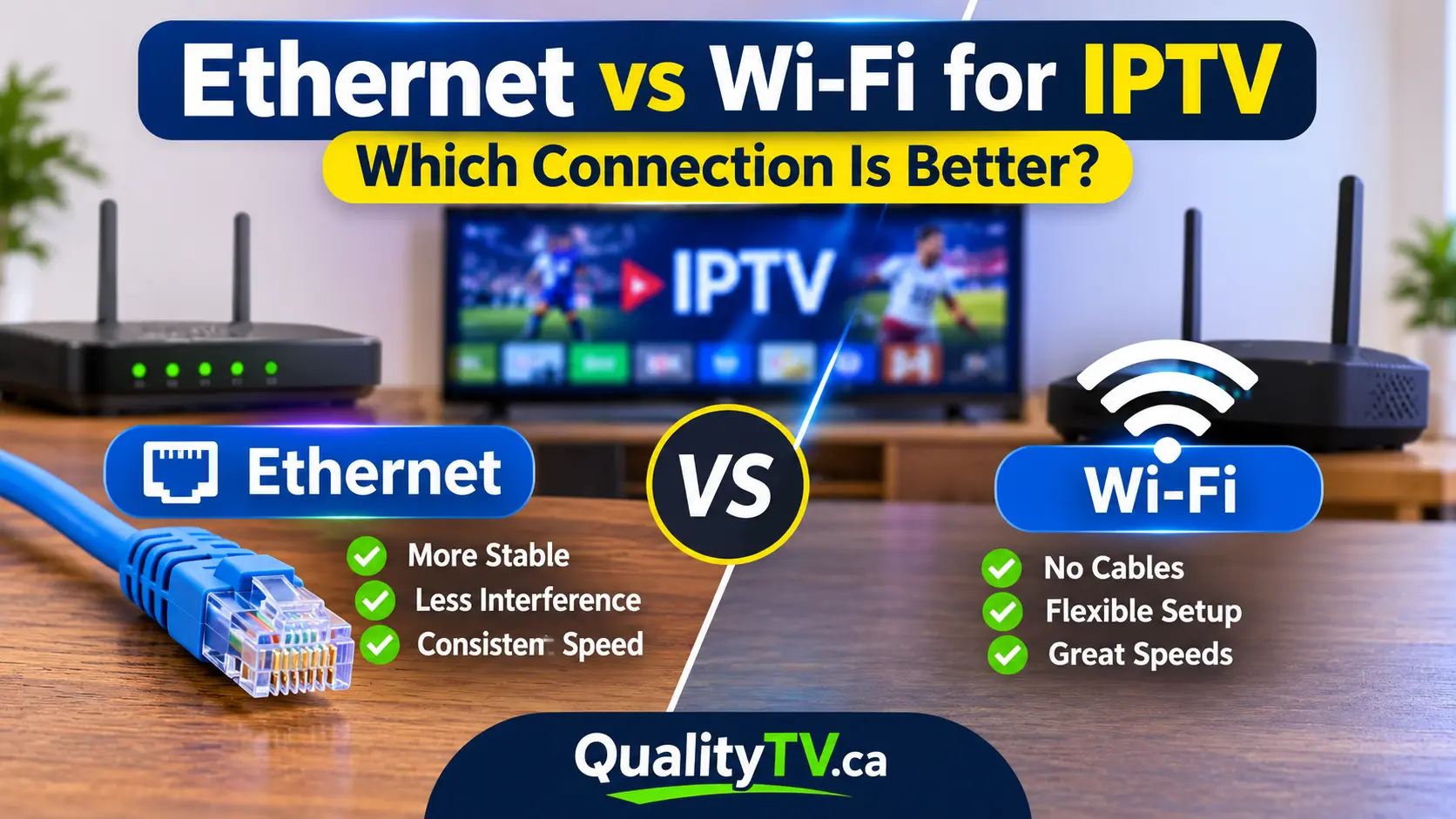
Both connection types can provide a good IPTV experience, but they work differently. Wi-Fi offers convenience and flexibility, while Ethernet provides a direct connection that is generally more stable and consistent.
So, which one should you use for IPTV?
In this guide, we'll compare Ethernet and Wi-Fi, explain their advantages and disadvantages, and help you choose the best connection for your Firestick, Smart TV, Android TV box, or other streaming device.
Before comparing the two options, it's important to understand how they work.
Ethernet connects your streaming device directly to your router using a physical network cable. This creates a wired connection between your device and your home network.
Wi-Fi connects your streaming device to your router wirelessly. It allows you to stream content without running cables throughout your home.
Both options can provide enough speed for IPTV, but the overall performance depends on factors such as router quality, signal strength, network congestion, and your internet plan.
Here's a quick comparison of the two connection types.
| Feature | Ethernet | Wi-Fi |
|---|---|---|
| Connection type | Wired | Wireless |
| Stability | Generally excellent | Depends on signal |
| Speed consistency | More consistent | Can fluctuate |
| Buffering risk | Lower when configured properly | Can increase with interference |
| Installation | Requires a cable | Easy to connect |
| Mobility | Limited by cable length | Excellent |
| Interference | Minimal | Can experience interference |
| Best for | Stationary streaming devices | Flexible device placement |
For most stationary IPTV setups, Ethernet is the preferred option when a reliable wired connection is available. However, modern Wi-Fi can also deliver excellent streaming performance.
Ethernet is often considered the most reliable connection for IPTV because it connects your streaming device directly to your router.
Unlike Wi-Fi, a wired connection does not depend on wireless signal strength or experience the same type of radio interference.
This can be particularly helpful if you regularly watch live sports, high-definition channels, or other content where interruptions are frustrating.
More consistent connection
A wired connection generally provides more predictable network performance. This can help prevent sudden changes in connection quality during streaming.
Reduced wireless interference
Wi-Fi signals can be affected by walls, other wireless networks, household electronics, and the distance between your router and streaming device.
Ethernet avoids most of these wireless problems.
Better performance during busy periods
When multiple devices are connected to your Wi-Fi network, wireless congestion can affect streaming performance. Ethernet can help avoid competition for wireless airtime.
Ideal for stationary devices
If your IPTV device is located near your router, connecting an Ethernet cable is often a simple way to improve network reliability.
Ethernet is not perfect for every setup.
Some disadvantages include:
You need a physical network cable.
Running cables between rooms can be inconvenient.
Some streaming devices do not include an Ethernet port.
Certain devices may require a compatible Ethernet adapter.
Despite these limitations, Ethernet is an excellent option for users who prioritize connection stability.
Not everyone wants to run cables through their home. Fortunately, modern Wi-Fi technology can provide more than enough performance for IPTV streaming.
If your router is relatively close to your streaming device and your wireless signal is strong, Wi-Fi can deliver a smooth viewing experience.
Easy installation
You don't need additional cables or network equipment. Simply connect your device to your wireless network.
Flexible device placement
You can place your Firestick, Smart TV, or streaming box in almost any room within your Wi-Fi coverage area.
Modern Wi-Fi speeds
Wi-Fi 5, Wi-Fi 6, and newer wireless technologies can support high-speed streaming when properly configured.
Less cable clutter
A wireless setup keeps your entertainment area cleaner and avoids running Ethernet cables across floors or walls.
Wi-Fi performance can change depending on your home environment.
Common problems include:
Weak wireless signals.
Interference from nearby networks.
Thick walls and floors.
Too many connected devices.
Router placement.
Network congestion.
If your IPTV frequently buffers or freezes, your Wi-Fi connection may be contributing to the problem.
One of the biggest misconceptions about IPTV is that you need extremely fast internet to enjoy smooth streaming.
In reality, connection stability is just as important as download speed.
Your actual requirements depend on the video quality, streaming format, and number of devices using your internet connection.
Here are some general guidelines:
| Streaming Quality | Suggested Download Speed |
|---|---|
| SD | 3–5 Mbps |
| HD | 5–10 Mbps |
| Full HD (1080p) | 10–15 Mbps |
| 4K UHD | 25 Mbps or higher |
These are general planning estimates rather than guaranteed minimum requirements. Some streams may require more bandwidth.
If multiple people are streaming, gaming, or downloading files simultaneously, additional internet capacity may be helpful.
For more information, read our guide: How Much Data Does IPTV Use Per Hour?.
Ethernet can reduce buffering when the problem is caused by weak Wi-Fi signals, wireless interference, or inconsistent wireless performance.
However, it is important to understand that Ethernet cannot fix every IPTV buffering issue.
Buffering can also be caused by:
Slow internet service.
Overloaded home networks.
Problems with a particular IPTV stream.
Provider-side server issues.
Outdated IPTV applications.
Device performance limitations.
If your IPTV buffers even when using Ethernet, investigate the other possible causes.
A wired connection improves the connection between your device and router, but it does not guarantee that every part of the internet connection will perform perfectly.
If you prefer Wi-Fi, choosing the correct wireless frequency can make a noticeable difference.
Most modern routers offer both 2.4 GHz and 5 GHz Wi-Fi networks.
The 2.4 GHz band generally provides better coverage over longer distances and can travel through walls more effectively.
However, it is often more congested because many household devices use this frequency.
It may be a suitable option if your streaming device is located far from the router.
The 5 GHz band generally offers higher potential speeds and less interference from some common household devices.
However, its range is shorter than 2.4 GHz, and its signal can be weakened more significantly by walls and other obstacles.
It is often the better option when your streaming device is relatively close to the router.
As a general rule:
Use 5 GHz if your device is close to the router and receives a strong signal.
Use 2.4 GHz if your device is farther away or separated by several walls.
Use Ethernet if you want the most consistent connection and a cable is practical.
Test both wireless bands if you're experiencing streaming problems.
Amazon Fire TV devices are popular among IPTV users, but their network connection can influence overall streaming performance.
Depending on the Fire TV model, you may have built-in Wi-Fi support and the option to use a compatible Ethernet adapter.
If you're using Wi-Fi, consider these tips:
Keep your Firestick within a reasonable distance of your router.
Avoid placing your router inside a cabinet.
Use 5 GHz Wi-Fi when the signal is strong.
Disconnect unnecessary devices if your network is congested.
Restart your router occasionally.
If your Firestick is located near your router, a compatible Ethernet adapter may be worth considering.
Keep in mind that the adapter and your Firestick model can affect the maximum wired speed available.
The best way to choose between Ethernet and Wi-Fi is to test both connections using the same streaming device.
Follow these steps:
Step 1: Test your Wi-Fi connection
Connect your streaming device to your wireless network and run an internet speed test.
Record your download speed and check whether the connection is stable.
Step 2: Test IPTV playback
Open your IPTV application and watch a few channels.
Pay attention to buffering, freezing, and changes in picture quality.
Step 3: Connect using Ethernet
If your device supports Ethernet, connect it directly to your router using a network cable or compatible adapter.
Step 4: Run another speed test
Repeat the same speed test and compare the results.
Step 5: Compare streaming performance
Test the same channels under similar network conditions.
Look at connection consistency, playback quality, and buffering frequency.
The connection that performs more reliably is the better choice for your setup.
If running an Ethernet cable isn't practical, there are several ways to improve your wireless connection.
Keep your router in an open, central location whenever possible.
Avoid placing it behind televisions, inside cabinets, or near large metal objects.
Other wireless networks and household electronics can interfere with Wi-Fi signals.
Try changing your router's wireless channel if your network experiences congestion.
An older router may struggle when several devices are connected simultaneously.
A modern router with Wi-Fi 6 support may improve wireless performance, particularly in busy households with compatible devices.
If your streaming device is far from your router, a Wi-Fi extender or mesh system may improve coverage.
However, remember that an extender does not automatically improve internet speed. Its performance depends on the connection back to your main router.
Pause large downloads, cloud backups, and unnecessary streaming activities while watching IPTV.
This can help ensure that sufficient bandwidth is available for your streaming device.
If your router is located far from your television, running a long Ethernet cable may not be practical.
A powerline adapter is another option worth considering.
Powerline adapters use your home's electrical wiring to carry network data between two adapters.
Typically, one adapter connects to your router, while another connects near your streaming device.
You can then connect your device using an Ethernet cable.
Advantages:
Avoids running long Ethernet cables.
Can provide a wired connection in another room.
May be more convenient than relying on weak Wi-Fi.
Disadvantages:
Performance depends on your home's electrical wiring.
Electrical interference can affect connection quality.
Speeds can vary significantly between homes.
Powerline adapters are not guaranteed to outperform Wi-Fi, so test their performance before relying on them for IPTV.
So, which connection is better?
For most stationary streaming devices, Ethernet is the better choice when available because it provides a more consistent connection and avoids wireless interference.
However, Wi-Fi is still an excellent option for IPTV users with a modern router, strong signal, and reliable internet service.
Here's our recommendation:
Choose Ethernet: If your streaming device is close to your router and you want consistent performance.
Choose 5 GHz Wi-Fi: If your device is relatively close to the router and you want a fast wireless connection.
Choose 2.4 GHz Wi-Fi: If your device is farther away and needs better wireless coverage.
Consider a mesh system: If you have Wi-Fi coverage problems in multiple rooms.
Consider powerline adapters: If running a cable is difficult but Wi-Fi is unreliable.
Ultimately, the best connection is the one that provides stable, uninterrupted streaming in your home.
Yes, Ethernet is generally more reliable because it provides a direct wired connection and avoids wireless interference. However, modern Wi-Fi can also deliver excellent IPTV performance.
Ethernet can reduce buffering caused by weak Wi-Fi signals and wireless congestion. It cannot eliminate buffering caused by provider-side problems, insufficient internet speed, or device issues.
5 GHz is generally better when your streaming device is close to the router and has a strong signal. The 2.4 GHz band may work better over longer distances or through walls.
For general planning, 5–10 Mbps may be sufficient for HD streaming, while Full HD and 4K typically benefit from higher speeds. Multiple simultaneous streams require additional bandwidth.
Yes, many Fire TV devices can use compatible Ethernet adapters. Compatibility depends on the specific model and adapter.
Wi-Fi 6 can improve network efficiency, capacity, and performance in busy households with compatible devices. However, it does not automatically fix weak signals or problems with your internet provider.
Yes. A strong Wi-Fi signal, reliable internet connection, and properly configured router can provide smooth IPTV streaming without needing an Ethernet cable.
A stable internet connection is one of the most important parts of enjoying IPTV.
Whether you choose Ethernet or Wi-Fi, optimizing your home network can help reduce interruptions and improve your overall viewing experience.
If you're looking for an IPTV option for your home, visit Quality TV to explore our available plans and find a subscription that suits your entertainment needs.
Ready to enjoy live TV, sports and entertainment on your favourite devices? Visit our Quality TV Pricing Page to explore available subscription options and find a plan that suits your household.