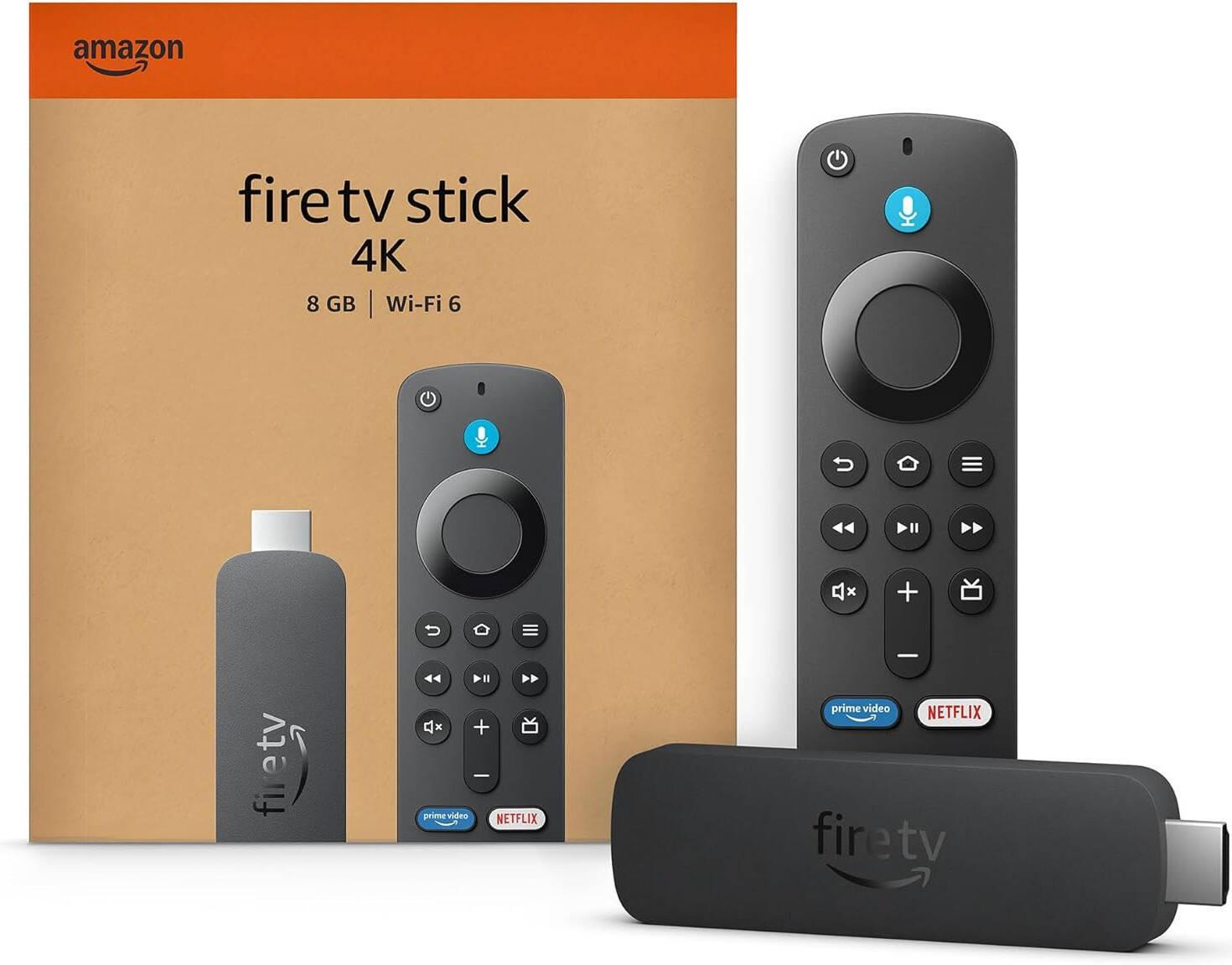
How to Set Up IPTV on Amazon Fire Stick 4K
Looking to watch television through IPTV on your Amazon Fire TV Stick 4K?
This step-by-step guide will help you connect your device, install an
IPTV player, add your subscription and start watching your favourite
channels.
What You Will Need
- Amazon Fire TV Stick 4K or 4K Max.
- A television with an available HDMI port.
- A stable internet connection.
- A legitimate IPTV subscription from a licensed provider.
- Your IPTV login information or playlist URL.
STEP 1
Connect Your Fire Stick 4K
- Plug your Fire Stick into an available HDMI port on your television.
- Connect the USB power cable and power adapter.
- Turn on your television.
- Select the correct HDMI input.
- Follow the instructions to pair your remote control.
STEP 2
Connect to Your Internet
- From the Fire TV home screen, select Settings.
- Select Network.
- Choose your Wi-Fi network.
- Enter your Wi-Fi password.
- Wait until your device confirms the connection.
For the best streaming experience, use a reliable broadband
connection. A 5 GHz Wi-Fi connection or Ethernet adapter can
help improve stability.
STEP 3
Check Your Fire TV Operating System
- Open Settings.
- Select My Fire TV, if available.
- Select About.
- Check your device and operating system information.
Important: Some newer Fire TV devices use
Vega OS instead of Fire OS. App compatibility and installation
options may differ. Check that your chosen IPTV player supports
your particular device.
STEP 4
Install an IPTV Player
An IPTV player is an application that allows you to access
television channels and other content supplied by your TV provider.
Popular IPTV Players
- IPTV Smarters: A player with channel browsing
and playlist support.
- TiviMate: A player with a television-style
electronic program guide.
- Other compatible players: Check your
provider's recommended applications.
Installation Instructions
- Return to the Fire TV home screen.
- Select Find or Search.
- Search for your preferred IPTV player.
- Choose the application from the Amazon Appstore.
- Select Get or Download.
- Wait for the installation to finish.
- Open the application.
Only install applications from trusted sources. Availability
depends on your Fire TV operating system and region.
STEP 5
Add Your IPTV Subscription
Open your IPTV player. Your provider will normally supply
one of the following login methods:
Option 1: Xtream Codes Login
- Username
- Password
- Server URL
Option 2: M3U Playlist
- M3U playlist URL supplied by your provider.
Option 3: Provider Portal
- Portal address and account credentials requested by your provider.
Security reminder: Never share your IPTV
username, password or private playlist URL with other people.
STEP 6
Load Your Channels
- Select Add User, Login or Load Playlist.
- Enter the subscription information supplied by your provider.
- Wait for your playlist to load.
- Allow the electronic program guide (EPG) to update, if supported.
- Open the Live TV or Channels section.
- Select a channel to test playback.
STEP 7
Recommended Streaming Settings
| Setting |
Recommendation |
| Video Quality |
Auto or 4K where supported |
| Internet Connection |
5 GHz Wi-Fi or Ethernet |
| EPG |
Enable automatic updates |
| Buffering |
Start with default player settings |
| Application Updates |
Keep your player updated |
| Storage |
Remove unused applications |
STEP 8
Troubleshooting Common Problems
| Problem |
Possible Solution |
| Channels will not load |
Check your subscription and internet connection. |
| Constant buffering |
Restart your router and Fire Stick. |
| Login error |
Double-check your username and password. |
| No TV guide information |
Refresh the EPG in your IPTV player. |
| Application keeps crashing |
Restart your device and clear the app cache. |
| Application unavailable |
Check Fire OS or Vega OS compatibility. |
Enjoy Your IPTV Service!
Congratulations! Your Amazon Fire TV Stick 4K should now
be ready to use with your compatible IPTV player and
licensed television subscription.
You can now browse your available live television channels
and other content directly from your television.
For additional assistance, contact your television provider
or consult the support documentation for your IPTV player.
Disclaimer: IPTV is a technology for delivering
television content over internet networks. This guide is for
educational purposes. Use services and content that you are
legally authorized to access.