Amazon Firestick has become one of the most popular streaming devices for watching live television, movies, sports, and on-demand entertainment. Its compact design, easy setup, and wide selection of streaming applications make it a convenient entertainment solution for households everywhere.
However, getting the best experience from your Firestick requires more than simply plugging it into your television.
Whether you're setting up a new Fire TV Stick, installing streaming applications, troubleshooting IPTV buffering, or improving streaming performance, understanding how your device works can make a significant difference.
Welcome to the Quality TV Firestick Guides & Tutorials hub. Here you'll discover helpful instructions, troubleshooting solutions, optimization techniques, and practical tips to get more out of your Amazon Fire TV device.
Setting up an Amazon Firestick is relatively simple, even for beginners.
Follow these steps to get started:
Connect your Firestick to an available HDMI port on your television.
Connect the supplied power adapter.
Turn on your television and select the correct HDMI input.
Follow the on-screen instructions.
Connect your Firestick to your Wi-Fi network.
Sign in with your Amazon account when prompted.
Check for available software updates.
Once setup is complete, you can explore compatible streaming applications and personalize your entertainment experience.
Your Firestick includes several settings that can help improve your viewing experience.
Consider checking:
Display resolution settings.
Wi-Fi network configuration.
Automatic software updates.
Display frame-rate matching, where supported.
Application permissions.
Device storage availability.
Choosing the correct display settings for your television can help avoid compatibility problems and provide smoother playback.
Streaming applications allow users to access different types of entertainment.
To install an application:
Open your Firestick home screen.
Select Find or Search.
Enter the application name.
Choose the correct application from the results.
Select Get or Download.
Open the application after installation.
Always use trusted application sources and verify that applications are compatible with your device.
IPTV allows viewers to access television programming through an internet connection using compatible applications and authorized streaming services.
To get started:
Make sure your Firestick has a reliable internet connection.
Install a compatible IPTV player from an authorized source.
Open the application.
Follow the application's setup instructions.
Enter the subscription or playlist information supplied by your authorized IPTV provider.
Test playback and adjust available player settings.
For the best experience, use a stable internet connection and a compatible streaming application.
Buffering and freezing can interrupt your entertainment experience.
Common causes include:
Unstable Wi-Fi connections.
Slow internet speeds.
Network congestion.
Low device storage.
Outdated applications.
Overheating.
Streaming source problems.
Try restarting your Firestick and router, clearing unnecessary application cache, checking your internet connection, and testing another streaming channel.
For more detailed solutions, read our guide:
How to Fix IPTV Buffering & Stuttering (2026 Top Fixes).
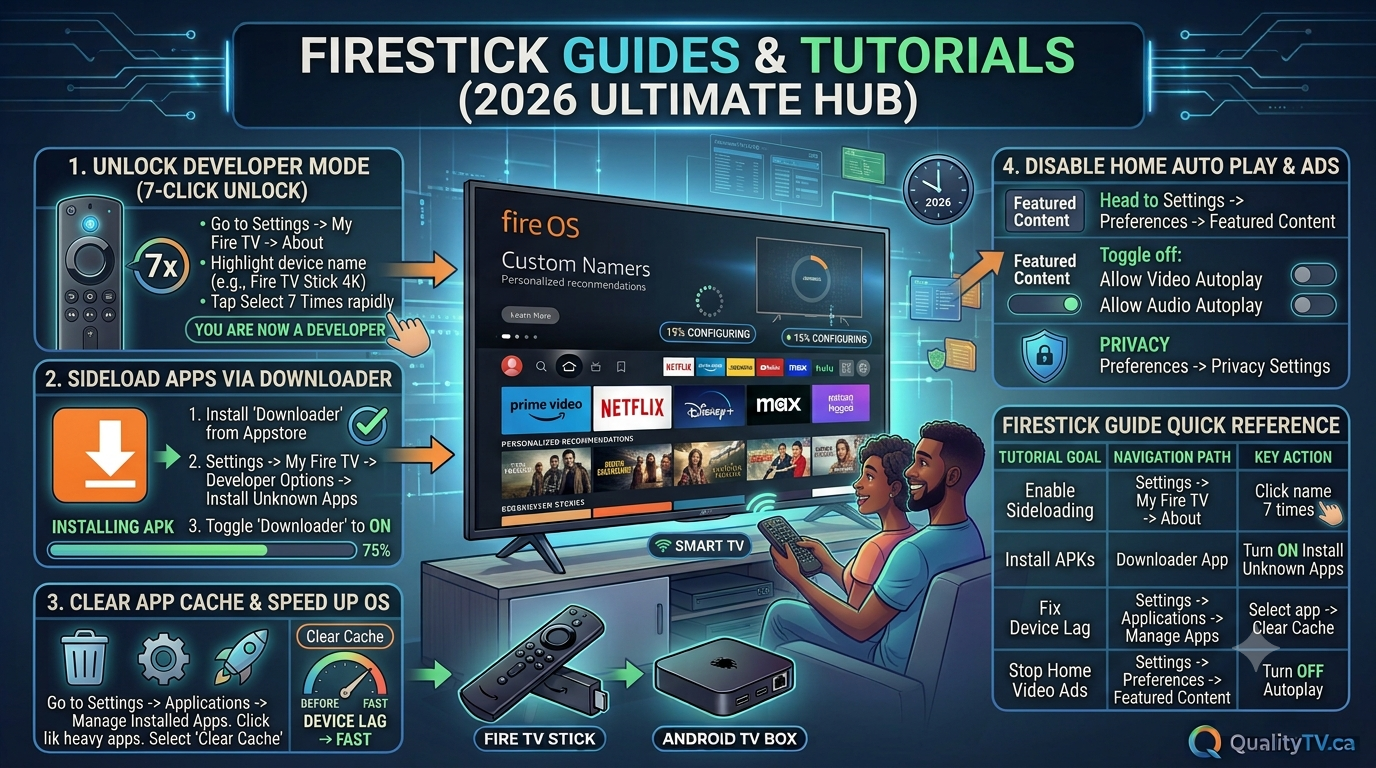
If your Firestick feels slow, several maintenance steps may improve its responsiveness.
Uninstall applications you no longer use.
Clear unnecessary application cache.
Restart your device occasionally.
Install available Fire OS updates.
Maintain sufficient storage space.
Keep the device properly ventilated.
Avoid applications promising unrealistic performance improvements or requiring unnecessary system permissions.
A Firestick remote that stops responding can make navigation difficult.
Try these solutions:
Replace the batteries.
Restart your Firestick.
Move closer to the device.
Check for wireless interference.
Re-pair your remote using the appropriate instructions for your model.
If the remote still doesn't work, consult Amazon's support instructions for your particular Fire TV device.
A weak or unstable Wi-Fi connection can cause streaming interruptions and application errors.
Try the following:
Restart your router.
Reconnect your Firestick to Wi-Fi.
Test another Wi-Fi frequency.
Move your router closer to your television.
Reduce interference from other wireless devices.
Consider a compatible Ethernet adapter.
A reliable network connection is essential for smooth IPTV and video streaming.
Firestick devices have limited internal storage, so keeping your device organized is important.
Regular maintenance includes:
Removing unused applications.
Clearing unnecessary application cache.
Checking available storage.
Updating applications.
Restarting the device when needed.
These simple habits can help prevent common performance and installation problems.
For users who want to get more from their streaming device, advanced troubleshooting can help identify problems that basic maintenance may not resolve.
Topics worth exploring include:
Hardware versus software video decoding.
HDMI display compatibility.
Network stability and latency.
Video resolution configuration.
Audio synchronization.
Application compatibility.
Fire OS updates and device performance.
Understanding these areas can help you diagnose more complicated streaming issues.
An Amazon Firestick connects to your television through HDMI and provides access to compatible streaming applications, movies, television, and other online entertainment.
Yes. Compatible Fire TV devices can run supported IPTV player applications and authorized streaming services.
Common causes include limited storage, application problems, outdated software, overheating, and network issues.
There is no strict schedule. Restarting occasionally can help resolve temporary software and connectivity problems.
Most streaming services require an internet connection. Some applications may support previously downloaded offline content, but live IPTV requires connectivity.
Navigate to Settings, select My Fire TV or Device & Software, open About, and check for updates.
Getting the most out of your Amazon Firestick doesn't have to be complicated.
Whether you're a beginner learning how to configure your device or an experienced IPTV viewer looking to improve streaming performance, the right information can help you solve problems and enjoy a better entertainment experience.
At Quality TV, our goal is to provide useful Firestick tutorials, IPTV troubleshooting advice, streaming optimization guides, and practical technology tips.
Bookmark this page and check back for more Firestick guides and tutorials throughout 2026.
Quality TV – Your Guide to Better Streaming.