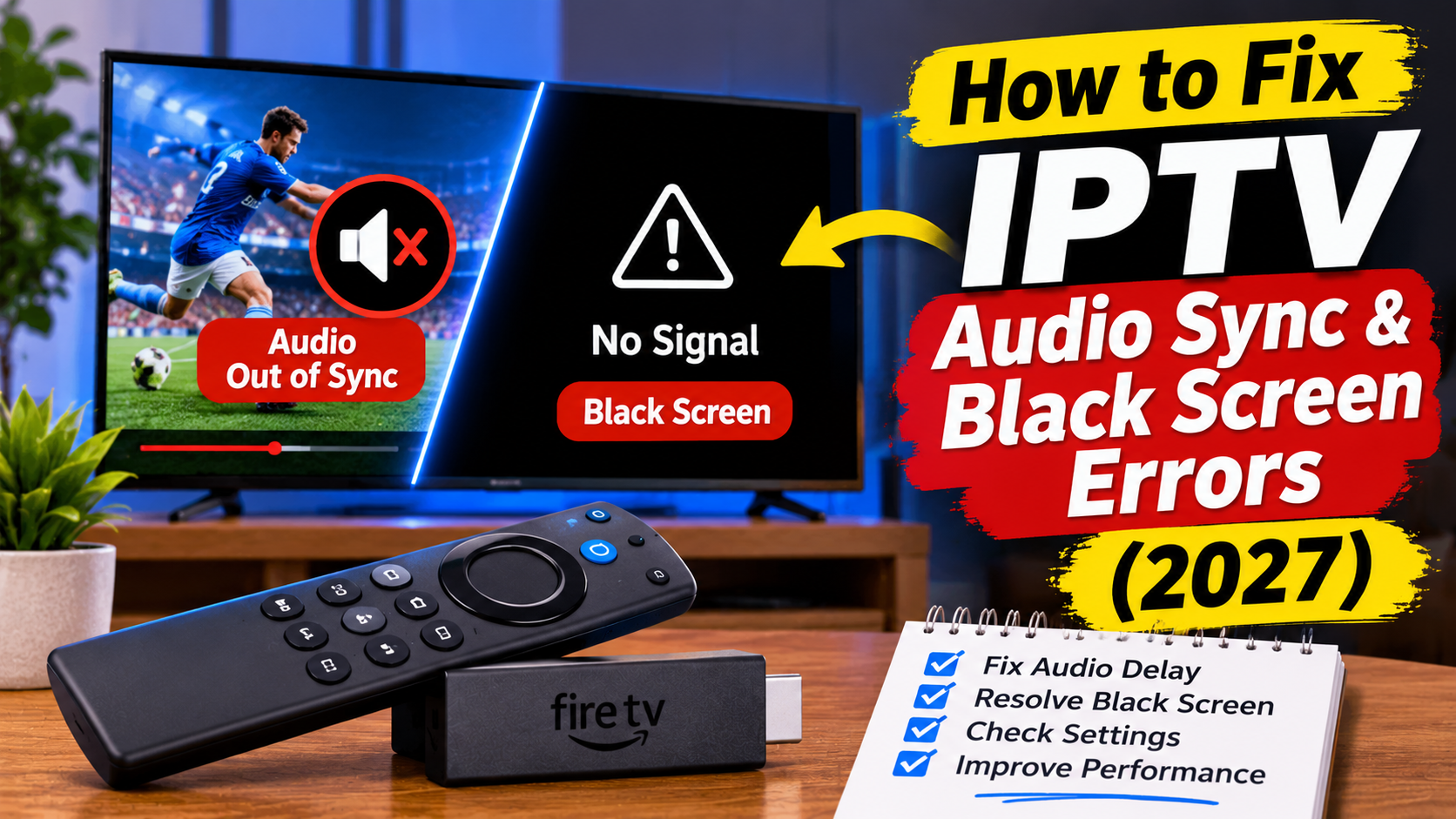
Are you experiencing IPTV audio out of sync, a black screen, or video playing without sound? These problems can make watching live TV, sports, and movies frustrating, especially when everything was working properly before.
IPTV playback problems can happen on Amazon Firestick, Android TV boxes, Smart TVs, Google TV, and other streaming devices. Sometimes the issue is caused by your IPTV player, while other times it comes from your television, audio equipment, internet connection, or the stream itself.
The good news is that many IPTV audio and video problems can be fixed with a few simple adjustments.
In this guide, you'll learn how to fix IPTV audio sync errors, black screen problems, missing sound, and playback issues in 2027.
Before changing settings, it's important to understand what might be causing the problem.
Common IPTV playback issues include:
Audio playing before or after the picture.
Black screen while the audio continues.
Picture appearing without sound.
IPTV channels showing a blank screen.
Video freezing while audio continues.
Playback problems after changing channels.
Unsupported video or audio formats.
Incorrect IPTV player decoder settings.
HDMI or soundbar connection problems.
Identifying the exact symptom can help you find the right solution without changing settings unnecessarily.
One of the most common IPTV problems is audio that doesn't match the picture.
You might hear someone speaking before their lips move, or the sound may arrive several seconds after the video.
This is commonly called an audio sync or lip-sync problem.
Possible causes include:
Incorrect audio decoder settings.
Soundbar or receiver processing delays.
Bluetooth audio latency.
Television picture processing.
IPTV player compatibility issues.
A delayed audio or video feed.
Change to another IPTV channel.
Return to the original channel.
Close and reopen your IPTV application.
Restart your streaming device.
Test the same content using your television speakers.
If the audio is synchronized through the TV speakers but not through your soundbar, the problem may be related to your external audio equipment.
Amazon Fire TV devices include audio settings that may help correct sound delays.
On compatible models, you can use the AV Sync Tuning feature.
Follow these steps:
Open Firestick Settings.
Select Display & Sounds.
Choose Audio.
Look for AV Sync Tuning.
Follow the on-screen synchronization test.
Use your remote to adjust the timing.
Press Select or OK to confirm.
Not every Fire TV model offers the same audio settings, so the menu may look different depending on your device and software version.
If you use a soundbar or home theatre system, check its lip-sync or audio-delay settings as well.
Sometimes your television or soundbar may have difficulty processing a particular surround-sound format.
Changing the audio output to PCM or Stereo can help identify whether the problem is related to audio decoding.
Open Settings.
Select Display & Sounds.
Choose Audio.
Find the available surround sound or Dolby Digital settings.
Try a compatible stereo or PCM option if available.
Play the IPTV channel again.
Open Settings.
Select Display & Sound or Sound.
Find Audio Output or Surround Sound.
Select PCM or Stereo if available.
Restart playback and test the sound.
Menu names vary between manufacturers and models.
If the sound works correctly after changing the output format, the original audio format or external equipment may have been causing the problem.
If IPTV video is black, distorted, or playing without sound, the decoder settings may be responsible.
Some IPTV players allow you to choose between hardware and software decoding.
Hardware decoding uses the device's dedicated video processing hardware.
Software decoding uses the device's processor to handle playback.
Depending on the device and video format, changing the decoder can resolve certain playback problems.
Open your IPTV application.
Start playing the affected channel.
Open the playback settings.
Find the decoder or playback engine option.
Switch between Hardware and Software if available.
Restart the channel and test again.
If one setting causes freezing or a distorted picture, switch back to the previous option.
Hardware decoding is often a good starting point, but compatibility varies depending on the device and stream format.
Are you hearing the television programme but seeing a completely black screen?
This can indicate that the audio stream is working while the video is not being decoded or displayed correctly.
Possible causes include:
Unsupported video codec.
Hardware decoding problems.
Video format incompatibility.
HDMI connection problems.
Incorrect display settings.
A problem with the individual IPTV stream.
Change to another channel.
Switch the IPTV decoder between Hardware and Software.
Restart the IPTV player.
Check for application updates.
Restart your Firestick or Android TV box.
Test another compatible video stream.
If the black screen only affects one channel, the issue may be with that particular stream rather than your streaming device.
If you see a black screen and hear nothing, the problem may be related to the stream, application, connection, or content source.
Try the following:
Check that your television is not muted.
Confirm that the correct HDMI input is selected.
Test another IPTV channel.
Restart your IPTV player.
Check your internet connection.
Reload your playlist if appropriate.
Contact your IPTV provider if multiple channels are unavailable.
If every channel shows a black screen, check your connection and application configuration before changing advanced device settings.
HDMI connection problems can sometimes cause a black screen, missing audio, or intermittent display problems.
This is particularly important if you use an Android TV box, Firestick, soundbar, or AV receiver.
Try these steps:
Make sure your streaming device is firmly connected.
Select the correct HDMI input on your television.
Try another available HDMI port.
Disconnect and reconnect the HDMI cable.
Restart your television and streaming device.
If possible, test the device directly on the television without a receiver or soundbar.
If the picture returns when you change HDMI ports, the original connection may have been the problem.
Bluetooth headphones and speakers can introduce additional audio delay.
If your IPTV picture looks correct but the sound arrives late, temporarily disconnect your Bluetooth device.
Then test the same channel using your television's built-in speakers.
If the audio sync improves, the Bluetooth connection may be contributing to the delay.
You can then check whether your headphones or speakers offer a low-latency mode or synchronization adjustment.
Outdated IPTV applications may experience compatibility problems, playback bugs, or decoder issues.
Check for available updates through the official app store or the developer's approved distribution channel.
Popular IPTV players include:
TiviMate
IPTV Smarters
Sparkle TV
OTT Navigator
Televizo
These applications are IPTV media players, not television channel providers. You need an authorized content source to watch live television and on-demand programming.
Application availability varies between Fire TV, Android TV, Google TV, and other platforms.
Temporary application files can sometimes contribute to slow performance or playback problems.
Clearing the cache may help if your IPTV player freezes, stops responding, or behaves unexpectedly.
Open Settings.
Select Applications.
Choose Manage Installed Applications.
Select your IPTV player.
Choose Clear Cache.
Restart the application.
Avoid selecting Clear Data unless you are prepared to configure the application again. This may remove saved settings and login information.
Although audio sync problems are not always caused by internet speed, an unstable connection can cause interruptions that affect playback.
A weak connection can result in:
IPTV buffering.
Frozen pictures.
Interrupted audio.
Repeated loading screens.
Poor video quality.
Here are general internet speed recommendations:
| Streaming Quality | Suggested Download Speed |
|---|---|
| SD | 5 Mbps |
| HD | 10 Mbps |
| Full HD | 15–20 Mbps |
| 4K | 25 Mbps or higher |
These are general guidelines, not guaranteed minimums. Network stability and stream quality also matter.
For a more reliable connection:
Restart your router.
Move your streaming device closer to the router.
Reduce unnecessary network activity.
Use Ethernet where supported.
Test your internet speed.
Sometimes the issue has nothing to do with your Firestick, Android TV box, or IPTV application.
A particular channel may have an incorrect audio track, video format, or synchronization problem.
To check:
Open another channel in the same IPTV application.
Test a different category.
Play content from another streaming application.
Return to the original channel.
If only one IPTV channel has an audio sync or black screen problem, contact your provider and report the affected channel.
If the same problem happens across several applications, investigate your device, television, or audio equipment instead.
Use this checklist to work through the most common problems.
Change to another IPTV channel.
Restart your IPTV application.
Restart your Firestick or Android TV box.
Test your television speakers.
Check your audio output settings.
Try PCM or Stereo audio.
Adjust AV Sync if available.
Switch the IPTV decoder.
Check your HDMI connection.
Disconnect Bluetooth audio temporarily.
Clear the IPTV app cache.
Check for application updates.
Contact your provider if only specific channels are affected.
IPTV audio can become out of sync because of decoder problems, soundbar delays, Bluetooth latency, television processing, or an incorrectly synchronized stream. Test another channel and your TV speakers before changing settings.
This may be caused by a video decoding problem, unsupported video format, or HDMI issue. Try switching the IPTV player decoder between Hardware and Software and testing another channel.
A black screen with no sound may indicate a problem with the stream, playlist, internet connection, application, or content source. Check another channel and restart your IPTV player.
On compatible Fire TV devices, open Settings, Display & Sounds, Audio, and look for AV Sync Tuning. You can also test PCM or Stereo audio output and check your soundbar settings.
It can. Switching between hardware and software decoding may resolve certain video compatibility problems. However, the correct setting depends on the device and stream format.
Yes. A soundbar or AV receiver can introduce audio processing delays. Test your television's built-in speakers and adjust the audio-delay settings if necessary.
Reinstalling may help if the application is corrupted or repeatedly crashing. Before uninstalling, make sure you have your login details and playlist configuration information.
Not usually when the delay is constant. Slow or unstable internet can cause buffering and playback interruptions, but a steady lip-sync delay is more often related to the player, audio equipment, television, or source stream.
IPTV audio sync errors, black screens, and missing sound can have several different causes. The best way to fix them is to identify whether the problem comes from the IPTV stream, application, streaming device, television, or audio equipment.
Start with simple troubleshooting steps such as changing channels, restarting your IPTV player, checking your HDMI connection, and testing your television speakers.
If the picture is black but sound continues, investigate video decoding. If the sound is delayed, check the audio output and AV sync settings. If only one channel is affected, contact your provider.
With the right adjustments, you can resolve many common IPTV playback problems and enjoy a smoother streaming experience in 2027.
Related IPTV Guides:
How to Stop IPTV Buffering: Fix Freezing & Lag in 2027
How to Fix Firestick App Crashing & Freezing Issues (2027)
How to Set Up IPTV Smarters Pro on Smart TV & Firestick (2027)
How to Fix Common TiviMate EPG Errors & Missing TV Guides (2027)