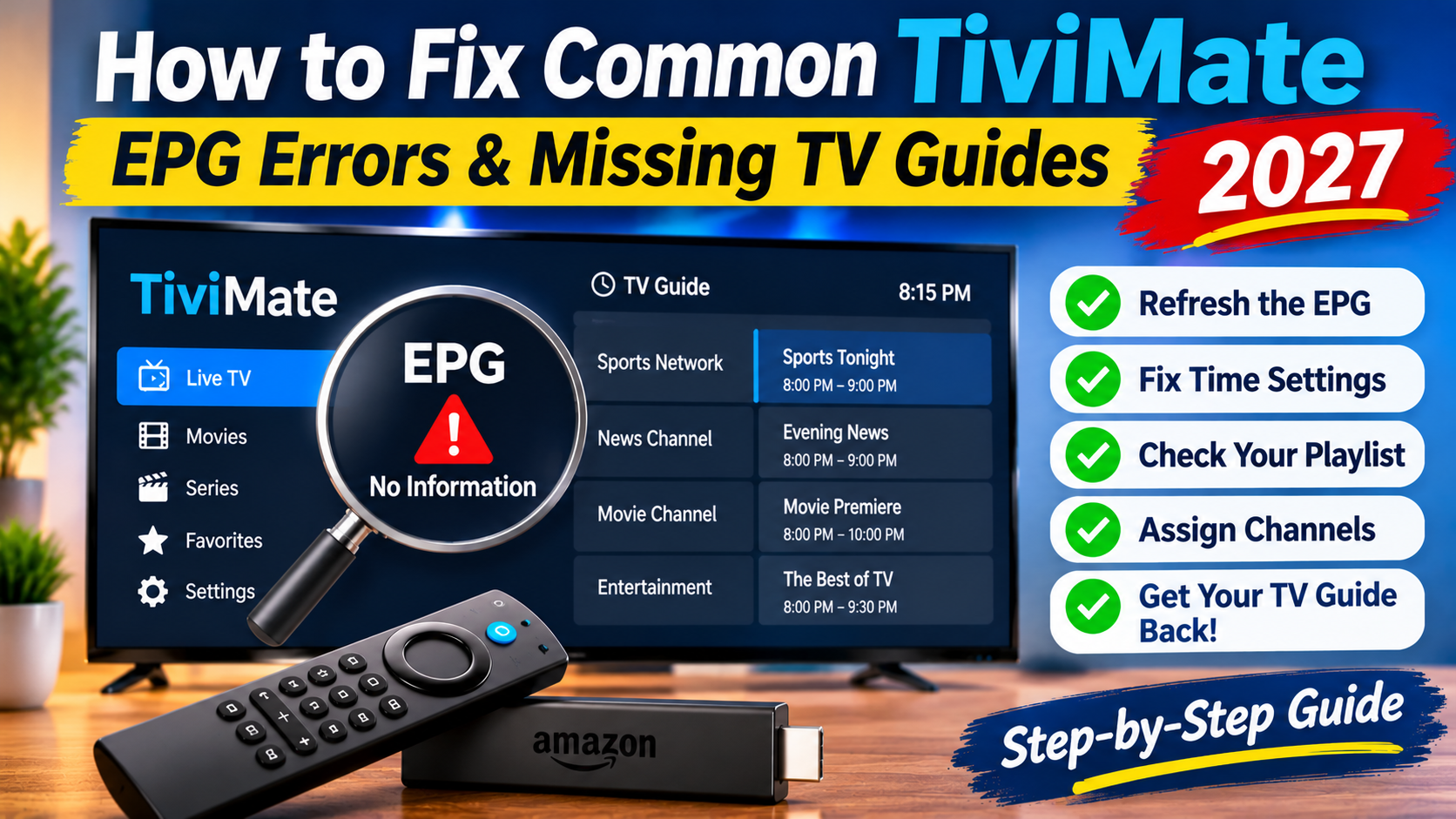
Having problems with the TV guide in TiviMate? If your channels are working but the programme information is missing, outdated, or showing the wrong times, you're likely experiencing an EPG problem.
The Electronic Program Guide (EPG) is an important feature of TiviMate. It displays what's currently playing, upcoming programmes, and television schedules for your channels.
When the EPG stops working, you may see messages such as:
No Information
No Programme Information
EPG Update Failed
Missing TV Guide
Incorrect Programme Times
Empty Channel Listings
The good news is that many EPG problems can be fixed by refreshing the guide, checking your playlist settings, or correcting the time offset.
In this 2027 troubleshooting guide, we'll explain the most common TiviMate EPG errors and show you how to fix them step by step.
EPG stands for Electronic Program Guide.
It is the television schedule displayed inside TiviMate. Instead of simply showing a list of channels, the guide provides information about current and upcoming programmes.
Depending on the information supplied by your content provider, an EPG can display:
Programme names
Show descriptions
Start and end times
Current television programmes
Upcoming shows
Sports schedules
Movie and entertainment listings
TiviMate is a media player. It displays guide information supplied by an external source, such as your authorized IPTV provider. It does not create television schedules itself.
This means that missing guide information can be caused by the application, playlist configuration, internet connection, or the provider's EPG data.
One of the most common problems is opening TiviMate and finding that every channel displays No Information.
This usually means the guide data has not loaded or the application cannot access its EPG source.
Start TiviMate on your Firestick or Android TV device.
From the main screen, open Settings using the gear icon.
Select EPG from the settings menu.
Depending on your version, you may see options for EPG sources, update intervals, and guide data.
Select Update EPG or the equivalent refresh option.
Allow the application time to download the guide information.
Avoid closing the application while a large guide is downloading.
Return to your channel guide and check whether programme information has appeared.
If the guide remains blank, continue with the next troubleshooting steps.
If your TV guide worked previously but has stopped updating, the stored guide information may be outdated or the source may no longer be responding.
Try the following:
Open TiviMate.
Select Settings.
Open EPG.
Check the update settings.
Run a manual EPG update.
Wait for the download to finish.
Reopen the television guide.
You should also check whether automatic EPG updates are enabled.
If your version provides an update interval, choose a reasonable schedule such as daily updates, depending on how frequently your provider refreshes its guide.
If manual updates continue to fail, the EPG source itself may be unavailable. Contact your provider to check whether its guide address or service has changed.
Sometimes the guide loads successfully, but programmes appear one or more hours early or late.
For example:
A programme scheduled for 8:00 PM appears at 7:00 PM.
A live sports event appears at the wrong time.
Every channel shows a schedule shifted by the same number of hours.
This is usually related to the device's time zone or the EPG source's time settings.
Open your Firestick or Android TV settings.
Find Date and Time and check that:
Automatic date and time is enabled.
The correct time zone is selected.
Daylight saving adjustments are handled correctly where applicable.
Open TiviMate and navigate to the EPG settings.
If your version provides a Time Offset option, check whether an adjustment has been applied.
Make small changes until the programme schedule matches the actual broadcast times.
Do not change the offset randomly. First verify the device clock and time zone.
Another common problem is having a mostly working TV guide while a few channels show No Information.
This can happen when the channel identifier in your playlist does not match the identifier in the EPG source.
For example, your playlist might contain a channel named:
Sports Channel HD
But the guide source may identify it as:
Sports Channel
The channel can still play normally, but TiviMate may not automatically connect it to the correct programme schedule.
Depending on your TiviMate version:
Open the channel list.
Highlight the channel with missing information.
Press and hold the Select or OK button on your remote.
Look for Assign EPG or the channel's EPG assignment option.
Search for the matching guide entry.
Select the correct channel listing.
Repeat the process for other channels with missing programme information.
Make sure you select the correct regional version of a channel when several similar entries are available.
TiviMate needs access to a compatible EPG source to display television schedules.
The setup depends on how you added your playlist.
Some compatible account configurations provide guide information automatically.
If your guide suddenly disappears, check that your playlist is still active and refresh it using the playlist settings.
If the problem continues, ask your provider whether its EPG service is working.
Some M3U playlists require a separate EPG or XMLTV address.
If your provider supplied one, make sure it has been entered correctly.
Check for:
Missing characters
Extra spaces
Incorrect addresses
Expired links
Changes made by your provider
Do not substitute a random guide URL. The source needs to contain compatible listings for your channels.
If the guide remains blank or contains outdated information, refreshing the stored EPG data may help.
Open TiviMate.
Go to Settings.
Select EPG.
Choose Clear EPG if available.
Confirm the action.
Select Update EPG.
Wait for the guide to download again.
This removes stored guide information and allows the application to retrieve it again from the configured source.
Important: Clear EPG is different from clearing all application data. Avoid selecting Clear Data unless you understand that it can remove saved application settings and playlist information.
If TiviMate displays an update error, the application may be unable to retrieve information from the guide source.
Possible causes include:
Incorrect EPG address
Expired or unavailable source
Internet connection problems
Provider-side server issues
Network restrictions
Insufficient device storage
Try these checks in order:
Confirm your device is connected to the internet.
Check whether other applications can access the internet.
Verify that your playlist is still active.
Check the EPG source address with your provider.
Restart TiviMate.
Restart your Firestick or Android TV device.
Try updating the EPG again.
If the same error appears, contact your provider and explain the exact error message.
Large playlists and extensive guide files can sometimes make the EPG slow to load, particularly on devices with limited storage or processing power.
Try these improvements:
Remove unused applications.
Free up device storage.
Reduce the number of days of guide information stored, if supported.
Hide channel groups you never use.
Restart TiviMate after refreshing the guide.
Restart your streaming device if performance remains poor.
You can also clear the application's cache through your device settings.
On Firestick, the general route is:
Open Settings.
Select Applications.
Choose Manage Installed Applications.
Select TiviMate.
Choose Clear Cache.
Be careful not to select Clear Data unless you intend to reset the application.
Sometimes the TiviMate application is working correctly, but the guide information supplied by the content source is incomplete or unavailable.
Signs of a provider-side EPG problem include:
The guide stops at the same date on several devices.
The same channels are missing information everywhere.
Manual updates repeatedly fail.
The guide source is unavailable.
Programme listings are outdated despite successful refreshes.
Contact your provider and ask:
Is the EPG currently working?
Has the EPG address changed?
Is the guide available for all subscribed channels?
Does the playlist include compatible guide information?
Are there known server problems?
If the source itself has stopped updating, changing settings in TiviMate will not create new programme listings.
There is no single configuration that works perfectly for every playlist or device. However, these general practices can help keep your guide organized.
| Setting | Suggested approach |
|---|---|
| Automatic EPG update | Enable if available |
| Manual EPG update | Use when listings are missing or outdated |
| Update interval | Daily is a reasonable starting point |
| Time offset | Match the device and guide time zones |
| EPG storage period | Keep only the days you need |
| Unused channel groups | Hide if they are not needed |
| Device storage | Keep sufficient free space |
The best settings depend on the size of your playlist, the guide source, and your device's available storage.
Before reinstalling the application or changing your playlist, work through this checklist.
Check that your internet connection is working.
Confirm your content subscription is active.
Open TiviMate EPG settings.
Run a manual EPG update.
Check that an EPG source is configured.
Verify your playlist information.
Check the device's date and time settings.
Correct the EPG time offset if necessary.
Assign guide information to individual channels if needed.
Clear EPG data and download it again if necessary.
Check available device storage.
Contact your provider if the source is unavailable.
Following these steps can help identify whether the problem is related to the app, your device, or the guide source.
This usually means the EPG source is missing, unavailable, or has not downloaded successfully. Check the EPG settings and run a manual update.
Possible causes include an unavailable guide source, an incorrect EPG address, disabled automatic updates, internet problems, or an inactive content subscription.
Open Settings, select EPG, and choose the manual update option. Allow the guide to finish downloading before leaving the application.
The channel identifiers in your playlist may not match the identifiers in the guide source. You may be able to assign the correct EPG entry manually.
Check your device's date, time, and time zone. If those are correct, review the EPG time offset setting.
Clearing EPG information is different from clearing the application's data. The EPG refresh option should remove guide data rather than your playlist, but always check the confirmation message before proceeding.
No. TiviMate displays EPG information supplied by an external source. The guide data normally comes from your content provider or a separately configured guide source.
Basic TV guide functionality is available without Premium. Some additional features, such as recording and other advanced functions, may require Premium.
Missing or incorrect EPG information can make TiviMate frustrating to use, especially when you rely on the television guide to find upcoming programmes.
Fortunately, many problems can be resolved by refreshing the guide, checking the playlist, correcting the time settings, or assigning missing channel information.
Remember that TiviMate only displays the guide data it receives. If the EPG source supplied by your provider is unavailable or incomplete, the provider may need to correct the problem.
Work through the troubleshooting steps in this guide before resetting your application or changing your setup.
Quality TV is here to help you improve your IPTV experience with practical setup instructions, troubleshooting advice, and streaming guides.