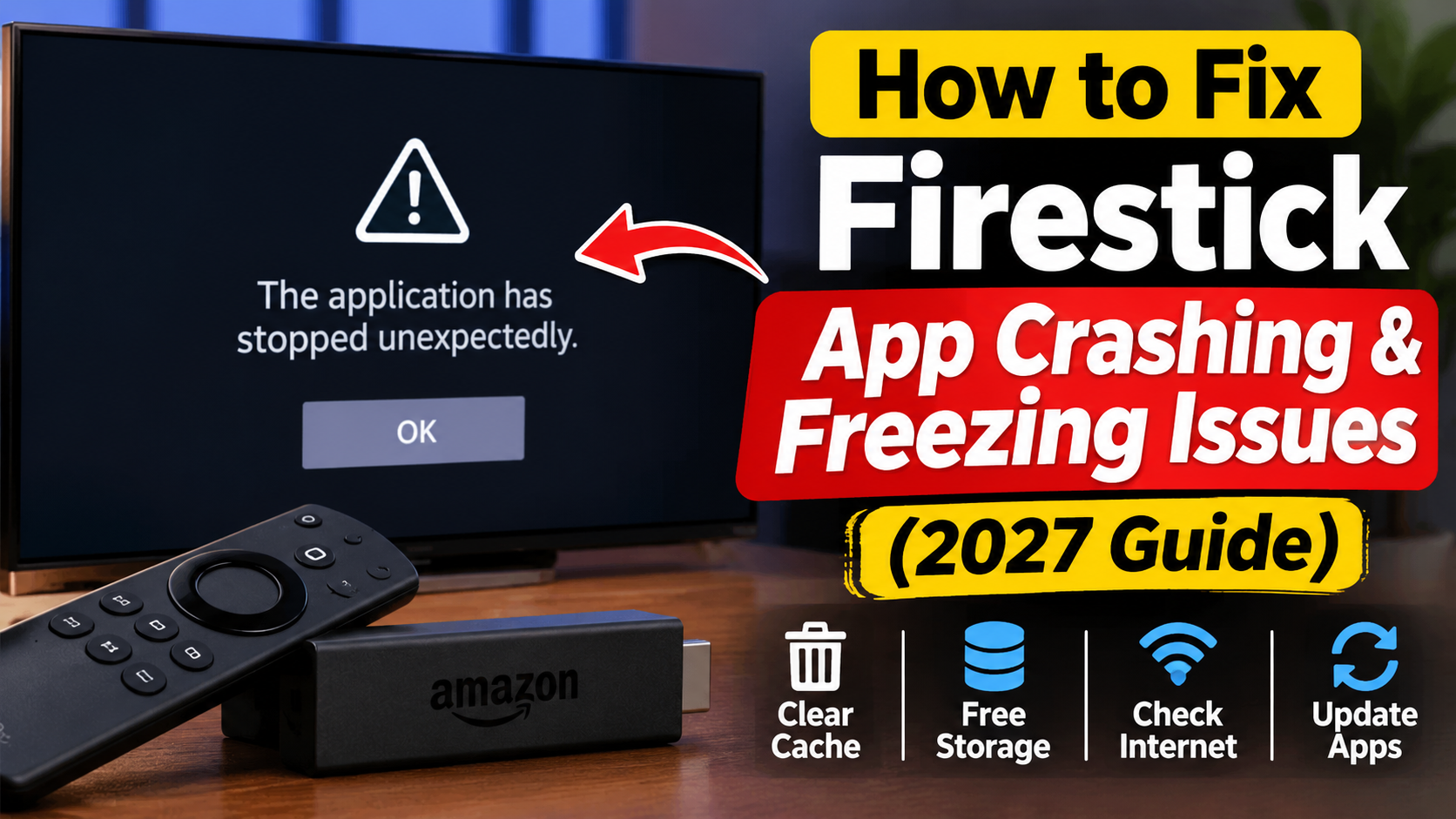
Is your Firestick app constantly crashing, freezing, or closing unexpectedly? Whether you're watching IPTV, streaming movies, or using your favourite television apps, these problems can quickly become frustrating.
Amazon Fire TV Stick devices are convenient for streaming, but like any electronic device, they can experience performance problems. Applications may freeze during playback, stop responding, crash when opening, or return to the Firestick home screen without warning.
If your IPTV app keeps crashing on Firestick, the problem could be related to limited storage, corrupted cache files, outdated software, network issues, or application compatibility.
In this guide, we'll show you how to fix Firestick app crashing and freezing issues in 2027, including common IPTV problems and practical troubleshooting steps.
There are several reasons why applications may stop working properly on an Amazon Firestick.
Some of the most common causes include:
Too many applications running or using device resources
Low available storage space
Corrupted temporary app files
Outdated Firestick software
Outdated IPTV applications
Unstable internet connections
Application compatibility problems
Overheating or power supply issues
Temporary problems with the app or streaming service
Identifying the cause can help you fix the problem without unnecessarily resetting your entire device.
Restarting your Firestick is one of the easiest ways to fix temporary application problems.
If an IPTV app freezes, crashes, or becomes unresponsive, restarting the device can refresh its system and clear temporary glitches.
Follow these steps:
Press the Home button on your Firestick remote.
Open Settings.
Select My Fire TV.
Choose Restart.
Wait for your Firestick to reboot.
Open the application again.
You can also unplug the Firestick from its power source for approximately 30 seconds before reconnecting it.
Tip: Use the supplied power adapter when possible. A weak or unstable power source can contribute to unexpected device behaviour.
Temporary files are stored by streaming applications to help them load faster. However, cached files can sometimes become corrupted or contribute to performance problems.
If your IPTV app keeps freezing or crashing, clearing its cache may help.
Open Settings.
Select Applications.
Choose Manage Installed Applications.
Find the application that is crashing.
Select Clear Cache.
Reopen the app and test it.
This method can help with IPTV Smarters, TiviMate, and other compatible Fire TV applications.
Important: Choose Clear Cache first. Clear Data is different and may remove saved settings, playlists, and login information.
Firestick devices have limited internal storage. When available space becomes very low, applications may become slow, freeze, or crash.
Removing applications you no longer use can help free up space.
Open Firestick Settings.
Select My Fire TV.
Open About.
Find Storage, if available on your device software.
Check how much space remains.
You can also open Manage Installed Applications to review installed apps and their storage usage.
Consider removing unused games, streaming applications, and other software you no longer need.
Keeping sufficient free storage can help your Firestick run more smoothly.
Running outdated Fire TV software can sometimes cause application compatibility problems.
Amazon periodically releases software updates that may include performance improvements, security fixes, and compatibility changes.
Open Settings.
Select My Fire TV.
Choose About.
Select Check for Updates.
Install any available update.
Restart your Firestick if required.
After updating, open your IPTV application and check whether the crashing problem has improved.
An outdated IPTV player may experience bugs, playback problems, or compatibility issues.
Check whether your application has an available update through its official app store or the developer's official distribution channel.
Some popular IPTV player applications include:
TiviMate: Known for its customizable TV guide and live television features.
IPTV Smarters: Offers a straightforward interface for compatible IPTV services.
Sparkle TV: Provides live TV and recording features on supported devices.
OTT Navigator: Offers advanced customization and playback options.
Televizo: A player designed for compatible IPTV playlists.
Remember that IPTV player applications do not automatically provide television channels. You need an authorized content source to access live TV and on-demand programming.
An unstable internet connection can cause IPTV applications to freeze, buffer, or stop responding during playback.
Even if the application opens correctly, poor network performance can interrupt streaming.
Try these steps:
Restart your internet router.
Move your Firestick closer to your Wi-Fi router.
Reduce other devices using your internet connection.
Try connecting to a different Wi-Fi band if available.
Use Ethernet if your device and network equipment support it.
Here are general internet speed recommendations for IPTV streaming:
| Streaming Quality | Suggested Download Speed |
|---|---|
| SD | 5 Mbps |
| HD | 10 Mbps |
| Full HD | 15–20 Mbps |
| 4K | 25 Mbps or higher |
These are general guidelines. Actual performance also depends on network stability, stream quality, and other internet activity.
If an application becomes stuck or refuses to open properly, force stopping it can help.
This closes the application so you can launch it again.
Open Settings.
Select Applications.
Choose Manage Installed Applications.
Select the application causing problems.
Choose Force Stop.
Return to the Firestick home screen.
Open the application again.
Force stopping an application does not normally delete your saved settings or login information.
Firestick devices can become warm during extended streaming sessions.
Excessive heat may contribute to performance problems, unexpected restarts, or instability.
To reduce overheating:
Keep the Firestick in a well-ventilated area.
Avoid placing it directly against hot surfaces.
Make sure ventilation openings are not blocked.
Avoid enclosing the device in a small, poorly ventilated space.
Allow the device to cool if it becomes unusually hot.
If overheating continues, inspect the device and power connection for possible hardware problems.
If a particular IPTV app continues crashing after restarting and clearing its cache, reinstalling it may help.
Before uninstalling, make sure you have the information needed to configure it again.
Open Settings.
Select Applications.
Choose Manage Installed Applications.
Select the problem application.
Choose Uninstall.
Restart your Firestick.
Reinstall the application using its official app store or developer-approved distribution method.
Sign in or configure your authorized content source again.
Important: Uninstalling an application can remove its saved information. Make sure you have your login details and configuration information before proceeding.
Sometimes the problem is not your Firestick or IPTV application.
Your IPTV provider may be experiencing a temporary interruption, server maintenance, or problems with individual streams.
Try opening different channels or content within the application.
If every channel is affected, investigate your internet connection and contact your provider.
If only one channel is affected, the problem may be with that particular stream.
If the app crashes before playback begins, investigate the application and Firestick itself.
Choose a legitimate IPTV provider that has the appropriate distribution rights and provides clear customer support information.
An unreliable power connection can cause unexpected restarts, freezing, and other performance problems.
For best results:
Use the original Firestick power adapter when possible.
Check that the power cable is securely connected.
Inspect the cable for visible damage.
Try another compatible power outlet.
Avoid relying on a television USB port if it cannot provide sufficient power.
If the Firestick repeatedly restarts or loses power, the adapter or cable may need attention.
If your Firestick continues crashing after trying the previous solutions, a factory reset may help resolve deeper software problems.
However, this should be your last option because it removes installed applications, saved settings, and account information.
Before resetting, make sure you have access to your Amazon account and the login details needed to reinstall and configure your applications.
Open Settings.
Select My Fire TV.
Choose Reset to Factory Defaults.
Confirm the reset.
Wait for the Firestick to restart.
Complete the initial setup again.
After resetting, reinstall only the applications you need and test their performance.
Here is a quick troubleshooting reference for some frequently reported problems.
| Problem | What to Try |
|---|---|
| IPTV app keeps crashing | Force stop and clear cache |
| Firestick freezes on startup | Restart the device |
| IPTV app closes during playback | Check updates and device storage |
| IPTV channels keep buffering | Test internet speed and Wi-Fi |
| App will not open | Clear cache or reinstall |
| Firestick runs slowly | Remove unused applications |
| Device restarts unexpectedly | Check power supply and overheating |
| One IPTV channel freezes | Test other channels and contact provider |
Common causes include outdated software, low storage, corrupted cache files, application compatibility issues, and temporary software problems. Start by restarting your Firestick and clearing the application's cache.
Restart your Firestick, check available storage, clear temporary app files, update your software, and make sure your device has a reliable power supply.
Clearing cache normally removes temporary files without deleting saved account information. However, clearing app data or reinstalling the application may remove saved playlists, settings, and login details.
An application may be crashing because of software bugs, limited storage, compatibility issues, or temporary system problems. Check for updates and try force stopping the affected application.
A slow or unstable connection can cause buffering and playback interruptions. However, an app that closes completely may have a separate software or device-related problem.
Not immediately. Try restarting the device, clearing app caches, freeing storage, checking updates, and testing the power supply first. Consider replacing the device only if problems continue and hardware limitations or faults are suspected.
Firestick app crashing and freezing problems can be frustrating, especially when you're trying to watch live TV, sports, movies, or your favourite IPTV channels.
Fortunately, many problems can be fixed with a few simple troubleshooting steps.
Start by restarting your Firestick, clearing the IPTV app cache, checking available storage, and installing software updates. If the problem continues, investigate your internet connection, power supply, and the application itself.
By following these steps, you can improve Firestick performance, reduce IPTV interruptions, and enjoy a more reliable streaming experience in 2027.
Related IPTV Guides:
How to Stop IPTV Buffering: Fix Freezing & Lag in 2027
How to Set Up IPTV Smarters Pro on Smart TV & Firestick (2027)
Top 5 Best IPTV Apps for Firestick & Android TV in 2027
How to Fix Common TiviMate EPG Errors & Missing TV Guides (2027)