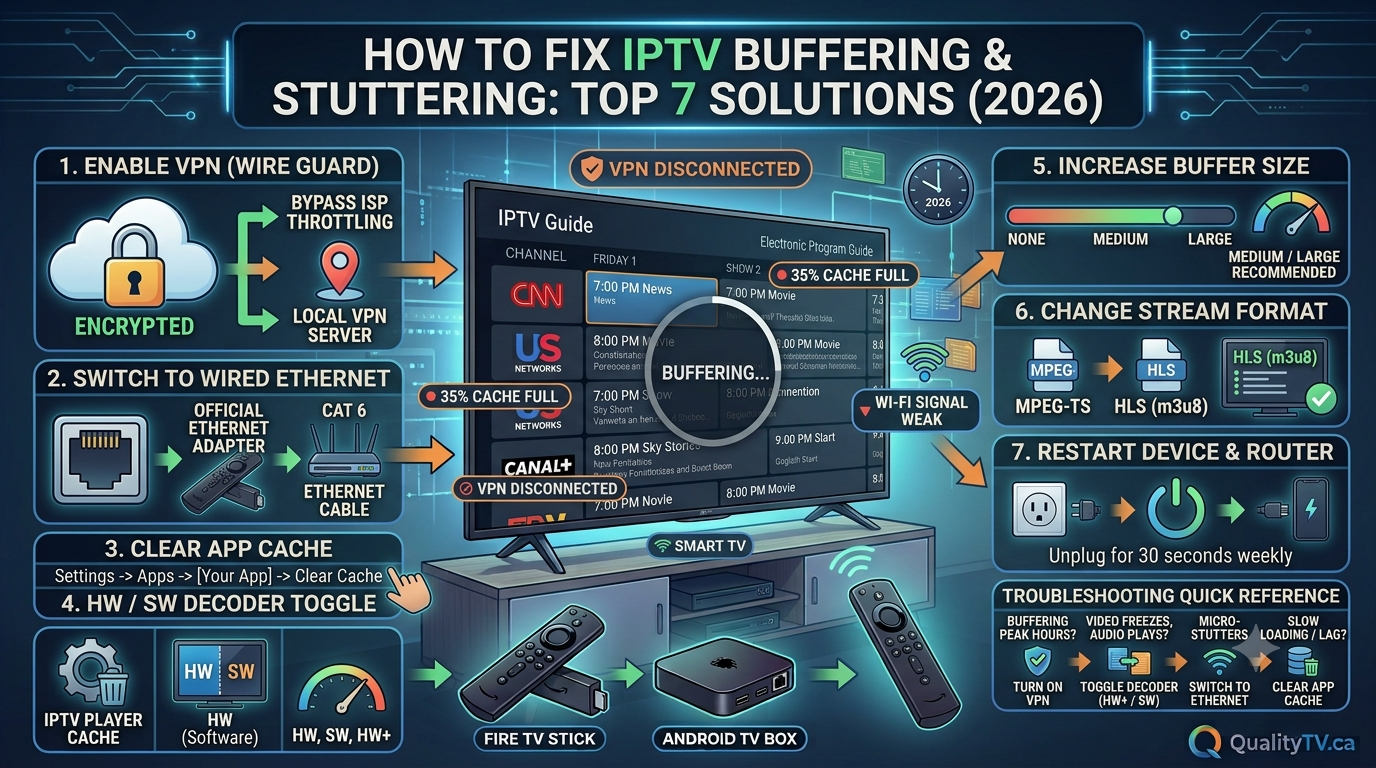
Are you tired of IPTV buffering, constant stuttering, freezing channels, or interrupted live TV? You're not alone. IPTV buffering is one of the most frustrating problems streaming users experience, especially when watching live sports, movies, or their favourite television channels.
The good news is that many IPTV buffering problems can be fixed without purchasing a new Firestick, upgrading your television, or changing your IPTV subscription.
In this comprehensive 2026 guide, we'll explain how to fix IPTV buffering and stuttering, improve streaming performance, optimize your internet connection, and get the most out of your IPTV experience.
Whether you're using an Amazon Firestick, Android TV Box, Smart TV, Google TV, or another compatible streaming device, these troubleshooting tips can help you enjoy smoother playback.
One of the most common causes of IPTV buffering is an unstable or slow internet connection.
IPTV requires a consistent flow of data to play video without interruptions. Even if your internet package offers fast download speeds, network congestion or inconsistent Wi-Fi can cause buffering.
| Streaming Quality | Suggested Speed |
|---|---|
| SD | 5 Mbps |
| HD | 10 Mbps |
| Full HD 1080p | 15–25 Mbps |
| 4K Ultra HD | 25–50 Mbps |
These are general recommendations. Actual requirements depend on video bitrate, network conditions, and the streaming device.
Quick fix: Run an internet speed test using a trusted speed-testing website. Test your connection more than once, especially during the evening when internet traffic may be higher.
Sometimes the simplest solution is the most effective.
Your router, modem, Firestick, or Android TV Box can develop temporary connection or software problems after running continuously.
Follow these steps:
Turn off your streaming device.
Unplug your modem and router.
Wait approximately 30 seconds.
Reconnect your modem and router.
Allow your internet connection to reconnect.
Restart your streaming device.
Open your IPTV application and test playback.
Restarting your equipment can resolve temporary network issues and restore a more stable connection.
Wi-Fi is convenient, but it isn't always the most reliable option for IPTV streaming.
Wireless interference, distance from your router, thick walls, and competing devices can affect connection stability.
An Ethernet connection provides a direct wired network connection and can reduce wireless interference.
If your streaming device supports Ethernet, consider using a compatible Ethernet adapter.
Pro tip: If Ethernet isn't practical, position your router in an open location and avoid placing your Firestick behind a television where the wireless signal may be weaker.
Most modern routers support both 2.4 GHz and 5 GHz Wi-Fi connections.
Understanding the difference can help improve IPTV performance.
2.4 GHz Wi-Fi
Better coverage over longer distances.
Can travel through walls more effectively.
May experience interference from other wireless devices.
5 GHz Wi-Fi
Can provide faster speeds at shorter distances.
Often experiences less interference.
Works best when your streaming device is relatively close to the router.
Try both frequencies and choose the one that provides the most stable connection.
IPTV applications can accumulate temporary cached files over time.
Although cache is designed to improve performance, application problems or excessive temporary data can sometimes contribute to slowdowns.
Open Settings.
Select Applications.
Choose Manage Installed Applications.
Find your IPTV application.
Select Clear Cache.
Reopen your IPTV application.
Be careful not to select Clear Data unless necessary, as this may erase your saved settings and login information.
Running multiple applications simultaneously can consume available system resources.
This can affect performance, especially on streaming devices with limited memory.
Try closing applications you aren't using and restarting your device.
Also consider uninstalling applications you no longer need.
Keeping your device clean and organized can help improve overall responsiveness.
Overheating can contribute to slow performance, unexpected restarts, and streaming interruptions.
Firesticks are compact devices, and their operating temperature can increase during extended streaming sessions.
Try these improvements:
Keep your Firestick in a well-ventilated area.
Avoid placing it directly behind a hot television.
Use an HDMI extender if appropriate.
Keep ventilation areas unobstructed.
Use the recommended power adapter.
Avoid direct sunlight.
If your Firestick becomes unusually hot or frequently restarts, check its power supply and ventilation.
Sometimes buffering isn't caused by your internet connection. Your IPTV application may have playback settings that affect compatibility.
Depending on the application, you may be able to adjust:
Video decoder settings.
Hardware acceleration.
Buffer size.
Playback engine.
Stream format compatibility.
If your IPTV player supports hardware and software decoding options, try switching between them to see whether playback improves.
Change one setting at a time and test the same channel.
Not every IPTV application offers these options, and the best configuration depends on your device and video format.
Outdated software can create compatibility issues and playback problems.
Check for available updates for your streaming device and IPTV application.
For Firestick:
Open Settings.
Select My Fire TV or Device & Software.
Select About.
Choose Check for Updates.
For applications, check the relevant application store or the provider's official update instructions.
Keeping software updated can help resolve known bugs and improve device compatibility.
Sometimes the problem isn't your Firestick, Wi-Fi, or internet connection.
The IPTV streaming source itself may be experiencing:
Server overload.
Temporary maintenance.
Channel-specific outages.
High traffic during major sporting events.
Problems with individual streams.
Try these simple tests:
Open several different IPTV channels.
Test another video streaming application.
Check whether the buffering happens only on certain channels.
Test your IPTV connection on another compatible device.
If other streaming services work properly but multiple IPTV channels continue buffering, contact your IPTV provider to investigate possible service-side issues.
IPTV buffering can become more noticeable during busy periods, particularly when large sporting events or popular live broadcasts attract high numbers of viewers.
If buffering happens mainly during evening hours, try testing your connection at different times.
You should also:
Reduce unnecessary network activity.
Pause large downloads.
Avoid simultaneous high-bandwidth streaming.
Use Ethernet where possible.
Check with your internet provider if your connection becomes unstable during peak hours.
Remember that local network congestion and IPTV server congestion are two different problems.
Not all IPTV playback problems involve buffering.
Some users experience stuttering video, delayed audio, or picture freezing while sound continues.
Try these troubleshooting steps:
Video stuttering: Test another channel and check whether the device supports the video's resolution and format.
Audio delay: Look for audio synchronization settings in your IPTV player or television.
Picture freezing: Restart the player and test another stream.
Black screen: Check the HDMI connection, restart the application, and try another channel.
Frequent app crashes: Clear the application cache, check available storage, and install available updates.
If only one particular channel has problems, the issue may be with that stream rather than your device.
Before replacing your streaming device or changing your IPTV service, work through this checklist:
Test your internet speed.
Restart your modem and router.
Restart your Firestick or Android TV Box.
Try an Ethernet connection.
Test both Wi-Fi frequencies.
Clear your IPTV application cache.
Close unnecessary applications.
Check available device storage.
Check for software updates.
Test different IPTV channels.
Contact your IPTV provider if problems continue.
Following these steps can help identify the source of most common IPTV streaming problems.
Fast internet doesn't always mean a stable connection. Wi-Fi interference, network congestion, router problems, and IPTV server performance can all contribute to buffering.
Restart your streaming device, test your internet connection, clear the IPTV app cache, and check your player settings. If the problem continues on individual channels, the stream itself may be responsible.
A VPN does not automatically improve streaming performance. In some circumstances, it may help with ISP routing issues, but it can also reduce connection speeds. Test your connection with and without a VPN, where permitted by your network and service provider.
Evening hours can bring increased internet traffic and streaming demand. Your local network, internet provider, or IPTV streaming servers may experience congestion.
Yes. Limited storage, overheating, software problems, weak Wi-Fi reception, and application compatibility can all affect streaming performance.
Use a stable internet connection, keep your device updated, maintain adequate storage, avoid overheating, and troubleshoot application or provider-side problems when they occur.
IPTV buffering and stuttering don't always mean you need a faster internet package or a new streaming device.
In many cases, the solution involves improving Wi-Fi stability, restarting your equipment, clearing application cache, updating software, or identifying problems with individual streaming sources.
By following the troubleshooting steps in this guide, you can identify common causes of IPTV buffering and work toward a smoother, more reliable streaming experience.
At Quality TV, we're committed to helping viewers get more from their entertainment experience with useful IPTV guides, Firestick tips, streaming advice, and troubleshooting resources.
Stay informed, optimize your setup, and enjoy your favourite entertainment with fewer interruptions!