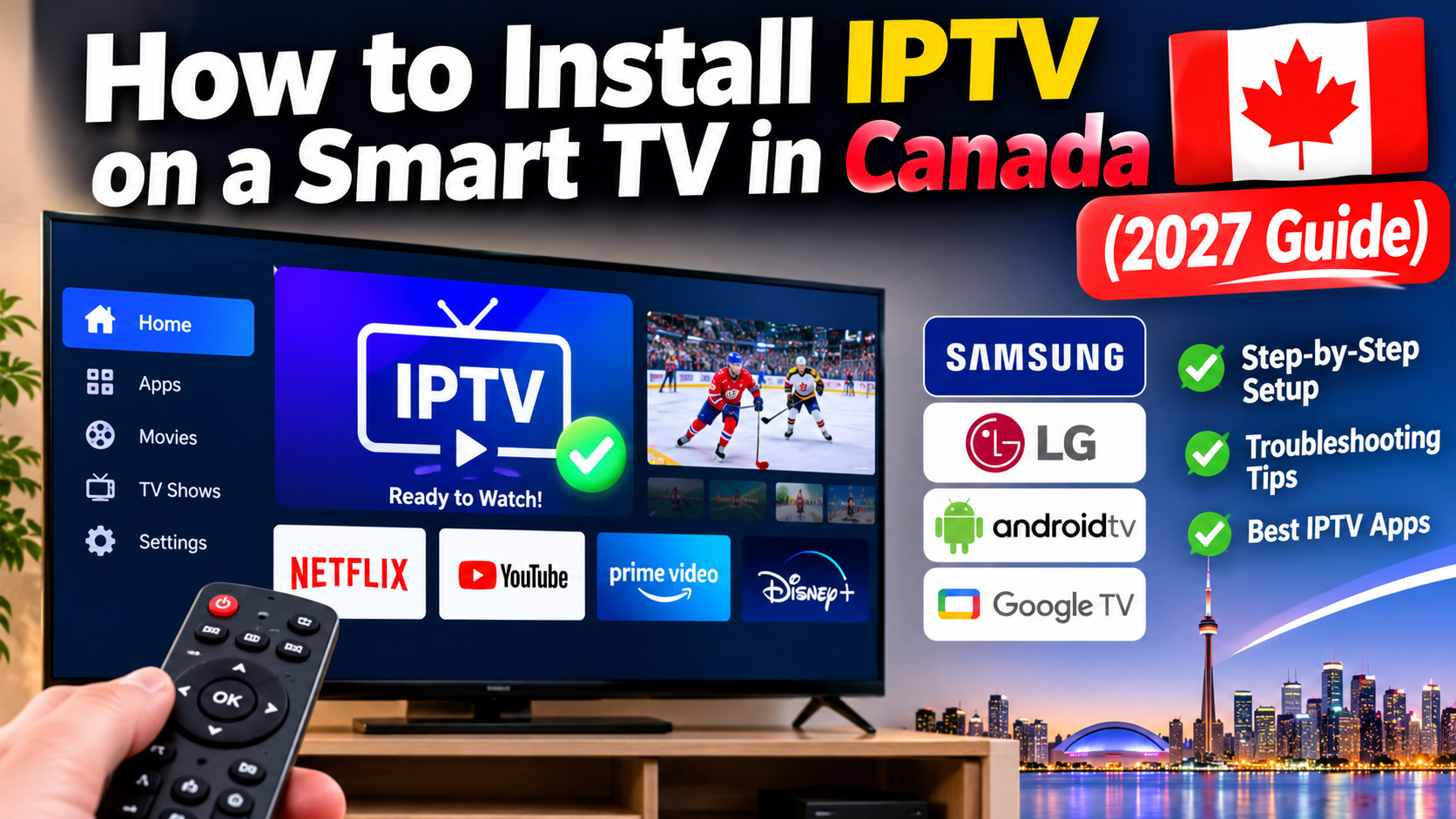
Want to watch IPTV on your Smart TV without connecting a cable box? Installing a compatible IPTV application can make it possible to watch live television, sports, movies and other programming directly on your television.
Many Canadian households use Samsung, LG, Android TV and Google TV devices for streaming. However, installing IPTV isn't exactly the same on every television. The steps depend on your TV's operating system, the applications it supports and the IPTV service you use.
In this 2027 guide, we'll explain how to install IPTV on a Smart TV, how to set up your account, which devices support IPTV applications and what to do if an app isn't available.
Before getting started, make sure you have everything needed for the installation.
You'll generally need:
A Smart TV connected to the internet.
An IPTV application compatible with your television.
An authorized IPTV subscription or content source.
Your provider's supported login information.
A stable home internet connection.
Your television remote control.
Some IPTV applications are available directly through a television's app store. Others may only be available on Android TV, Google TV or an external streaming device.
Important: An IPTV player is not necessarily an IPTV content provider. Applications such as IPTV Smarters and TiviMate are players that require a compatible playlist or authorized service. Installing the application alone does not provide television channels.
Samsung Smart TVs use the Tizen operating system. Compatible applications can be installed through Samsung's Apps or Smart Hub menus.
Follow these steps:
Turn on your television and connect it to your home Wi-Fi network or Ethernet connection.
A stable connection is important for downloading applications and streaming television.
Press the Home button on your Samsung remote.
Navigate to the Apps section or use the Search option, depending on your television model.
Use the search function to look for a compatible IPTV player.
The applications available may depend on your TV model, software version and Canadian app-store region.
If the application appears in the search results:
Select the application.
Open its information page.
Select Install.
Wait for the installation to finish.
Select Open to launch it.
You can also add the application to your home screen for easier access.
Open the IPTV application and follow its setup instructions.
Depending on the application, you may be asked for:
A username and password.
A server address.
An M3U playlist URL.
An EPG address, if supported.
Only use the login details and playlist information supplied by your authorized provider.
After entering the correct information, allow the application to load the available channel list and programme information.
If everything is configured correctly, you should be able to browse the available content.
LG Smart TVs use webOS. Apps are installed through the Apps menu or LG Content Store, depending on the television's model and software version.
Not every IPTV application supports every LG television.
Press the Settings button on your remote and open the network settings.
Connect your television to your home internet connection.
Press the Home button on your LG remote.
Look for Apps or LG Content Store, depending on your webOS version.
Use the search function to find a compatible IPTV application.
Check the application details before installing it. Some applications may only support specific webOS versions or television models.
Select the application and choose Install.
Once the download is complete, open the app from your home screen.
Follow the application's instructions to enter your authorized provider details.
Supported login methods may include account credentials or a playlist URL.
The available options depend on the IPTV player.
Open the live television section and select a channel.
If programme listings are available, check the electronic programme guide (EPG) to see current and upcoming shows.
What if the IPTV app isn't available on LG?
If you cannot find a compatible IPTV application in the LG app store, your TV may not support that particular player.
You can consider connecting an external streaming device, such as a compatible Android TV or Google TV device, instead.
Android TV offers access to compatible applications through the Google Play Store.
This can make installing an IPTV player relatively straightforward.
Turn on your Android TV and navigate to the Apps section.
Open Google Play Store.
Use the search function to look for a compatible IPTV player.
Examples of IPTV player applications include:
TiviMate.
IPTV Smarters, where available.
Televizo.
OTT Navigator.
Other compatible IPTV players.
Availability and features can vary by country, device and application version.
Select the application from the search results.
Choose Install and wait for the download to finish.
Open the newly installed IPTV player.
You may need to accept its terms or complete an initial setup process.
Select the supported login method.
Depending on the application, you may be able to enter:
Your provider's username and password.
A server address.
An M3U playlist.
Supported EPG information.
Follow the instructions provided by the application and your authorized IPTV provider.
Once the playlist has loaded, browse the available categories and channels.
You can also organize favourite channels and adjust supported playback settings.
Google TV provides a television-focused interface with access to compatible Google Play applications.
The installation process is similar to Android TV.
Turn on your Google TV.
Open the Apps section.
Select Search.
Enter the name of a compatible IPTV player.
Select the application from the results.
Choose Install.
Open the application after installation.
Enter your authorized IPTV account information.
If the application doesn't appear in the search results, it may not be available for your device or region.
Check the application's compatibility information before trying another installation method.
No. Not every Smart TV supports every IPTV application.
Different television manufacturers use different operating systems, and applications must be developed for the relevant platform.
Here is a general comparison:
| Smart TV platform | IPTV app installation |
|---|---|
| Samsung Tizen | Compatible apps through Samsung Apps |
| LG webOS | Compatible apps through LG Apps or Content Store |
| Android TV | Compatible apps through Google Play |
| Google TV | Compatible apps through Google Play |
| Amazon Fire TV | Compatible apps through the supported app marketplace |
An application available on Android TV may not be available on Samsung Tizen or LG webOS.
Always check the exact television model, operating system and app compatibility before choosing an IPTV player.
You don't necessarily need to replace your television if it cannot install the IPTV application you want.
An external streaming device can provide another way to access compatible IPTV players.
Common options include:
Amazon Fire TV devices.
Android TV streaming boxes.
Google TV streaming devices.
Other compatible streaming media players.
Connect the device to an available HDMI port, connect it to the internet and install an application supported by its operating system.
This can be a practical option for older Smart TVs that no longer receive certain applications.
Your internet connection plays an important role in IPTV performance.
As a general planning guide, consider these speeds per simultaneous stream:
| Streaming quality | Suggested speed |
|---|---|
| SD | 5–8 Mbps |
| HD | 10–15 Mbps |
| 4K | 25–35 Mbps |
These are practical targets rather than guaranteed minimums. Actual requirements vary with video bitrate, compression and provider performance.
If several televisions are streaming simultaneously, allow additional bandwidth for each stream and other connected devices.
For a more detailed explanation, see our guide to How Much Internet Speed Do You Need for IPTV in 2027?
Sometimes an IPTV application installs successfully but doesn't work as expected.
Here are some common problems and possible solutions.
The application may not support your television's operating system, model or region.
Try this:
Check your TV's operating system.
Search for the application using its exact name.
Check the developer's compatibility information.
Look for an alternative compatible player.
Consider an external streaming device if necessary.
Incorrect account information can prevent the application from loading your playlist.
Try this:
Check your username and password.
Confirm the server address.
Check whether your subscription is active.
Make sure you're using the correct login method.
Contact your authorized provider if the information is rejected.
If the application opens but channels do not play, the issue may involve the playlist, internet connection or content source.
Try this:
Restart the IPTV application.
Test your internet connection.
Refresh the playlist if supported.
Check whether other channels work.
Contact your provider if the problem continues.
Buffering can be caused by weak Wi-Fi, network congestion, device limitations or problems with the content provider.
Try this:
Move your router closer to the television.
Use a wired Ethernet connection if supported.
Restart your router.
Reduce unnecessary internet activity.
Test another streaming application.
An application may crash because of outdated software, limited storage or compatibility problems.
Try this:
Restart your television.
Check for software updates.
Update the IPTV application if available.
Remove unused applications to free storage.
Reinstall the application through the official app store.
IPTV is a technology for delivering television content over internet connections. Using IPTV technology or an IPTV player is not automatically illegal in Canada.
The important issue is whether the service or content source has the necessary rights and authorization to distribute the programming.
Before using an IPTV service, look for clear provider information, legitimate billing practices and evidence that the content is properly licensed.
Avoid services that advertise access to copyrighted programming without authorization.
Once your IPTV application is installed, a few adjustments can make everyday use easier.
Keep your television software updated.
Install applications through trusted app stores.
Use a stable Wi-Fi or Ethernet connection.
Organize your favourite channels.
Configure the EPG if your application supports it.
Restart your television if an application becomes unresponsive.
Avoid installing unknown files or applications from untrusted websites.
Also remember that the IPTV player, television and content provider all contribute to the overall viewing experience.
You can install IPTV players that are available and compatible through Samsung's Apps platform. Not every IPTV application supports Samsung Tizen.
Yes, if a compatible IPTV application is available for your LG television's webOS version and region. Check the LG app store before choosing a player.
Not always. Some Smart TVs support IPTV player applications directly. An external Android TV or Google TV device is an alternative when your television does not support the application you want.
Yes, provided your authorized service and subscription allow the number of simultaneous connections you need. You may also need to configure the IPTV player separately on each television.
The IPTV player itself may be free or paid, depending on the application. Watching subscription-based channels generally requires a separate authorized content source.
The application may not be available for your television's operating system, model or region. Check the official app store and the developer's current compatibility information.
It depends on the television's operating system, software support and available applications. If your TV cannot run a compatible IPTV player, an external streaming device may be an option.
Installing IPTV on a Smart TV in Canada can be straightforward when you choose an application that supports your television.
Samsung, LG, Android TV and Google TV all have different app installation processes, so the first step is identifying your TV's operating system.
Once you've installed a compatible IPTV player, you can configure your authorized content source, load available channels and organize your viewing experience.
If your Smart TV doesn't support the application you want, an external streaming device may provide another solution.
Choose compatible applications, use authorized IPTV content sources and keep your television software updated for a better streaming experience in 2027.