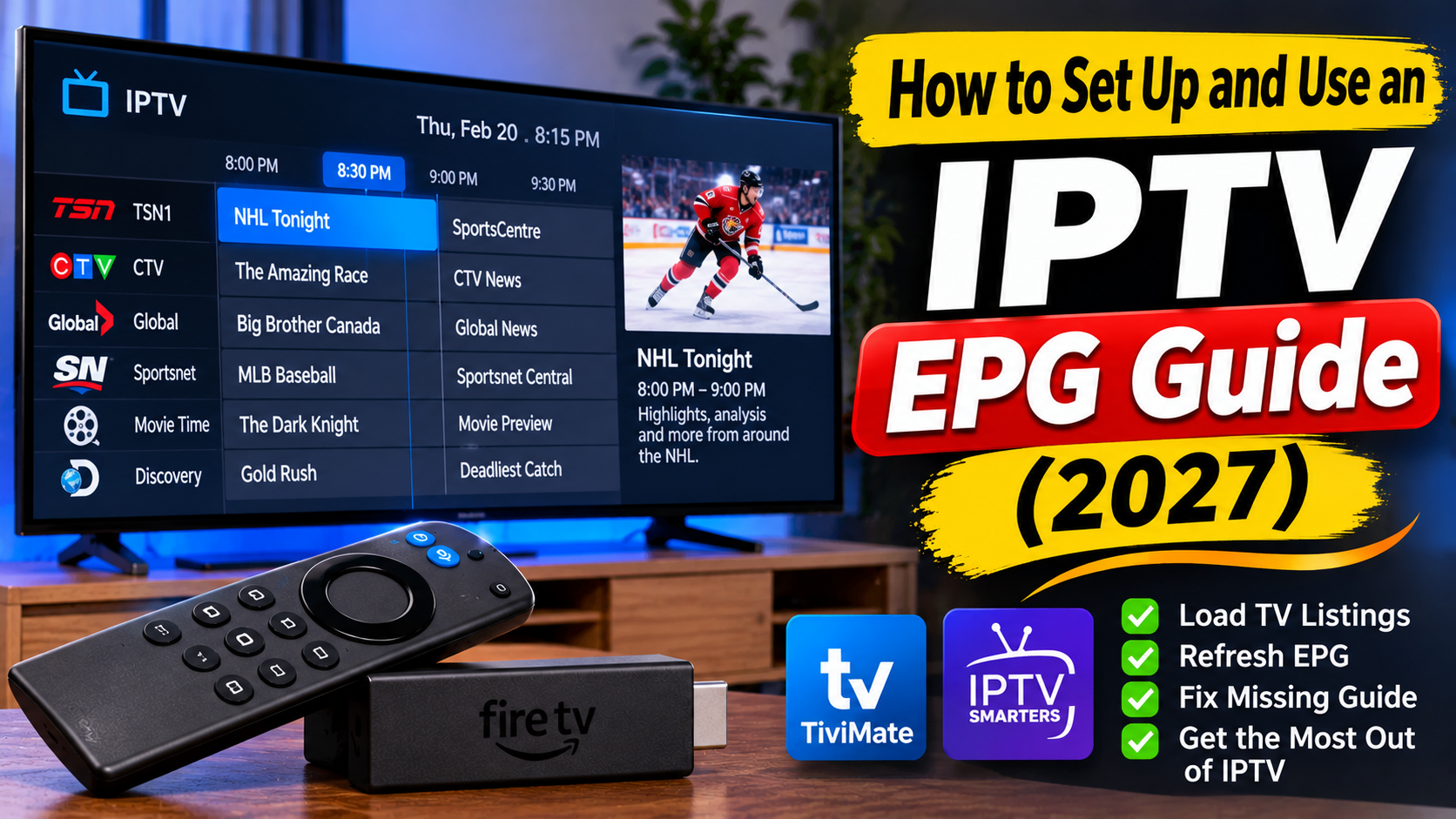
An Electronic Programme Guide (EPG) makes watching IPTV much easier by showing what's currently playing and what is coming up next. Instead of scrolling through channel names without knowing what's on, an IPTV EPG displays programme titles, schedules, descriptions and viewing times in an organized TV guide.
Whether you use a Firestick, Android TV box, Smart TV or another compatible streaming device, setting up an EPG can improve your IPTV experience.
In this 2027 guide, we'll explain what an IPTV EPG is, how to set it up, how to refresh your TV listings and how to fix common EPG problems.
EPG stands for Electronic Programme Guide. It is the on-screen TV schedule used by many IPTV services and compatible IPTV player applications.
An EPG typically displays:
Current television programmes
Upcoming shows and broadcast times
Channel names and programme information
Sports schedules and live events
Movie and entertainment listings
Programme descriptions
An IPTV player may display channels without an EPG, but the viewing experience is much more convenient when programme information is available.
Important: An IPTV player and an IPTV content provider are not necessarily the same thing. Apps such as TiviMate and IPTV Smarters are players. They generally need a compatible playlist and EPG data supplied by an authorized provider or another supported source.
Before configuring your TV guide, make sure you have the following:
A compatible IPTV player.
A working IPTV subscription or authorized channel playlist.
EPG information supplied by your provider or a supported EPG source.
A stable internet connection.
A compatible Firestick, Android TV device, Smart TV or streaming box.
Some IPTV providers automatically include EPG information with their service. Others require you to add an EPG URL or configure the guide separately.
Check your provider's instructions before entering any EPG details.
TiviMate is a popular IPTV player for compatible Android TV devices. Its interface includes a traditional TV guide layout.
Follow these steps:
Launch TiviMate on your compatible streaming device.
Make sure your IPTV playlist has already been added and that your channels are loading correctly.
Navigate to the Settings menu and locate the EPG section.
Depending on your version, you may see options for EPG sources, updates, assignments and guide settings.
If your provider supplied a separate EPG URL, follow its instructions to add the source.
Enter the information exactly as provided. Incorrect addresses or missing characters can prevent the guide from loading.
If your provider automatically supplies EPG information through your playlist, a separate source may not be necessary.
Return to the EPG settings and select the option to update or refresh the guide.
Allow the application time to download the programme listings.
Open the TV guide and browse several channels.
You should see programme titles and scheduled times where guide information is available.
If some channels are missing information, the EPG may need to be matched to the correct channels.
IPTV Smarters Pro is another commonly used IPTV player. Its exact menus and features can vary depending on the version and device.
Try the following process:
Open IPTV Smarters Pro.
Sign in using the supported credentials provided by your IPTV provider.
Wait for the playlist and available programme information to load.
Open the Live TV section.
Select a channel and check whether programme information appears.
If the guide is missing, check the app's settings and your provider's EPG instructions.
Some login methods automatically include EPG information. If yours does not, ask your provider whether a separate EPG source is supported by your version of the application.
Once your EPG is working, using it is straightforward.
Open the TV guide to see the current programmes across available channels.
This makes it easier to find live sports, news, movies and entertainment without opening every channel individually.
Move through the schedule to see what's coming up later.
You can use the guide to check sports start times, upcoming shows and other scheduled broadcasts.
Select a programme to see additional details when your IPTV player and EPG source support them.
Information may include a programme description, start time, end time and other scheduling details.
Many IPTV players allow you to create favourite channel lists.
Adding frequently watched channels to your favourites can make browsing much faster.
An IPTV EPG may sometimes display blank listings, incorrect programme times or outdated information.
Here are some practical troubleshooting steps.
Start by refreshing the guide from your IPTV player's EPG settings.
Wait for the update to finish before checking the channels again.
If you manually entered an EPG URL, check that it matches the information supplied by your provider.
A changed, expired or incorrectly entered source can stop programme listings from updating.
EPG information needs an internet connection to download and update.
Restart your router if your connection is unstable, then try refreshing the guide again.
Sometimes the guide downloads successfully but programme information does not appear beside certain channels.
This can happen when channel names or identifiers do not match between the playlist and EPG source.
If your player supports manual channel assignment, check whether the affected channels are matched correctly.
If programmes appear several hours early or late, check your device's date, time and time-zone settings.
Enable automatic date and time where supported, and confirm that the EPG settings use the correct time zone.
Close the application completely and reopen it.
If the guide still does not work, restart your streaming device and try another EPG update.
If the guide remains blank across multiple channels, the problem may be with the supplied EPG data.
Ask your provider whether its EPG source is working and whether any updated setup instructions are available.
It is possible for your IPTV service to display working channels while some programme listings remain blank.
Common reasons include:
The provider does not supply guide information for every channel.
The EPG source is outdated.
Channel identifiers do not match.
Programme schedules have not been updated.
The IPTV player does not support the supplied EPG format.
The provider has temporarily stopped supplying programme data.
A blank guide does not automatically mean the channel itself is broken. Check whether the channel plays normally before troubleshooting the EPG.
Yes, compatible IPTV applications on supported Fire TV devices can display EPG information.
The exact setup depends on the IPTV player, device operating system and EPG source.
For a smoother experience:
Use a stable internet connection.
Keep your IPTV application updated.
Use a compatible EPG source.
Refresh programme listings when needed.
Avoid running unnecessary applications in the background.
App availability and compatibility can vary between Fire TV models and operating systems, so check the application's current device requirements.
Both IPTV and cable television can provide an electronic programme guide, but the way the information is delivered is different.
| Feature | IPTV EPG | Cable TV Guide |
|---|---|---|
| Programme schedules | Yes, when supplied | Usually included |
| Internet connection | Generally required | Not always |
| Channel information | Depends on EPG source | Supplied by cable provider |
| Device compatibility | Compatible IPTV players | Cable receiver |
| Guide updates | Depends on source and provider | Managed by cable provider |
An IPTV EPG can offer a familiar television experience, provided the player and programme data are configured correctly.
A few simple habits can help keep your guide organized and up to date.
Refresh your EPG if programme listings become outdated.
Keep your IPTV player updated.
Use the correct time-zone settings.
Check channel matching when individual listings are missing.
Use favourites to organize frequently watched channels.
Contact your provider if its supplied guide data stops updating.
You should also avoid adding unknown EPG sources. Only use sources you trust and are authorized to access.
EPG stands for Electronic Programme Guide. It displays television schedules, programme names, broadcast times and other information inside a compatible IPTV player.
A blank EPG can be caused by a missing source, outdated guide information, incorrect channel matching, an internet problem or an issue with the provider's data.
It depends on your provider and IPTV player. Many applications support automatic updates, while others allow you to refresh the guide manually.
You may be able to view an EPG using a supported source, but programme listings alone do not provide access to television channels. You need an authorized content source to watch the channels themselves.
Yes. TiviMate supports electronic programme guide information from compatible sources. The available features depend on the application version and configuration.
Compatible versions can display programme information when supported EPG data is available through the playlist or provider.
Yes. First check your device's time zone and date settings. Then review the IPTV player's EPG settings and refresh the guide.
An IPTV EPG makes streaming television easier by bringing channel schedules and programme information into one convenient guide.
Whether you're using TiviMate, IPTV Smarters or another compatible IPTV player, the key is having a working playlist, a supported EPG source and the correct time settings.
If your TV guide stops working, refreshing the EPG, checking channel matching and confirming your provider's information are good places to start.
With the right setup, an IPTV electronic programme guide can make finding live television, sports and upcoming shows much simpler in 2027.
Always use IPTV services and programme sources that are authorized to provide the content you watch.