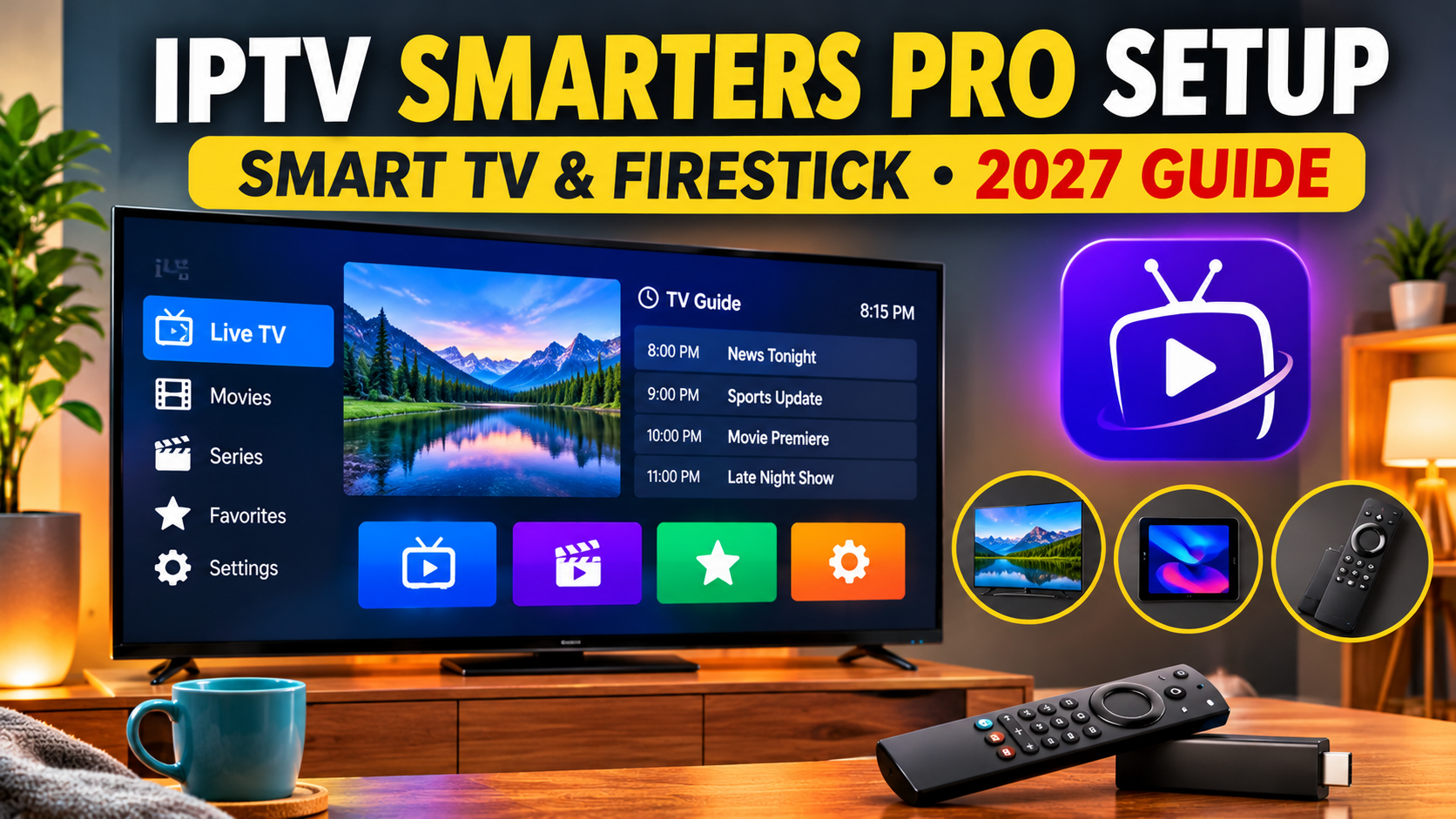
Want to set up IPTV Smarters Pro on your Smart TV or Amazon Firestick? This 2027 guide walks you through the process, from checking device compatibility to installing the app, entering your login details, and troubleshooting common problems.
IPTV Smarters Pro—also presented on its current official website as Smarters Pro—is a media player that helps organize and play compatible streaming content. It does not provide television channels or a subscription by itself. You need a separate content provider that is authorized to distribute the programming you want to watch.
Whether you're using a Samsung television, an Android TV device, or a compatible Fire TV Stick, follow the instructions for your device below.
Before installing the app, make sure you have:
A compatible Smart TV or streaming device.
A reliable internet connection.
Access to your TV's official app store, where available.
Login information or a playlist from an authorized content provider.
The correct app for your device and operating system.
Your provider may supply one of the following:
Username and password: Often used with an Xtream Codes-compatible login.
Server address: The service address supplied by your provider.
M3U playlist: A compatible playlist link containing your authorized streams.
Only use credentials and content sources supplied by a provider you have verified.
Android TV and Google TV devices are among the most straightforward platforms for installing compatible media players.
Turn on your Android TV or Google TV device.
Using your remote, open the Google Play Store from the home screen.
Select the search option and enter Smarters Pro.
Check the developer information and make sure you are selecting the intended application. Avoid similarly named apps from unknown developers.
Select the app and choose Install if it is available for your device.
Wait for the installation to finish.
Return to your home screen or app library and open Smarters Pro.
Follow the instructions displayed on screen.
Choose the compatible login or playlist option provided by the app.
Depending on the version, you may be able to use an account login or an M3U playlist.
Enter the information exactly as supplied by your authorized content provider.
After submitting the correct details, allow the application to load the available content.
If your provider supplies compatible program-guide information, you may also be able to load an electronic program guide (EPG).
Samsung Smart TVs use the Tizen operating system, so Android APK files cannot be installed directly like they can on Android TV.
The simplest option is to check the Samsung Apps store for the supported Smarters application.
Turn on your Samsung Smart TV and press the Home button on your remote.
Navigate to Apps.
Open the search function and enter Smarters Pro.
Before installing, check the app name and seller information carefully.
The current official Smarters Pro website identifies its Samsung Smart TV app and instructs users to verify the developer as TECH SMARTERS PRIVATE LIMITED.
Do not assume that every application with a similar name is the official one.
If the correct app is available for your television, select Install.
Wait for the installation to finish and then select Open.
Follow the application's instructions to add your authorized playlist or account details.
If your provider uses a compatible username, password, and server address, enter each field carefully.
Once your content has loaded, test a few authorized streams and check that the program guide and channel listings display correctly.
Note: App availability can depend on your Samsung TV model, region, and software version. If you cannot find the app, check the official developer's compatibility information before trying another installation method.
LG Smart TVs use webOS, which is different from Android TV and Samsung Tizen.
You cannot install an Android APK directly on an LG television.
Turn on your LG Smart TV and press the Home button.
Open the LG Content Store or Apps section, depending on your model.
Search for Smarters Pro or IPTV Smarters Player.
Check the app's developer information and compatibility details.
If the correct compatible application appears in your TV's app store, follow the installation instructions.
The current official Smarters Pro website lists LG support as coming soon, so availability may be limited or may change. Check the official website and your local LG app store before proceeding.
If Smarters Pro is not available for your LG TV, you can consider a compatible player listed in the LG Content Store or use an external streaming device that supports the application.
Do not attempt to install an Android APK directly onto webOS.
Fire TV installation depends on the Firestick model, operating system, region, and app availability.
Connect your Firestick to your television and make sure it has an internet connection.
From the home screen, select Find or Search.
Enter Smarters Pro or IPTV Smarters in the search field.
If the intended application is available in the Amazon Appstore for your device, review the developer details and select Download or Get.
After installation, open the app from your Fire TV app library.
Follow the on-screen setup instructions.
Choose a supported login method.
Enter the username, password, server address, or playlist information supplied by your authorized provider.
Check every character before submitting.
Wait for the application to process the playlist and load the available categories.
Depending on the content source, you may see live television, movies, series, or an electronic program guide.
Not every Fire TV device supports the same applications or installation methods. Some models and operating-system versions may restrict third-party app installation.
If Smarters Pro is not available in your Amazon Appstore, check the official developer's instructions and your exact Fire TV model's compatibility before attempting any alternative installation.
Avoid unofficial APK websites, copied download codes, and unknown installation links. Installing an unverified file can expose your device and personal information to security risks.
Once the application is installed, you need to connect it to a compatible content source.
The exact menu names may differ between app versions.
If your provider supplies a compatible username, password, and server address:
Open Smarters Pro.
Select the appropriate login option.
Enter a profile name if requested.
Enter your username.
Enter your password.
Enter the server address exactly as supplied.
Select Add User or Login.
Do not change the server address or remove any required port information.
If your provider supplies an M3U playlist:
Open the playlist section.
Select the option to add a playlist.
Choose the M3U option if available.
Enter the playlist name.
Paste or type the complete playlist link.
Save the playlist.
Some versions may use different labels or offer additional playlist options.
Only add playlists from sources that are authorized to distribute the content.
An electronic program guide displays television schedules and helps you see what is currently playing and what is coming next.
If your provider supplies compatible EPG information, follow these steps:
Open the app's settings.
Find the EPG or TV guide section.
Select the option to refresh or update the guide.
Wait for the information to load.
Return to the live TV section and check the schedule.
If the guide is empty, the problem may be missing or incorrect EPG information from the content source rather than the app itself.
Once your content has loaded, you can make the app easier to use.
Depending on the version, look for options to:
Add channels to favourites.
Organize channel groups.
Search for a specific channel.
Change the display layout.
Select an available audio track.
Enable supported subtitles.
Adjust parental controls.
A little organization can make a big difference when using a television remote.
Even when the application is installed correctly, you may occasionally experience problems.
Here are some common issues and practical troubleshooting steps.
If you see a login error:
Check your username and password.
Confirm that the server address is correct.
Look for extra spaces when copying information.
Check whether your provider's account is active.
Contact your provider if the credentials no longer work.
Do not repeatedly guess passwords or change server information.
If the application opens but the content does not appear:
Check your internet connection.
Refresh the playlist if the app supports it.
Confirm that your playlist has not expired.
Check whether the content source is available.
Restart the application.
If the problem continues, contact the authorized content provider.
Buffering can be caused by several things, including:
Weak Wi-Fi signal.
Slow internet connection.
Router congestion.
Device performance limitations.
Problems with the content source.
Try moving your router closer to the television, using a supported wired connection, or restarting your network equipment.
For more troubleshooting advice, see our guide to fixing IPTV buffering and stuttering.
If Smarters Pro closes unexpectedly:
Restart your television or Firestick.
Check for available app updates.
Check for system software updates.
Make sure your device has enough free storage.
Clear the app cache if your device provides that option.
If the problem continues, contact the app developer or device manufacturer.
Apps are not always available on every device or in every region.
Check the exact TV operating system, model, and region. Use the developer's official compatibility information rather than installing files from unknown websites.
For a smoother viewing experience in 2027, consider these simple improvements:
Use a stable internet connection.
Connect through 5 GHz Wi-Fi when appropriate.
Use Ethernet if your device supports it.
Keep your television or Firestick software updated.
Close unused applications.
Keep enough free storage on your device.
Restart your router if your connection becomes unstable.
A faster internet package does not automatically eliminate buffering. Network stability and the quality of the content source also matter.
The app's pricing and available features depend on the current version and platform.
Some versions offer basic access with optional paid upgrades or activation. Check the official developer's website and the app store listing for current terms.
Remember that paying for a media-player application does not automatically include television channels or a content subscription.
A media-player application is not automatically illegal simply because it plays internet television streams.
The important question is whether the source supplying the channels, movies, and other programming has the appropriate rights to distribute that content.
Before using a service, check its business information, licensing, payment terms, privacy policy, and cancellation conditions.
Smarters Pro describes itself as a media player and states that it does not provide or sell television subscriptions or content.
No. Compatibility depends on the television's operating system, model, region, and available app store. Android TV, Samsung Tizen, and LG webOS use different installation methods.
Compatibility depends on the Fire TV model, operating system, and application availability. Check the Amazon Appstore and the official developer's instructions for your device.
You need a compatible content source or playlist to watch internet television. The player itself does not supply channels or subscriptions.
That depends on the app's terms and the content provider's account rules. Check how many devices and simultaneous streams are permitted.
The application may not be available for your TV model, operating system, or region. Check your device's app store and the official compatibility information.
Your content source may not supply compatible EPG information, or the guide may need to be refreshed.
Internet-based streaming requires an internet connection. Some versions may support local media playback, but that is different from live IPTV streaming.
Setting up Smarters Pro on a Smart TV or Firestick can be straightforward when you use the correct application for your device.
Android TV users can check Google Play, Samsung owners can search the Samsung Apps store, and Fire TV users should check their Amazon Appstore and device compatibility. LG owners should verify current webOS availability before attempting installation.
Always download applications from trusted sources, use authorized content, and keep your device software updated.
With the correct setup, Smarters Pro can provide a convenient way to organize and play compatible streaming content on your television.
Quality TV is here to help you understand IPTV technology, improve your streaming setup, and make informed choices about your home entertainment.