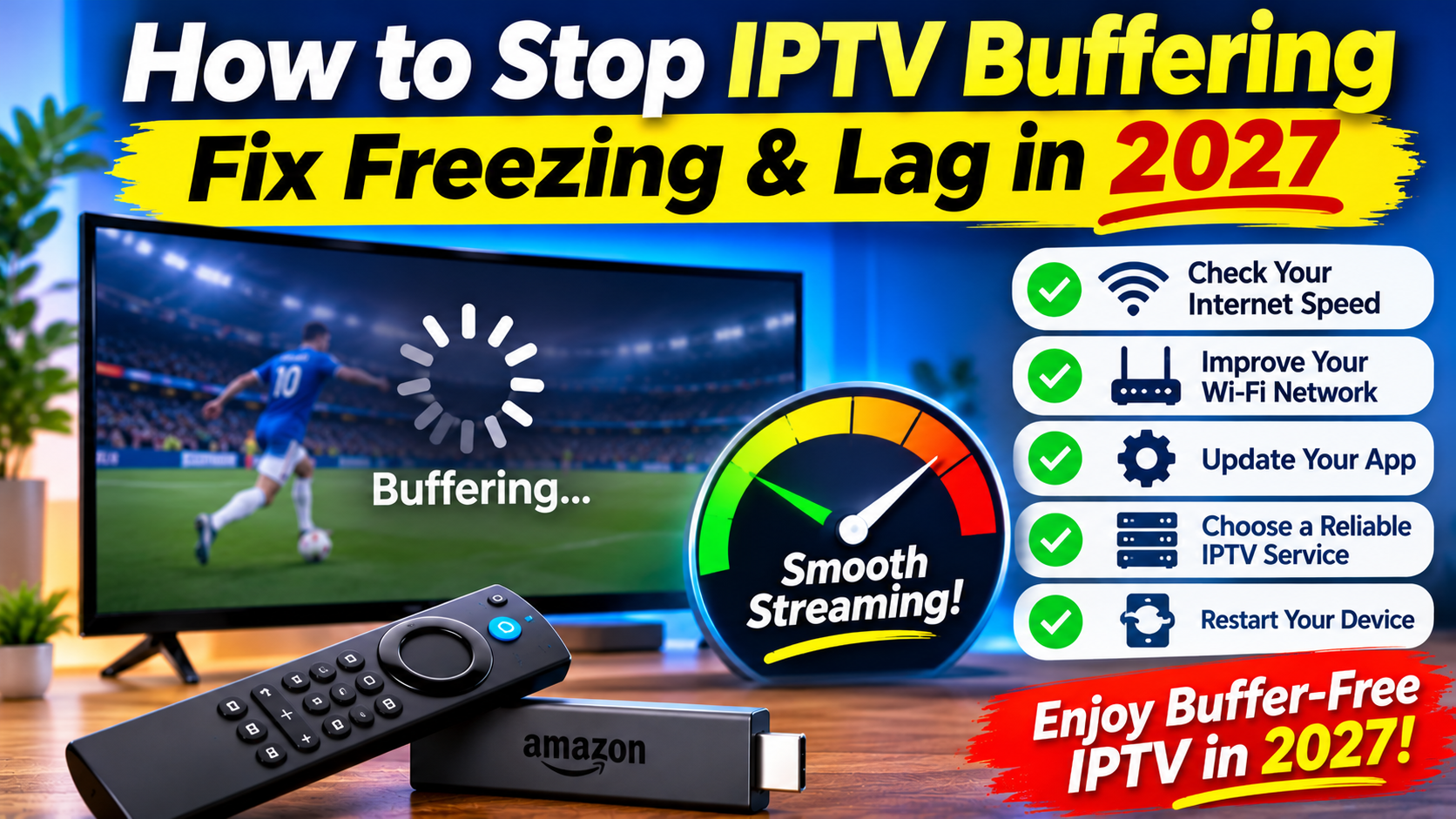
IPTV buffering can quickly ruin your favourite TV show, movie, or live sports event. If your IPTV keeps freezing, lagging, or showing a loading circle, there are several ways to improve your streaming experience.
Whether you watch IPTV on an Amazon Firestick, Android TV, Smart TV, Google TV, or another streaming device, this guide explains how to fix common IPTV buffering problems in 2027.
You don't always need a faster internet plan or a new streaming device. Sometimes, a simple restart, Wi-Fi adjustment, or app update can make a noticeable difference.
In this guide, you'll learn how to stop IPTV buffering, fix IPTV freezing, improve streaming quality, and enjoy more reliable IPTV viewing.
IPTV uses your internet connection to deliver live television and on-demand content. When your device cannot receive enough data to play the stream smoothly, buffering can occur.
There are several common reasons why IPTV keeps freezing or lagging:
Slow or unstable internet connection
Weak Wi-Fi signal
Too many devices using your network
Overloaded streaming device
Outdated IPTV application
Problems with your IPTV provider's server
Incorrect streaming settings
Network congestion during busy hours
The important thing is to identify where the problem is coming from before changing too many settings.
Your internet connection is one of the most important factors affecting IPTV streaming quality.
If your connection is too slow or unstable, you may experience IPTV buffering, freezing, or poor picture quality.
Here are general internet speed guidelines:
| Streaming Quality | Suggested Download Speed |
|---|---|
| Standard Definition (SD) | 5 Mbps |
| High Definition (HD) | 10 Mbps |
| Full HD (1080p) | 15–20 Mbps |
| 4K Ultra HD | 25 Mbps or higher |
These are general recommendations, not guarantees. Actual requirements depend on the stream, device, network congestion, and other internet activity in your home.
How to check your speed:
Open a browser on your phone, computer, or streaming device.
Visit a reputable internet speed-testing website.
Run a speed test.
Check your download speed and connection stability.
Compare the result with the quality of IPTV content you are watching.
If your speed changes significantly between tests, your connection may be unstable.
Weak Wi-Fi is one of the most common causes of IPTV buffering on Firestick and Smart TVs.
Even if you have a fast internet plan, poor wireless reception can interrupt IPTV streaming.
Try these improvements:
Move your router closer to your streaming device.
Keep your router away from walls and electronic interference.
Avoid placing your Firestick behind a television where the signal may be weak.
Disconnect devices that are not being used.
Restart your router if the connection becomes unstable.
If your router supports both 2.4 GHz and 5 GHz Wi-Fi, try connecting to the network that provides the best balance of speed and signal strength for your device.
Tip: An Ethernet connection can provide a more stable connection than Wi-Fi when your device and network equipment support it.
Sometimes IPTV freezing happens because your device has been running for too long or has temporary software problems.
Restarting your device can clear temporary issues and restore normal performance.
For Amazon Firestick:
Open Settings.
Select My Fire TV.
Choose Restart.
Wait for your Firestick to reboot.
Open your IPTV app again.
You can also disconnect the Firestick from its power source for approximately 30 seconds before reconnecting it.
Restarting your device is a simple troubleshooting step that can help with freezing, slow menus, and temporary playback problems.
Temporary app files can build up over time and sometimes contribute to slow performance.
If your IPTV app is freezing, loading slowly, or taking too long to open channels, clearing its cache may help.
On Firestick:
Open Settings.
Select Applications.
Choose Manage Installed Applications.
Select your IPTV player.
Choose Clear Cache.
Important: Select Clear Cache rather than Clear Data unless you are prepared to configure the application again. Clearing data may remove saved settings, playlists, and login information.
After clearing the cache, reopen your IPTV application and test a few channels.
Using an outdated IPTV player can sometimes cause compatibility or performance problems.
Check whether an update is available for your application through its official app store or the developer's official distribution channel.
Popular IPTV player applications include:
TiviMate
IPTV Smarters
Sparkle TV
OTT Navigator
Televizo
These applications are IPTV players, not television channel providers. You need an authorized content source to watch channels and on-demand programming.
Keeping your IPTV application updated can help improve compatibility, fix software bugs, and provide access to newer features.
If your IPTV keeps freezing in one application, testing another compatible IPTV player can help identify the problem.
For example, if a channel buffers in one player but works smoothly in another, the original application or its settings may be contributing to the issue.
You can consider testing:
TiviMate for its customizable TV guide and playback controls.
IPTV Smarters for its straightforward interface.
Sparkle TV for its live TV features.
OTT Navigator for its advanced customization options.
Availability and features vary depending on your device and region.
Remember that changing IPTV players will not fix a problem caused by a weak internet connection or an overloaded content server.
Sometimes the buffering problem is not your internet or streaming device.
Your IPTV provider may be experiencing:
Server maintenance
Temporary service interruptions
Overloaded servers
Regional network problems
Problems with individual channels
If several channels freeze at the same time, contact your provider and ask whether there is a known service issue.
If only one channel buffers while other channels work normally, the problem may be related to that particular stream.
Choose a legitimate IPTV service that has transparent pricing, clear support information, and the necessary rights to distribute its content.
Your IPTV stream competes with other devices using your internet connection.
For example, someone in your home may be downloading large files, playing online games, watching 4K videos, or backing up files to the cloud.
This can reduce the available bandwidth for IPTV streaming.
To improve performance:
Pause large downloads while watching IPTV.
Limit unnecessary background streaming.
Disconnect devices that are not being used.
Avoid running several high-bandwidth activities simultaneously.
Use router Quality of Service (QoS) settings if available and configured correctly.
Reducing network congestion can help make IPTV streaming more consistent.
Some IPTV applications offer playback settings that can affect streaming performance.
Depending on your application and device, you may find options for:
Hardware or software decoding
Buffer size
Video playback engine
Audio decoder
Stream format
If your IPTV player supports different hardware decoding options, try switching between the available settings and testing playback.
Change one setting at a time so you can identify which adjustment makes a difference.
Avoid assuming that a larger buffer setting will always fix IPTV buffering. The available settings and their effects vary between applications.
Firestick and Android TV devices have limited storage and processing resources.
When storage becomes very low, applications may become slower or less responsive.
To improve device performance:
Open your device settings.
Find the storage or application management section.
Check how much free space is available.
Remove applications you no longer use.
Clear temporary app caches where appropriate.
Restart your device.
You should also keep your device software updated through its official system settings.
Before changing your IPTV subscription or replacing your device, work through this checklist:
Test your internet speed.
Restart your router.
Restart your Firestick or Smart TV.
Improve your Wi-Fi signal.
Clear your IPTV app cache.
Update your IPTV player.
Test another IPTV channel.
Try another compatible IPTV player.
Check with your provider for service interruptions.
Reduce other internet activity in your home.
Working through these steps can help you determine whether the issue is related to your internet, device, application, or IPTV service.
A fast internet plan does not guarantee smooth IPTV streaming. Weak Wi-Fi, network congestion, unstable connections, device limitations, and provider-side server problems can all cause buffering.
Start by restarting your Firestick and router. Check your internet connection, improve Wi-Fi reception, clear your IPTV application's cache, and install available updates.
A VPN does not automatically fix IPTV buffering. In some situations, it may help if your internet provider is routing certain traffic poorly, but it can also reduce connection speed. Only use a VPN where lawful and permitted by the relevant service terms.
Live sports streams can be affected by high demand, network congestion, unstable Wi-Fi, or problems with the provider's streaming servers. Test other channels to help identify the source of the problem.
An Ethernet connection can provide a more consistent connection and reduce wireless interference. It is worth considering if your streaming device supports it and your router is nearby.
Clearing the cache normally removes temporary files rather than subscription details. However, selecting Clear Data may remove saved application information, so make sure you understand the difference before proceeding.
Yes. An outdated or poorly configured application may contribute to playback problems. However, buffering can also come from your internet connection, device, or content provider.
IPTV buffering, freezing, and lag can have several different causes. Fortunately, many common problems can be addressed without buying a new device or upgrading your internet package.
Start with the basics: check your internet speed, improve your Wi-Fi connection, restart your streaming device, clear the app cache, and check for software updates.
If the problem continues across multiple channels and devices, contact your IPTV provider to investigate possible server or service issues.
With the right troubleshooting steps, you can improve your IPTV streaming experience and enjoy more reliable live TV, sports, movies, and on-demand entertainment in 2027.
Related IPTV Guides:
How to Choose the Best IPTV Service in 2027
Top 5 Best IPTV Apps for Firestick & Android TV in 2027
How to Set Up IPTV Smarters Pro on Smart TV & Firestick
How to Fix Common TiviMate EPG Errors & Missing TV Guides