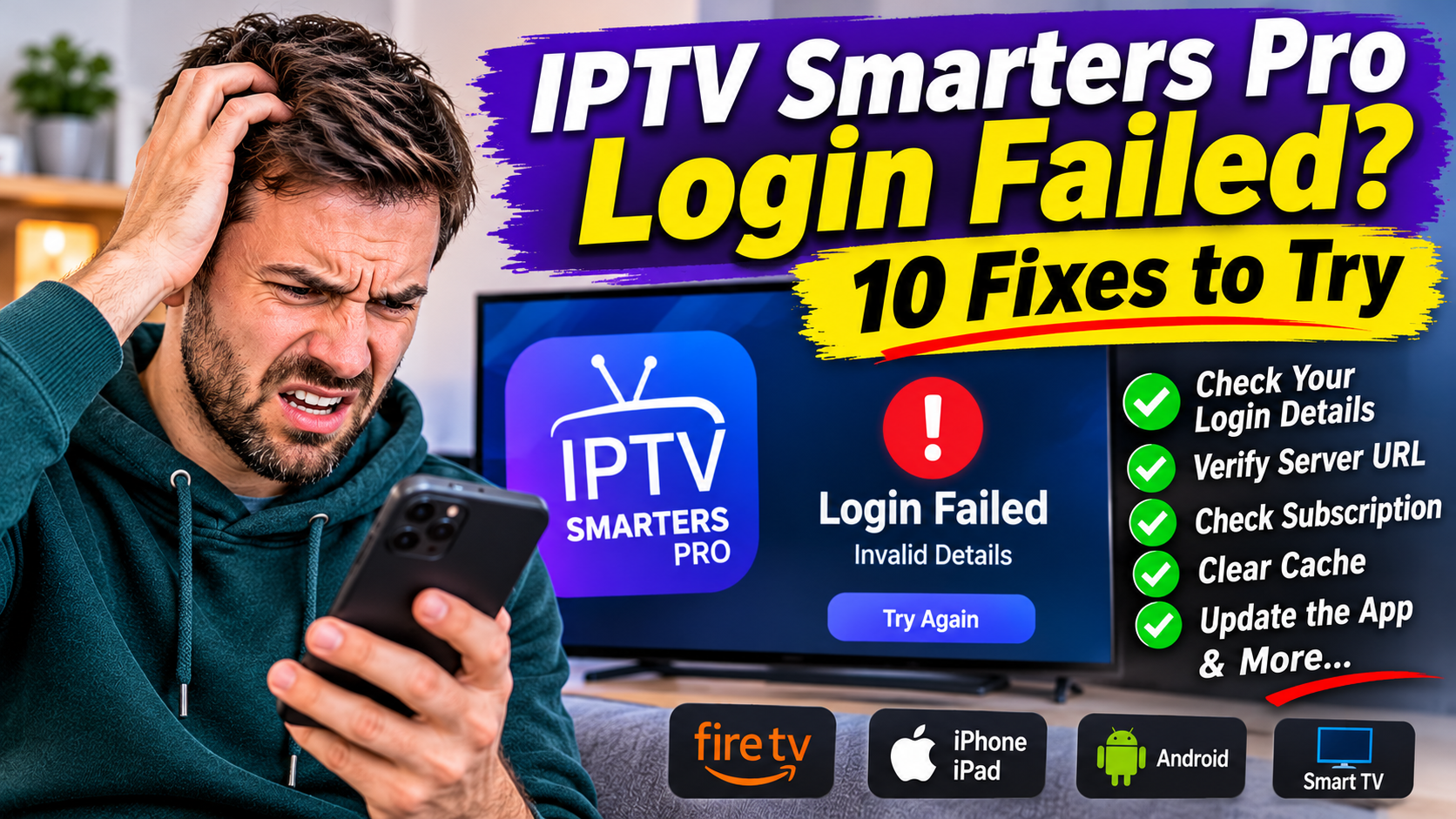
Trying to open IPTV Smarters Pro but getting an "Invalid Details," "Login Failed," or "Failed to Authorize" message? You're not alone. Login problems are among the most common issues IPTV users experience on Firestick, Android TV, Smart TVs, iPhone and other compatible devices.
The good news is that a failed login does not always mean the app is broken. The problem could be an incorrect server address, a typing mistake, an expired subscription, a connection limit or a temporary provider issue.
In this guide, we'll explain why IPTV Smarters Pro login fails and show you 10 practical fixes to try in 2027.
IPTV Smarters Pro is a media player. It does not supply television channels or activate an IPTV subscription by itself. It uses login details or a playlist provided by your IPTV service.
A login problem can happen when:
Your username or password is incorrect.
The server URL is incomplete or entered in the wrong format.
Your subscription has expired.
Your provider's server is temporarily unavailable.
Your internet connection cannot reach the server.
Your account has reached its simultaneous connection limit.
The app has stored outdated or corrupted information.
Before changing several settings, identify the exact message displayed on your screen. The wording can vary between app versions.
The first thing to check is your IPTV username and password.
Even one incorrect character can prevent the app from connecting.
Common mistakes include:
Entering a capital letter instead of a lowercase letter.
Confusing the number 0 with the letter O.
Confusing the number 1 with a lowercase l.
Accidentally adding a space before or after your password.
Using an old password from a previous subscription.
How to fix it:
Open IPTV Smarters Pro.
Find your saved user profile or login screen.
Check the username carefully.
Re-enter your password exactly as supplied.
Save the details and try logging in again.
If possible, compare the information with the original message from your provider instead of relying on memory.
An incorrect server URL is another common reason for IPTV Smarters Pro login errors.
When using an Xtream Codes-style login, the app typically asks for three important details:
Username
Password
Server URL
The server address must match the information supplied by your provider.
For example, a server address might look like this:
http://server.example.com:8080
This is only an example, not a working IPTV server.
Check for:
Missing http:// or https://
An incorrect port number
A spelling mistake in the domain
Extra spaces
An incorrect address copied from an older account
Do not automatically add or remove a port, change HTTP to HTTPS, or guess a server address. Use the exact format supplied by your provider.
Important: If you were given a complete M3U playlist URL, do not automatically paste the entire link into the Xtream Codes server URL field. These are different login methods and may require different fields.
Sometimes IPTV Smarters Pro displays a login error because the subscription has expired or been suspended.
This can happen when:
Your trial period has ended.
Your subscription renewal was not completed.
Your account has been temporarily disabled.
Your provider has changed your account details.
How to fix it:
Check your subscription confirmation or account portal.
Look for the expiration date.
Confirm that your account is active.
Contact your provider if the account should still be working.
Do not purchase another subscription until you have confirmed the status of your existing account.
A temporary device or app problem can sometimes prevent IPTV Smarters Pro from connecting.
Restarting your device can clear temporary glitches and refresh its network connection.
For Amazon Firestick:
Open Settings.
Select My Fire TV.
Choose Restart.
Wait for the device to reboot.
Open IPTV Smarters Pro and try again.
For Android TV or Google TV:
Open Settings.
Find System or Device Preferences.
Select Restart if available.
Wait for the television or box to restart.
Try logging in again.
For other Smart TVs, use the manufacturer's restart instructions.
IPTV Smarters Pro needs an internet connection to communicate with your provider's server.
If your internet is unstable or unavailable, the app may display a connection error or fail to complete the login.
Try these steps:
Open another app that uses the internet.
Check whether websites load on another device.
Restart your Wi-Fi router.
Reconnect your Firestick, television or Android box.
Try logging in again.
You can also test the same IPTV login on another compatible device, provided your subscription allows it.
If the login works on mobile data but not on your home Wi-Fi, the problem may involve your router, DNS settings or network restrictions.
Temporary app files can sometimes become corrupted or outdated.
Clearing the cache may help if the app gets stuck, repeatedly fails to load or behaves unexpectedly.
How to clear the cache on Firestick:
Open Settings.
Select Applications.
Choose Manage Installed Applications.
Find IPTV Smarters Pro.
Select Clear Cache.
Reopen the app and try again.
On Android TV, the menu names vary, but the option is generally found under Settings, Apps and the selected app's storage settings.
Important: Clear Cache is different from Clear Data. Clearing data can remove saved profiles and login information. Try clearing the cache first.
Some IPTV subscriptions limit the number of devices that can stream simultaneously.
For example, your plan might allow only one active connection at a time. If another television or device is already using that connection, a new login or stream may be rejected.
How to fix it:
Close IPTV Smarters Pro on other devices.
Stop any active streams using the same account.
Wait briefly for the previous session to disconnect.
Try logging in again.
Check your subscription terms to confirm the permitted number of simultaneous streams. Device registration limits and active-stream limits are not necessarily the same thing.
An outdated app version may have compatibility problems or bugs that affect its performance.
Check whether an update is available through the official app store or the app's legitimate distribution source for your device.
After updating:
Restart your device.
Open IPTV Smarters Pro.
Check your saved login details.
Try connecting again.
Avoid unofficial download websites, modified APK files and unknown installation links. If you cannot verify the source of an app update, do not install it.
If your login information appears correct but the app still refuses to connect, the saved profile may contain outdated information.
Removing and adding the profile again can help.
Before deleting anything, make sure you have your current login details.
Then:
Open IPTV Smarters Pro.
Find the user or profile management section.
Select the profile with the login problem.
Remove it if the app provides that option.
Return to the login screen.
Choose the correct login method.
Enter your current details carefully.
Select Add User or the equivalent option.
Allow the app time to connect and load your content.
Do not delete your profile if you do not have the information needed to restore it.
If none of the previous fixes work, the problem may be on the provider's side.
Possible causes include:
A temporary server outage.
A changed server address.
An account that needs to be reactivated.
A connection limit or account restriction.
A problem with the playlist or authentication service.
When contacting support, provide:
Your device model.
The IPTV Smarters app version.
The exact error message.
Whether the login worked previously.
Whether the same account works on another device.
Never send your password in a public forum or to an unverified support contact.
Different versions of IPTV Smarters Pro may use slightly different error messages. Here are some common examples and what to investigate.
| Error message | Possible cause | What to check |
|---|---|---|
| Invalid Details | Incorrect login information | Username and password |
| Login Failed | Login or connection problem | Credentials and server URL |
| Failed to Authorize | Server rejected the login | Account status and login details |
| Unable to Connect | Server cannot be reached | Internet and server address |
| Server Not Responding | Server or network issue | Provider status and connection |
| Account Expired | Subscription period ended | Account expiration date |
| Loading Forever | App, network or server issue | Cache, connection and provider |
These messages are not universal diagnostic codes. The exact cause should be confirmed by checking your login details, device and provider account.
Firestick users may experience login errors because of incorrect credentials, app cache problems, network issues or compatibility limitations.
If you're using a Fire TV Stick, try this order:
Restart your Firestick.
Confirm your internet connection works.
Check your server URL and login details.
Clear the app cache.
Check your subscription status.
Try again after closing other active streams.
Also check your Fire TV model and operating system. Not every Fire TV device supports the same apps or installation methods.
If IPTV Smarters Pro will not log in on your Samsung or LG television, first confirm that the installed app is compatible with your TV model and operating system.
Then try:
Restarting the television.
Checking the Wi-Fi connection.
Re-entering your login details.
Confirming the server address.
Checking for an app update through the television's app store.
Contacting your provider to verify your account.
If the same login works on another device, the problem may be related to the television app, its compatibility or the TV's network connection.
One useful test is to try the same authorized subscription on another compatible IPTV player or device, if your subscription permits it.
If the login works elsewhere:
The issue may be related to the original app, device settings or saved profile.
If the login fails everywhere:
The problem may be your subscription, credentials, server address or provider's service.
If the login works but channels do not play:
That is usually a playback or stream issue rather than a login failure.
This simple test can help you avoid changing settings unnecessarily.
This usually means the login information does not match what the server expects. Check the username, password and server URL carefully. Also confirm that your subscription is active.
The server may be rejecting the login or may not be reachable. Check the account status, server address and credentials. If everything is correct, contact your provider.
A previously working login can stop working because of an expired subscription, changed server details, a provider outage, an account restriction or a network problem.
That depends on your subscription. Some providers allow multiple devices but restrict the number of simultaneous streams. Check your plan before using the same account on several screens.
Clearing the cache normally does not remove your saved login information. Clearing app data or deleting a profile may remove saved settings, so keep your login details before making those changes.
No. IPTV Smarters Pro is a media player, not a television channel provider. You need an authorized IPTV subscription or compatible content source.
Reinstallation should be a later troubleshooting step, not the first one. Confirm your credentials and subscription, check the network and clear the cache first. Before reinstalling, make sure you can obtain the app from a trusted source and have your login details available.
An IPTV Smarters Pro login failure can be frustrating, especially when everything was working before. However, the problem is often caused by something simple, such as an incorrect password, an incomplete server URL or an expired subscription.
Start with the login information, check your account status and internet connection, then move on to restarting your device and clearing the app cache.
If the same details fail on multiple compatible devices, contact your IPTV provider to check the server and account.
With the right troubleshooting steps, you can often identify the cause without resetting your entire device or changing settings that were working properly.