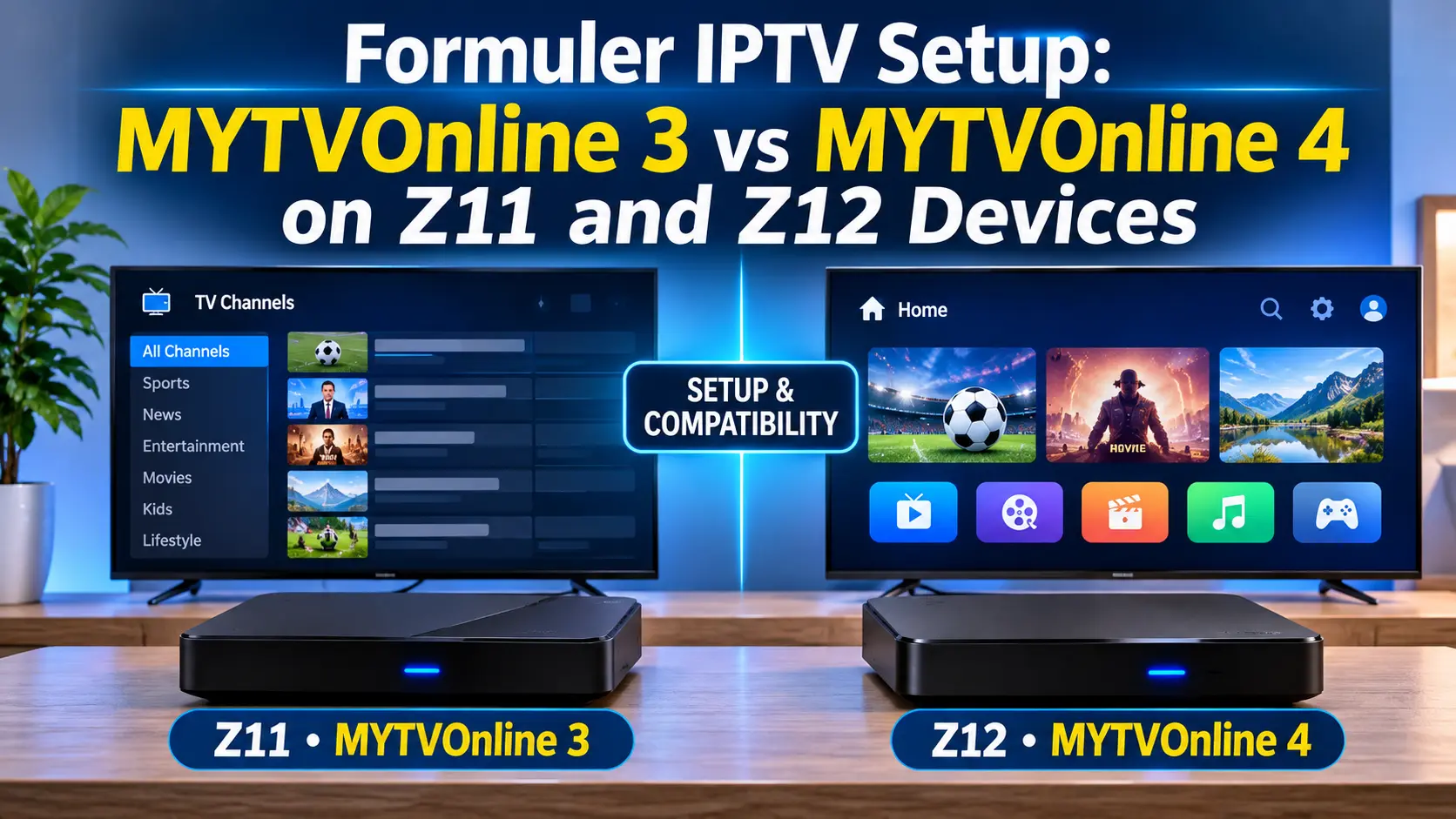
Formuler streaming boxes are popular among IPTV users because they offer dedicated hardware, convenient remote controls, and the MYTVOnline application. However, if you own a Formuler Z11 or Z12 device, you might notice that the setup process looks different depending on which version of MYTVOnline you have installed.
The main difference is that the Formuler Z11 series uses MYTVOnline 3, while the newer Z12 series supports MYTVOnline 4. The Z12 Ultra originally shipped with MYTVOnline 3 but can receive MYTVOnline 4 through an official software update.
In this guide, we'll explain the differences between MYTVOnline 3 and MYTVOnline 4, show you how to set up each application, and help you identify the correct instructions for your Formuler device.
Whether you're setting up a new Formuler box or updating an existing one, this guide will help you get started.
MYTVOnline is Formuler's dedicated media player application. It provides an interface for accessing compatible live TV, video-on-demand and series services through a supported content source.
Although both versions serve a similar purpose, MYTVOnline 4 introduces a refreshed interface and additional features.
MYTVOnline 3 is commonly found on Formuler Z11 devices, including the Z11 Pro and Z11 Pro Max.
Its features include:
Live TV channel navigation
Electronic Program Guide (EPG)
Video-on-demand access
Series and movie categories
Channel favourites and organization
Timeshift and supported recording features
Picture-in-picture functionality on supported configurations
MYTVOnline 4 is the newer generation of Formuler's media player, designed for the Z12 series.
Its improvements include:
Redesigned home screen
AI-powered content recommendations
Support for up to four personalized profiles
Customizable startup screen
Improved navigation and interface
Faster content refreshing and smoother channel navigation
These improvements make MYTVOnline 4 a more modern experience, particularly for households where different people prefer their own viewing profiles.
Before following any installation instructions, identify your exact Formuler model.
| Formuler device | MYTVOnline version |
|---|---|
| Formuler Z11 Pro | MYTVOnline 3 |
| Formuler Z11 Pro Max | MYTVOnline 3 |
| Formuler Z12 Pro | MYTVOnline 4 |
| Formuler Z12 Ultra SE | MYTVOnline 4 |
| Formuler Z12 Ultra | MYTVOnline 4 with official update |
Important: An older Z12 Ultra may still have MYTVOnline 3 installed. Check the available official software update before assuming the device is already running version 4.
MYTVOnline 4 is officially available for the Z12 series. Do not assume that a Z11 device can be upgraded to MYTVOnline 4 simply because it runs a newer Android version.
If you own a Formuler Z11 Pro or Z11 Pro Max, these are the general setup instructions for MYTVOnline 3.
Start by connecting your Formuler box to your television.
Connect the Formuler device to your TV using an HDMI cable.
Connect the power adapter.
Turn on your television.
Select the correct HDMI input.
Connect your Formuler device to your home internet connection.
For the most reliable connection, consider using an Ethernet cable if your router is nearby.
Once the device has finished starting:
Navigate to the home screen.
Find the MYTVOnline 3 application.
Open the application.
Wait for the main interface to load.
Make sure you're using the correct application before continuing.
Inside MYTVOnline 3:
Open Content Manager.
Select Content Sources.
Choose the option to add a new content source.
Select the connection type supported by your IPTV provider.
The available connection methods depend on the service and application version.
Your IPTV provider should supply the connection information required for your account.
Depending on the connection method, this may include:
Server or portal URL
Username
Password
M3U playlist information
Enter the details exactly as supplied. Pay attention to uppercase letters, lowercase letters, special characters and spaces.
Avoid sharing your login credentials or portal information publicly.
After entering the required information:
Save the content source.
Allow the application to connect.
Wait for the channel list and available content to load.
Open Live TV to test playback.
Check the program guide if your subscription includes EPG information.
If everything loads correctly, your Formuler Z11 is ready to use.
The Formuler Z12 Pro and Z12 Ultra SE support MYTVOnline 4. The Z12 Ultra can also use MYTVOnline 4 after installing the appropriate official update.
The interface is different from MYTVOnline 3, so follow these instructions instead.
Connect your device to your television using HDMI and power it on.
Make sure your internet connection is working before opening the application.
If your Z12 Ultra is still running MYTVOnline 3:
Return to the Formuler home screen.
Open the Software Update application.
Check for available official updates.
Review the update details.
Download and install the update if MYTVOnline 4 is offered for your device.
Keep your device powered on throughout the update process.
Once installation is complete, verify that MYTVOnline 4 is available.
Launch the MYTVOnline 4 application from the home screen.
You will notice a redesigned interface with a new home screen and additional personalization features.
To add your subscription:
Open the application menu.
Navigate to Settings.
Select App Settings.
Open Content Sources.
Choose the connection method supported by your provider.
Enter the required subscription information in the appropriate fields.
Once your connection information has been entered:
Save your content source.
Allow the application to connect.
Wait for the available content to refresh.
Open Live TV.
Test a few channels.
Check the EPG if available.
Your Formuler Z12 should now be configured with the compatible content source.
Both applications provide a convenient way to organize and access compatible IPTV content, but MYTVOnline 4 introduces several improvements.
| Feature | MYTVOnline 3 | MYTVOnline 4 |
|---|---|---|
| Live TV | Yes | Yes |
| EPG support | Yes | Yes |
| VOD and series | Yes | Yes |
| Redesigned home screen | Older interface | Yes |
| AI recommendations | No | Yes |
| Personalized profiles | No | Up to 4 |
| Custom startup screen | Limited | Yes |
| Z11 compatibility | Yes | No official support |
| Z12 compatibility | Older version | Yes |
Which should you choose?
If you already own a Formuler Z11, MYTVOnline 3 remains the appropriate application. It offers the main features needed for everyday IPTV viewing.
If you're purchasing a newer Formuler device and want the latest MYTVOnline experience, the Z12 series is the better choice.
You don't need to upgrade your hardware simply because MYTVOnline 4 is available. Your Z11 can continue using MYTVOnline 3.
Even when you follow the correct instructions, you may occasionally experience connection or playback problems.
Here are some common issues and what you can try.
If your application cannot connect:
Double-check your username and password.
Verify that the server or portal address is correct.
Check your internet connection.
Restart your Formuler device.
Contact your provider to confirm your subscription is active.
If certain channels do not appear:
Refresh the content source.
Check whether channel groups are hidden.
Confirm that your subscription includes the missing channels.
Contact your provider if the channel lineup has changed.
If the program guide is empty or incomplete:
Refresh the EPG data.
Check the application's EPG settings.
Allow time for the guide information to load.
Confirm that your provider supplies program guide data.
If your Z12 Ultra still displays MYTVOnline 3:
Open Software Update.
Check for the latest official software.
Review the update details.
Follow the manufacturer's update instructions.
Do not install unofficial application packages or firmware from unknown websites.
If channels take too long to load or frequently pause:
Restart your router.
Restart your Formuler device.
Test your internet connection.
Use Ethernet instead of Wi-Fi where practical.
Reduce unnecessary network activity on other devices.
For more help, see our guide on [How to Improve IPTV Streaming Quality].
A properly configured Formuler device can provide a smoother viewing experience.
Consider these recommendations:
Use a stable internet connection
A wired Ethernet connection can help reduce wireless interference and improve connection consistency.
Keep your software updated
Check for official Formuler software updates to receive supported improvements and fixes.
Use the correct MYTVOnline version
Always follow setup instructions that match your exact device and installed application.
Avoid unnecessary background applications
Close applications you are not using if your device is experiencing performance problems.
Organize your channels
Use favourites and channel groups to make finding your preferred programming easier.
Protect your subscription information
Only enter account details from a provider you trust. Avoid posting your login information, portal address or device identifiers in public forums.
No. MYTVOnline 4 is officially supported on the Formuler Z12 series. Z11 devices use MYTVOnline 3.
Yes. The Z12 Ultra supports MYTVOnline 4 through an official software update. Check your device's Software Update application for availability.
MYTVOnline 4 introduces a redesigned home screen, AI-powered recommendations, personalized profiles and additional interface improvements. MYTVOnline 3 continues to provide essential live TV and media-player features.
No. MYTVOnline is an application. You need a compatible content source or subscription to access television channels and other programming.
Connection options depend on the MYTVOnline version and the format supported by your content provider. Check the available content-source options and follow the instructions for your specific application.
Not necessarily. If your Z11 works properly with MYTVOnline 3, there is no requirement to upgrade. Consider the Z12 if you want MYTVOnline 4 and its newer features.
Menu layouts vary between MYTVOnline versions and software releases. Check the installed application version before following an online tutorial.
Formuler Z11 and Z12 devices offer different MYTVOnline experiences, but both can provide a convenient IPTV viewing platform when configured correctly.
The Z11 Pro and Z11 Pro Max use MYTVOnline 3, while the Z12 series supports MYTVOnline 4. The Z12 Ultra may require an official software update to access the newer application.
The most important step is to identify your exact Formuler model and follow the correct setup instructions.
With the right configuration, a stable internet connection and a compatible IPTV subscription, you can enjoy a more organized and convenient television experience.
Looking for an IPTV subscription that works with your compatible streaming setup? Explore [Quality TV Plans] to learn more about available options.
Explore Other Qualitytv Blogs
Ready to enjoy live TV, sports and entertainment on your favourite devices? Visit our Quality TV Pricing Page to explore available subscription options and find a plan that suits your household.