Buy IPTV Canada Secured E-transfer 🔒
Step-by-Step Guide: How to Set Up Streaming on Firestick (20

🚀 Setup Your QualityTV in 5 Minutes Follow this streamlined guide to unlock 15,000+ channels and premium 4K sports on your Amazon Firestick.
Phase 1: Unlock Developer Mode
Amazon hides these settings to prevent third-party apps. Let’s reveal them.
- Go to Settings (Gear Icon) > My Fire TV > About.
- Highlight your device name (e.g., Fire TV Stick 4K) and click the Center Button on your remote 7 times quickly.
- A message will appear: "No need, you are already a developer."
- Press the Back button once to see the new Developer Options menu.
Phase 2: Enable "Unknown Apps"
- Click Developer Options.
- Turn ADB Debugging to ON.
- Click Install Unknown Apps. (Note: If you don't see the Downloader app here yet, move to Phase 3.)
Phase 3: Install the "Downloader" Tool
- Return to the Home Screen and go to Find (Magnifying Glass).
- Search for "Downloader" and install the orange icon app.
- CRUCIAL STEP: Go back to Settings > My Fire TV > Developer Options > Install Unknown Apps and toggle Downloader to ON. (Without this, the installation will fail in Step 4).
Phase 4: Direct Install QualityTV
- Open Downloader and click 'Allow' on any pop-ups.
- In the URL box, type our 2026 Fast-Code: [INSERT CODE] and click Go.
- The QualityTV app will download automatically. Click Install, then Open.
- Log in with your credentials sent via WhatsApp/Email.
💡 2026 Pro-Tip: If you experience buffering in Canada, your ISP (Bell/Rogers) may be throttling your speed. We highly recommend using a VPN set to a Toronto or Montreal server for a 100% stable 4K experience.

Installation guidelines: Enabling Apps on your Firestick (2020)
- Enabling "Install from Unknown Sources" for apps (Firestick)
- You must first enable developer mode on your Firestick. Navigate through the main menu to Settings.
- Go to My Fire TV by clicking
- Visit the Developer Options page.
- Select "Applications from Unknown Sources."
- Choose "Allow Installation from Unknown Sources."
The menu bar can be found at the top of your FireStick's home screen.
In the menu bar, select Settings
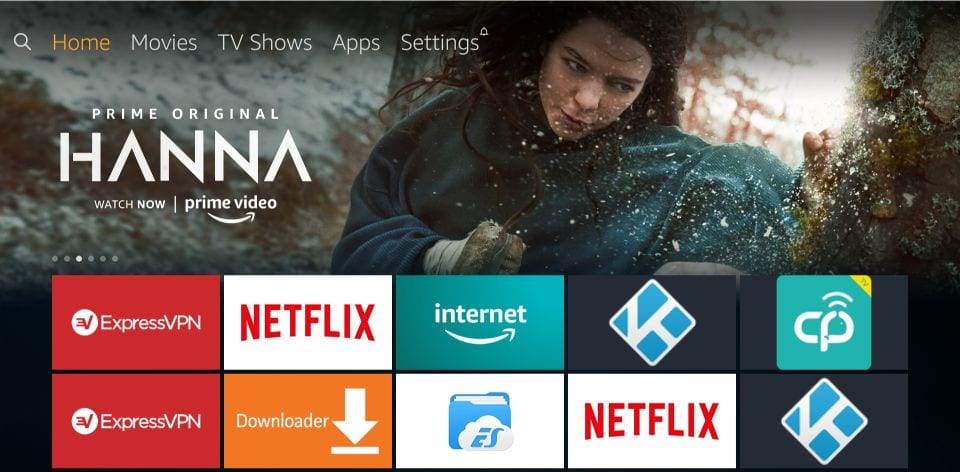
In the Settings, choose the option My Fire TV.
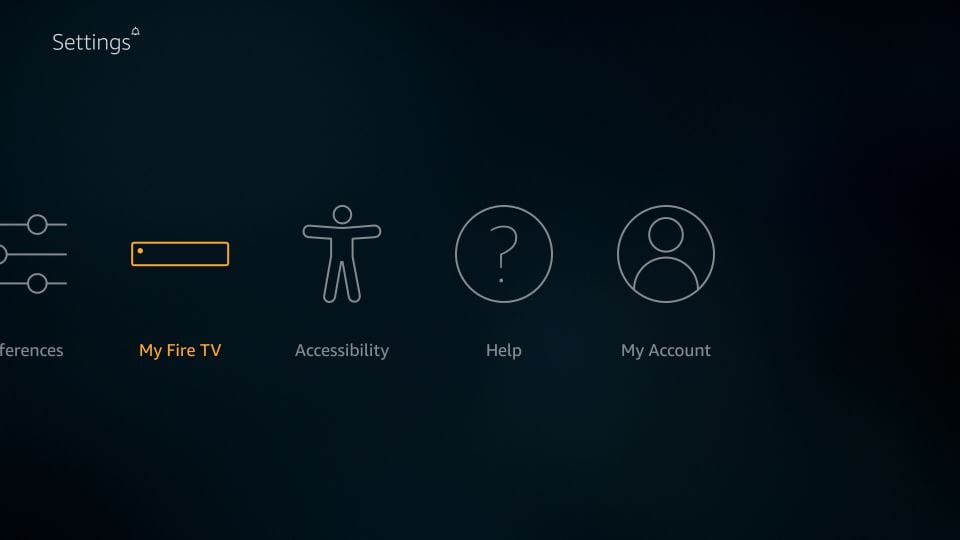
Click Developer Options when the following set of options appears on the following screen.
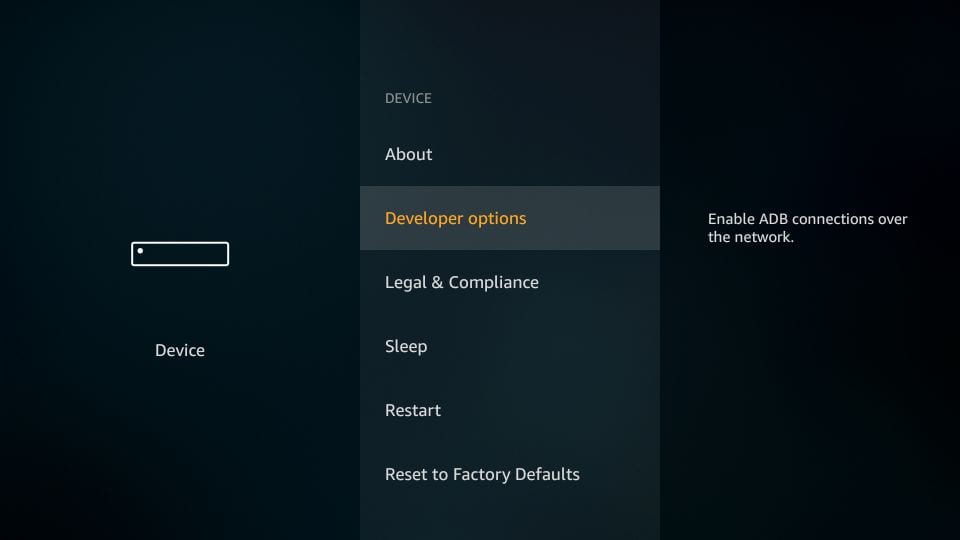
Now, you need to check whether Apps from Unknown Sources are OFF or ON
Click it once if it is OFF
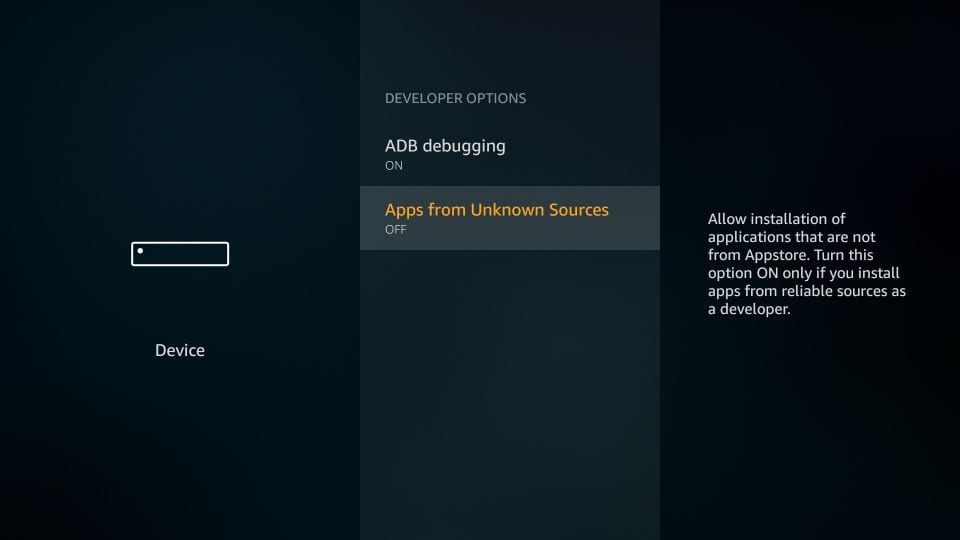
A quick warning message is displayed
To keep Apps from Unknown Sources switched on, click Turn on
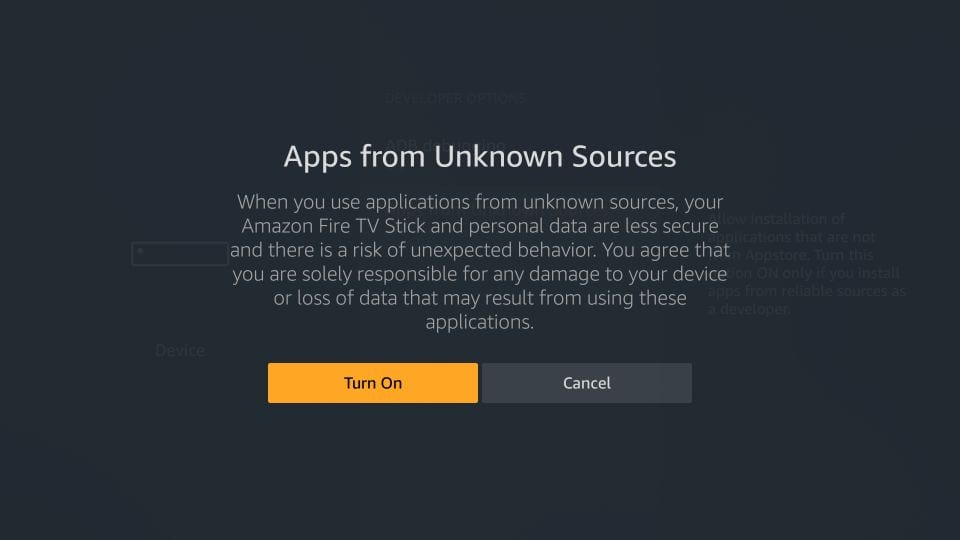
By doing this, you have set up the FireStick to accept the installation of the qualityiptv app as well as other outside applications. The steps are as follows:
The First Step After Purchasing a Firestick
So, you've just purchased an Amazon Firestick and are eager to unlock its full potential. Here's your guide to getting started.
Connect to Wi-Fi
- Plug in your Firestick: Connect it to your TV and power outlet.
- Select your language: Follow the on-screen instructions.
- Connect to Wi-Fi: Choose your network and enter the Wi-Fi password.
With your Firestick online, you're ready for the next crucial step.
Enable App Installation from Unknown Sources
- Access the Settings: Navigate to "Settings" from the home screen.
- Go to My Fire TV: Select "My Fire TV" (or "Device" on older models).
- Enable Developer Options:
- Click on "Developer Options."
- Turn on "Apps from Unknown Sources" by selecting it and confirming the prompt.
Turning on this feature allows you to install apps not officially available on the Amazon Appstore.
Prepare to Sideload Apps
Now that your Firestick is configured, you can install third-party apps to stream a variety of content. Keep in mind, you'll need to find a reliable app source and perhaps use a downloader app to sideload these unknown apps.
This is your gateway to customizing your viewing experience far beyond the default offerings. Remember to be cautious and secure when exploring third-party applications.
Why Enable Unknown Sources on Your Firestick?
Enabling unknown sources on your Firestick is a crucial step for those who wish to access applications not readily available on mainstream platforms like the Amazon App Store.
Expanding Your Options
By allowing installations from unknown sources, you're essentially broadening the range of apps you can install. This means you can explore countless third-party applications, often with features or content not available in the standard app selection. Imagine having access to specialized streaming services, games, or utilities that enhance your entertainment system.
Gaining Control
When you enable this setting, you gain the freedom to customize your device to better suit your preferences and needs. This customization means you're not restricted to only the applications vetted by official stores. Whether you're looking to try out a new video player, web browser, or other useful tools, enabling installs from unknown sources puts you in control.
How-To: Enabling Unknown Sources
To enable this feature, navigate to your device's settings, then to the ‘My Fire TV’ section. From there, access ‘Developer options’ and toggle the option for installing unknown apps. Remember that enabling this setting requires a conscious decision to trust the apps you install, as these third-party applications haven't gone through the same vetting process.
In summary, enabling unknown sources on your Firestick opens up a world of possibilities, allowing you to enhance your device's capabilities and make it your own. Whether you're tech-savvy or just looking to get more from your Firestick, this step is essential for a truly personalized experience.
How to enable 3rd party apps on Firestick
This video shows step-by-step instructions on how to enable unknown apps to download.
INSTALLATION INSTRUCTIONS: EASY TO INSTALL ON YOUR FORMULER
MYTV PLAYER
FormulerZ8 is the last version of Formuler boxes with MYTV Online 2 application which support 4K Ultra HD streaming,
In this tutorial, we will show you how to bring IPTV channels to your MYTV Online 2 on FormulerZ8.
This setup guide can be used for all models of the Formuler devices/boxes:
STEP 1:
Open the exclusive application for watching IPTV in Formuler boxes “MYTV Online 2”.
If you don’t have this application on your device it is available to download from the Google Play store.
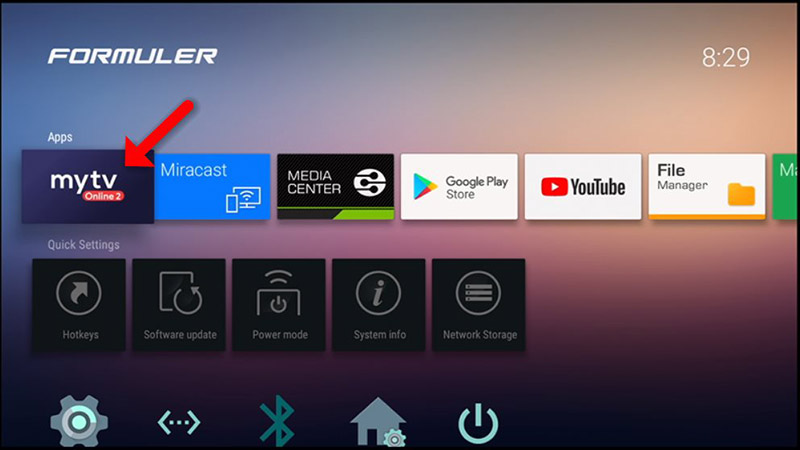
STEP 2:
You can see the box’s MAC in the top right of this page.
Please note, this MAC address must be given to your IPTV provider.
Here you can see the two options, select “Add Portal” to set the device as a MAC based device like MAG boxes.
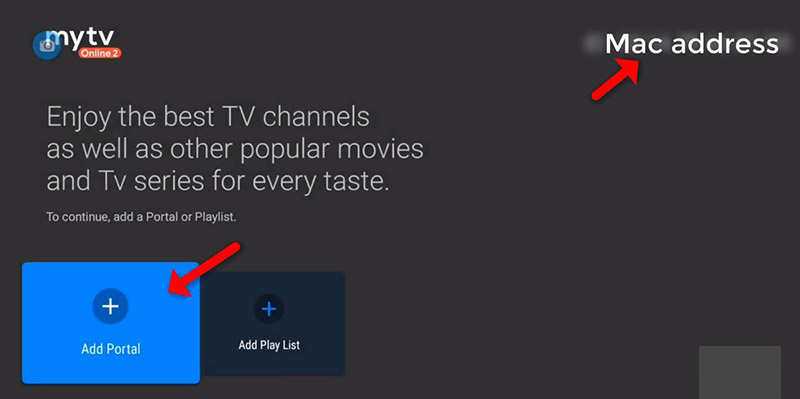
STEP 3:
Enter Portal Nickname (Example: MYIPTV).
Enter IPTV Portal URL you get from your IPTV provider and click on “CONNECT”. You can ask for a portal URL from your IPTV service provider.
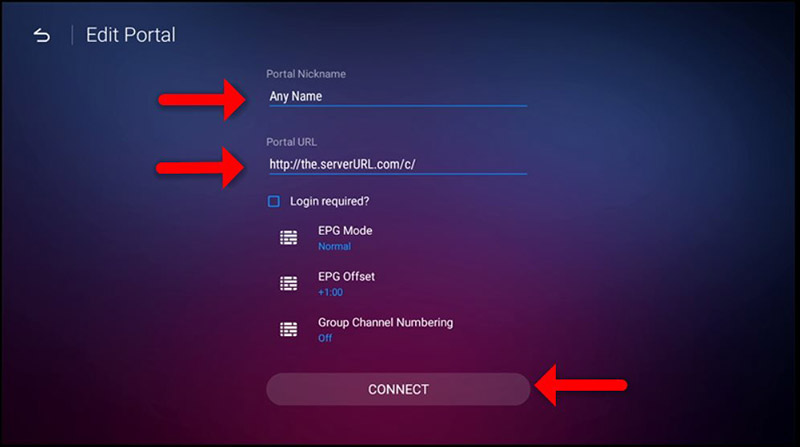
STEP 4:
Successful Connection! You receive all channels associated with your subscription
Please note, this might take a little time.
Announce coming events
13 months for the price of 12 months
BUZZ box
Android
Step 1: On the main menu, click on Settings,” as depicted in the below picture.

Step 2: Now click on “Servers” and proceed to the next step.

Step 3: Now you must insert your “Server URL” as well as a name (it can be any name you want) and click on “Connect“. You can also use your username and password from your M3U in your options line and connect to your IPTV servers by clicking on the “Use Credentials” box; however, connecting to the servers through the MAG portal is way simpler.
Please be aware that your IPTV distributor will offer the server URL and that your device's Mac address must be registered on the IPTV provider's server.

Step 4: After clicking on “Connect“, the channels will immediately pop up, and you can click on any channel and start the stream.

Tell us what you think and what you think about this story in the comments area below. Thank you in advance
MAG DEVICE
MAG DEVICE
Switch off your box from the power source, then switch it back on.
- Upon reaching the loading image, press your set/setup button on your remote. This action will take you to the 'inner portal'.
- Hit the set/setup button once more, then navigate to 'servers'.
- Replace 'portal URL1' with the new portal by tapping the 'kb' button and entering the address you've been provided.
- Press the 'kb' button once again and select 'ok', which will take you back to the preceding screen.
- Navigate to 'reload portal' and hit 'ok' when the prompt appears. Please INSERT OUR SERVER URL: (this will be sent via email
Tell us what you think and what you think about this story in the comments area below. Thank you in advance.
HOW TO INSTALL TIVIMATE FOR FIRESTICK

Tivi-mate
Steps to Install Tivimate on Firestick:
- Enable Developer Options:
- Go to your Firestick's Settings.
- Select My Fire TV (or Device & Software on some models).
- Select About.
- Locate Fire TV Stick (or your device name) and click it repeatedly (about 7 times) until you see a message saying "No need, you are already a developer!"
- Install Downloader App:
- Go back to your Firestick's home screen.
- Select Find (or the magnifying glass icon).
- Search for "Downloader".
- Select the Downloader app (it has an orange arrow pointing downwards).
- Click Get or Download to install it.
- Configure Downloader:
- Open the Downloader app.
- If prompted, click OK.
- On the left-hand menu, select Settings.
- Find the JavaScript option and make sure it's Enabled (it usually is by default).
- Find the Enable third-party apps option and turn it ON. You'll likely get a warning message; select Turn On.
- Download Tivimate APK:
- Go back to the Downloader app's home screen (where it says "Enter a URL or Search term").
- Click in the URL field.
- Using the on-screen keyboard, enter the direct download link for the latest Tivimate APK. (Note: I cannot provide a direct link here as it can change and may come from unofficial sources. A safe way to find it is to search online for "Tivimate APK latest version" from reputable sources.)
- Click Go.
- Downloader will begin downloading the Tivimate APK file.
- Install Tivimate:
- Once the download is complete, Downloader will ask if you want to install the application. Select Install.
- Follow the on-screen prompts to complete the installation.
- Open Tivimate:
- Once installed, you can select Open to launch Tivimate.
- Alternatively, go back to your Firestick's home screen, navigate to Your Apps & Channels (or Apps), and you should find Tivimate there.
Important Considerations:
- IPTV Service: Tivimate is just a player; you'll need a separate IPTV service provider with a valid subscription and M3U link or Xtream Codes login to watch content.
- Updates: Tivimate may not auto-update when installed this way. You might need to periodically download and install the latest APK manually.
- Security: Be cautious when downloading APK files from unknown sources. Stick to reputable websites when searching for the Tivimate APK.
That should get you up and running with Tivimate on your Firestick! Let me know if you have any other questions.
Android TV box setup guide
How to configure live TV on Android box
Step 1: Enable "Unknown Sources"
Before Epic Apps will let you install outside files, you have to give the box permission.
- Go to the Settings (gear icon) on your Android TV home screen.
- Select Apps > Security & Restrictions.
- Find Unknown Sources and toggle it ON for the browser or file manager you are about to use.
Step 2: Use Epic Apps to find a "Downloader"
The "Epic Apps" store usually focuses on official streaming apps. To get QualityTV, you need a tool to fetch the file.
- Open your Epic Apps store.
- Search for an app called "Downloader" (the icon is usually orange with a white arrow).
- Install it. This is the "gold standard" tool for 2026 Android TV setups.
Step 3: Download QualityTV
- Open the Downloader app you just installed.
- In the URL bar, type the direct download link provided by QualityTV (e.g., qualitytv.ca/app or a 5-digit short code if they provided one).
- The APK file will begin downloading. Once it finishes, a window will pop up asking if you want to Install. Click Install.
Step 4: Launch and Log In
- Once the installation is complete, click Open.
- Enter your QualityTV credentials (Username and Password).
- Pro Tip: If the app doesn't show up on your main home screen, go to the "+" (Add App) icon at the end of your apps row to pin it there for easy access.