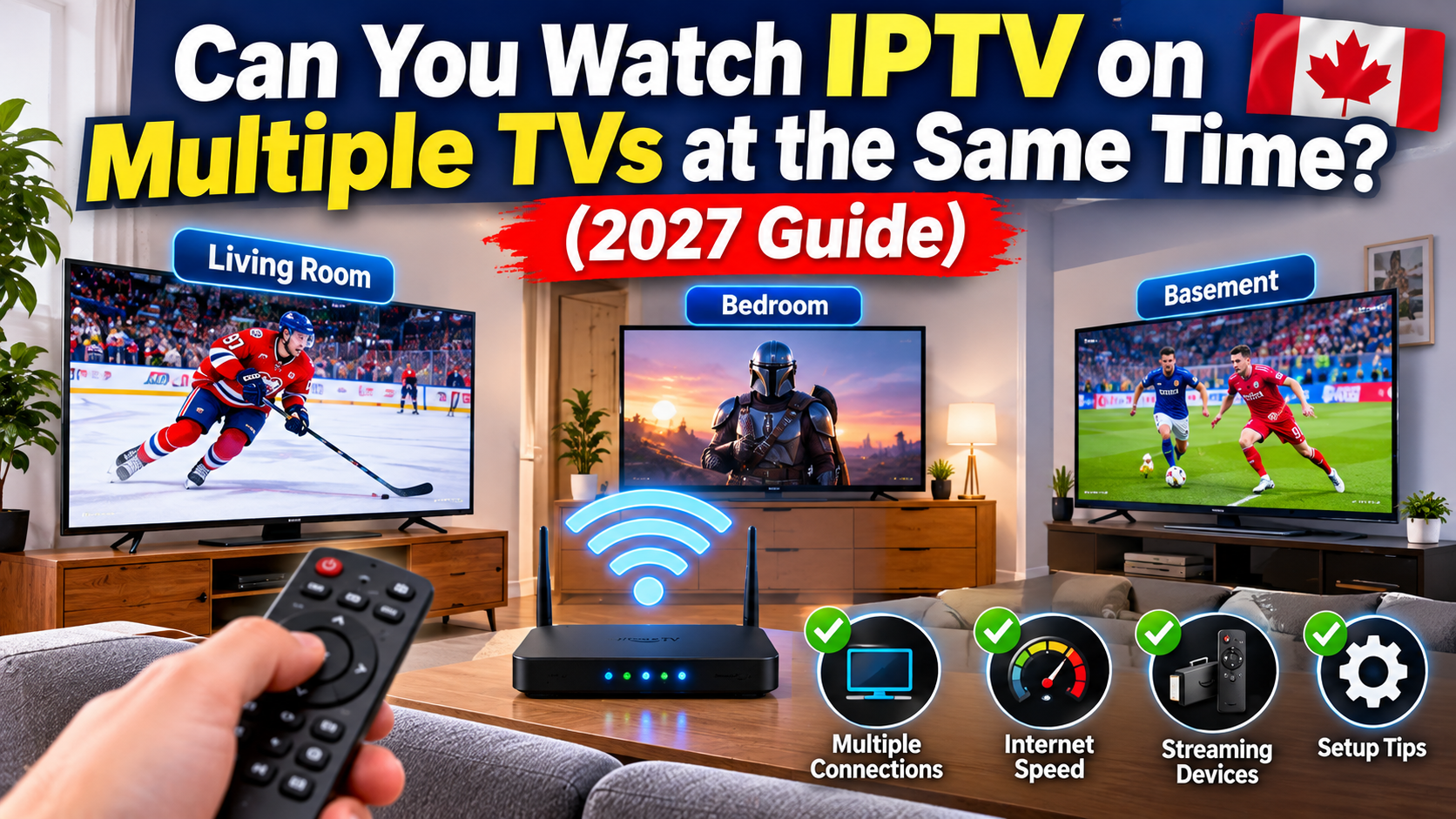
Want to watch IPTV on multiple televisions in your home at the same time? Perhaps one person wants to watch hockey in the living room while someone else watches movies in the bedroom.
The good news is that IPTV can work on multiple TVs, provided your subscription, streaming devices and internet connection support simultaneous viewing.
However, there are a few important things to understand before setting everything up. Some IPTV subscriptions allow multiple connections, while others restrict how many devices can stream at once.
In this 2027 guide, we'll explain how to watch IPTV on two, three or more TVs, what equipment you need, how many connections are required and how to avoid buffering when several televisions are streaming together.
Yes. You can watch IPTV on multiple televisions simultaneously if your IPTV provider allows enough simultaneous connections.
For example, a household might have:
One IPTV stream playing in the living room.
Another stream playing in the bedroom.
A third stream playing in the basement.
Each television generally needs its own compatible streaming device or built-in IPTV application, along with access to the authorized content source.
The important difference is between having IPTV installed on multiple devices and being allowed to stream on multiple devices simultaneously.
Your subscription determines how many connections are permitted.
The number of televisions you can use depends on your IPTV subscription and its simultaneous connection limit.
Here is a simple example:
| Simultaneous connections allowed | Possible setup |
|---|---|
| 1 connection | One TV streaming at a time |
| 2 connections | Two TVs streaming together |
| 3 connections | Three TVs streaming together |
| 4 connections | Four TVs streaming together |
These are examples, not standard IPTV subscription packages. Every provider sets its own rules.
Some services also have restrictions on how devices can be registered or used. Check your provider's terms before connecting additional televisions.
Setting up IPTV in different rooms doesn't have to be complicated.
You generally need the following:
Your authorized IPTV provider must allow the number of simultaneous streams you plan to use.
If you want two televisions playing different channels at the same time, check that your subscription permits two simultaneous connections.
Each television needs a compatible way to run an IPTV application.
Common options include:
Amazon Fire TV devices.
Android TV boxes.
Google TV streaming devices.
Compatible Samsung Smart TVs.
Compatible LG Smart TVs.
You don't necessarily need a separate streaming device if your television already supports a suitable IPTV application.
Install a compatible IPTV player on each television or streaming device.
Examples include TiviMate, IPTV Smarters and other supported IPTV applications.
Availability and compatibility vary by television operating system and device model.
Every active stream uses part of your available internet bandwidth.
If multiple televisions are streaming at the same time, your internet connection needs enough capacity for all of them.
If you want to watch IPTV in two different rooms, follow these steps.
Before installing anything, confirm that your authorized IPTV subscription supports at least two simultaneous connections.
If your plan only allows one active stream, opening a second stream may interrupt the first.
Make sure both TVs have access to a compatible IPTV application.
For televisions without suitable built-in applications, you can use external streaming devices such as Firestick or compatible Android TV and Google TV devices.
Connect each television or streaming device to your home Wi-Fi network.
For a more consistent connection, consider Ethernet if your equipment supports it.
Install a compatible IPTV player on each device using its official app store or supported installation method.
Make sure the application is compatible with the device's operating system.
Follow the application's instructions and use the login method supported by your provider.
Your provider may supply account credentials, a server address or an authorized playlist.
Follow its rules for registering and using additional devices.
Open the IPTV application on the first television and start a channel.
Then open the application on the second television and select a different channel.
If both streams play normally, your subscription and network are supporting the setup.
If the first television stops playing when the second starts, check your simultaneous connection allowance.
Yes. When your subscription allows multiple simultaneous connections, different televisions can generally watch different channels at the same time.
For example:
Living room: Live hockey.
Bedroom: A movie.
Basement: News.
Each television uses its own stream.
This is one of the main advantages of having an IPTV setup across multiple rooms.
However, some providers have additional account or device restrictions, so check the subscription terms.
Sometimes.
An IPTV subscription may allow you to install the application on multiple devices but restrict the number of streams that can play at the same time.
For example, a subscription might allow you to configure three devices but only watch on one television at a time.
Other providers may allow two or more simultaneous streams.
Before purchasing a subscription, ask:
How many simultaneous connections are included?
Can the service be used on different televisions in the same household?
Are devices required to use the same home internet connection?
Are there device registration limits?
Are additional connections available?
Getting clear answers can prevent interruptions later.
Your internet connection becomes especially important when several televisions are streaming simultaneously.
Each active stream uses bandwidth.
Here are practical planning estimates:
| Number of TVs | HD streaming | 4K streaming |
|---|---|---|
| 1 TV | 10–15 Mbps | 25–35 Mbps |
| 2 TVs | 20–30 Mbps | 50–70 Mbps |
| 3 TVs | 30–45 Mbps | 75–105 Mbps |
| 4 TVs | 40–60 Mbps | 100–140 Mbps |
These are approximate bandwidth targets for simultaneous streams, not guaranteed minimum requirements. Actual usage depends on video bitrate, compression and the IPTV provider.
You should also allow extra bandwidth for phones, computers, gaming consoles and other household activities.
A stable connection is just as important as having enough download speed.
Both Wi-Fi and Ethernet can work for multi-room IPTV setups.
However, a wired Ethernet connection can provide more consistent performance, particularly when a television is far from the router.
Wi-Fi is convenient because you don't need to run cables through your home.
For better results:
Position your router in a central location.
Avoid placing it inside cabinets.
Use 5 GHz Wi-Fi when supported and the signal is strong.
Check signal strength in each room.
Reduce wireless interference where possible.
Ethernet connects your television or streaming device directly to your router.
Benefits include:
More consistent network performance.
Less wireless interference.
Reliable connectivity for live television.
Better performance in rooms with weak Wi-Fi coverage.
If your streaming device supports Ethernet, a wired connection is worth considering.
Yes, provided your subscription allows the required simultaneous connections.
For example, you could use:
One Firestick on your living room TV.
Another Firestick on your bedroom TV.
A third compatible streaming device in another room.
Install a compatible IPTV player on each device and configure it according to your provider's instructions.
Remember that the number of Firesticks you own does not automatically determine how many streams your subscription allows.
Also check the operating system and application compatibility of each Fire TV model.
Yes. Some Samsung, LG, Android TV and Google TV televisions support IPTV applications directly.
If a compatible player is available through your television's official app store, you may not need an additional streaming device.
However, app availability varies by manufacturer, model, operating system and region.
If your television does not support the application you want, an external streaming device may be an alternative.
If the first television stops playing when you start IPTV on another device, there are several possible explanations.
This is one of the first things to check.
If your account allows only one simultaneous stream, starting a second stream may interrupt the first.
Fix: Check your subscription details and ask your provider about its connection limits.
Two or more streams require additional bandwidth.
If other devices are also using your network, available bandwidth may become insufficient.
Fix: Run a speed test and check your network usage while both televisions are streaming.
One television may have a strong signal while another receives a weaker connection.
Fix: Improve router placement, use a suitable Wi-Fi access point or consider Ethernet.
An outdated or incompatible application can cause playback problems.
Fix: Check for updates through the official application store and restart the device.
Some services have additional rules for device registration, household usage or simultaneous playback.
Fix: Review your provider's terms and contact its support team.
For most multi-room setups, having a separate compatible streaming device for each television is a practical solution.
Each device can run its own IPTV player and select its own channel.
Advantages include:
Independent channel selection.
Separate television controls.
Easy setup in different rooms.
No need to move one streaming device between televisions.
You should still confirm that your subscription allows multiple streams.
Before setting up several televisions, keep these recommendations in mind:
Choose a subscription that allows enough simultaneous connections.
Use compatible IPTV applications on each device.
Make sure your internet package has enough available bandwidth.
Use Ethernet where practical.
Position your router to provide good coverage.
Keep your streaming devices updated.
Test each television separately before using them together.
Check your provider's rules for additional devices.
These steps can help make a multi-room IPTV setup easier to manage.
Yes. Your IPTV subscription must allow at least two simultaneous connections, and both televisions need compatible devices and a working internet connection.
Possibly. It depends on how many simultaneous streams your provider allows. Check your subscription terms before setting up three televisions.
Not necessarily. Some providers offer subscriptions with multiple simultaneous connections. Others limit accounts to one active stream.
Yes, when your subscription supports multiple simultaneous streams. Each television can generally select its own channel.
No. A Smart TV with a compatible IPTV application may work without a Firestick. An external streaming device is an option when the television doesn't support the application you need.
They can use a significant amount of bandwidth. If your internet connection does not have enough available capacity, simultaneous streams may buffer or disconnect.
Yes. This is a common multi-room setup. Make sure your subscription supports the number of streams you want to use and that both rooms have reliable internet access.
This depends on your provider's account and household-use rules. Some services restrict simultaneous use to a single household or location. Always check the terms before attempting this setup.
Watching IPTV on multiple televisions is possible and can be a convenient way for everyone in your household to enjoy different programming.
The most important thing is choosing a subscription that supports enough simultaneous connections.
You'll also need compatible IPTV applications, suitable streaming devices and a reliable internet connection.
Whether you're setting up IPTV on two televisions or creating a multi-room streaming system, planning your connections and internet requirements beforehand can help prevent interruptions.
Always use authorized IPTV providers and follow their account and device-use rules.