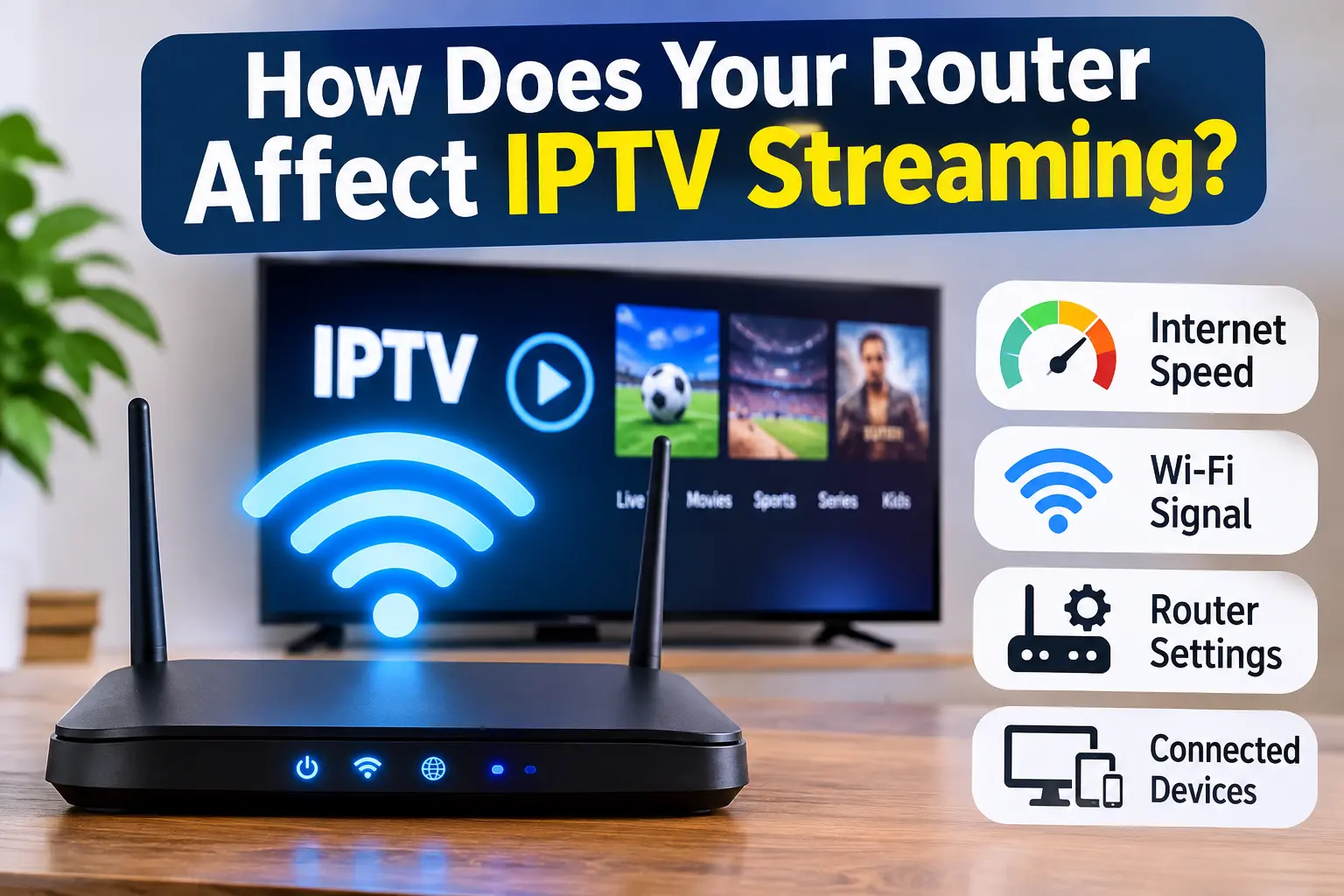
If you regularly watch IPTV, you probably know how frustrating buffering, freezing, and poor picture quality can be. You might have a fast internet plan, a modern streaming device, and a reliable IPTV application, but still experience interruptions while watching your favourite channels.
One important factor that many IPTV users overlook is their router.
Your router plays a major role in how internet traffic travels between your streaming device and the internet. Even if you have a fast internet connection, an outdated router, weak Wi-Fi signal, or overloaded home network can affect your IPTV streaming experience.
So, does your router really affect IPTV quality?
Absolutely. In this guide, we'll explain how your router influences IPTV performance, what features to look for, and how to optimize your home network for smoother streaming on Firestick, Smart TVs, Android TV boxes, and other devices.
Your router manages the connection between your home devices and your internet service.
When you watch IPTV, your streaming device continuously receives data from the internet. Your router helps deliver that data to your Firestick, television, or Android TV box.
If your router struggles to manage network traffic, you may experience:
IPTV buffering and freezing.
Channels taking longer to load.
Video quality dropping unexpectedly.
Playback interruptions.
Unstable connections.
Problems when multiple devices are connected.
A good router helps maintain a stable connection, especially in households where several people use the internet simultaneously.
However, remember that your router is only one part of the streaming setup. Your internet provider, IPTV stream, streaming device, and home network can all influence performance.
Yes. An older router can contribute to IPTV buffering, particularly if it has limited wireless capabilities, outdated hardware, or difficulty handling multiple connected devices.
Technology has improved significantly over the years. Newer routers generally offer better wireless performance, improved network management, and support for more simultaneous connections.
An older router may struggle when several devices are streaming videos, playing online games, downloading files, or participating in video calls.
Look for these warning signs:
Your Wi-Fi signal is weak in certain rooms.
IPTV buffers even when your internet plan is reasonably fast.
Your connection drops randomly.
Multiple devices experience slow internet simultaneously.
Your router frequently needs restarting.
Your router no longer receives security or firmware updates.
If you experience several of these problems, upgrading your router may be worth considering.
Absolutely. Where you place your router can have a significant impact on wireless performance.
Even an expensive router may provide poor results if it is hidden inside a cabinet or positioned too far away from your streaming device.
Wi-Fi signals can be weakened by walls, floors, furniture, and other physical obstacles.
For better IPTV performance:
Place your router in a central location in your home.
Keep it elevated rather than placing it directly on the floor.
Avoid hiding it inside cabinets or entertainment units.
Keep it away from large metal objects.
Avoid placing it directly beside other electronic equipment that may cause interference.
Keep the router relatively close to your main streaming devices.
A simple change in router placement can sometimes improve Wi-Fi performance without spending money on new equipment.
Most modern routers offer two common Wi-Fi frequency bands: 2.4 GHz and 5 GHz.
Both can work well for IPTV, but each has different advantages.
The 2.4 GHz band generally provides better coverage over longer distances.
It can also travel through walls and obstacles more effectively than 5 GHz.
However, it is often more congested because many household devices use this frequency.
It may be a good choice when your streaming device is located far away from your router.
The 5 GHz band generally offers higher potential speeds and can experience less interference from some common household devices.
It is often a better choice when your Firestick or Smart TV is relatively close to your router.
However, its signal does not travel through walls as effectively as 2.4 GHz.
As a general recommendation:
Use 5 GHz when your streaming device is close to the router and receives a strong signal.
Use 2.4 GHz when your device is farther away or separated by several walls.
Use Ethernet when you want a more consistent wired connection.
The best option depends on your home's layout and wireless conditions.
Wi-Fi 6 is a newer wireless networking standard designed to improve efficiency, capacity, and performance, especially when multiple devices share the same network.
If your household has several connected devices, a Wi-Fi 6 router may provide a better overall networking experience.
Improved network efficiency
Wi-Fi 6 uses technologies designed to manage multiple connected devices more efficiently.
Better performance in busy households
It can help when several people are simultaneously using Wi-Fi for streaming, gaming, browsing, and video calls.
Higher potential wireless speeds
Compatible devices can benefit from improved wireless performance.
Improved network capacity
Wi-Fi 6 is designed to handle busy wireless environments more effectively.
Keep in mind that upgrading to Wi-Fi 6 will not automatically fix IPTV buffering. Your streaming device must support the technology, and your internet connection and IPTV streams must also perform properly.
Yes. The number of devices using your home network can influence IPTV performance.
Imagine watching a live sports event while other household members are:
Streaming movies in 4K.
Downloading large files.
Playing online games.
Using video conferencing applications.
Uploading photos and videos to cloud storage.
All these activities can compete for available network resources.
If your router has limited capacity or your internet plan does not provide enough bandwidth, your IPTV stream may experience interruptions.
Try these simple steps:
Pause unnecessary large downloads.
Disconnect devices that are not being used.
Avoid running multiple high-bandwidth streams simultaneously.
Restart your router occasionally.
Consider upgrading your router if it struggles with multiple devices.
Check whether your internet plan provides enough bandwidth for your household.
You do not necessarily need to disconnect every device. A properly configured router and sufficient internet capacity should handle normal household activity.
If your streaming device supports a wired connection, Ethernet is worth considering.
Ethernet connects your streaming device directly to your router using a network cable.
Unlike Wi-Fi, it does not depend on wireless signal strength or experience the same wireless interference.
More consistent connection performance.
Reduced wireless interference.
Less dependence on router placement.
Reliable connectivity for stationary streaming devices.
If your Firestick or Smart TV is located close to your router, a compatible Ethernet connection may improve streaming stability.
However, Ethernet cannot fix problems caused by your internet provider, an unavailable IPTV stream, or insufficient bandwidth.
For a detailed comparison, read our guide: Ethernet vs Wi-Fi for IPTV: Which Connection Is Better?
You do not need the most expensive router on the market to enjoy IPTV.
Instead, look for features that improve reliability, coverage, and network management.
Here are some important features to consider.
| Router Feature | Why It Matters |
|---|---|
| Wi-Fi 6 or newer | Improved wireless efficiency |
| Dual-band or tri-band | More wireless connection options |
| Gigabit Ethernet ports | Supports fast wired connections |
| Quality of Service (QoS) | Can help prioritize selected network traffic |
| Good Wi-Fi coverage | Helps reduce weak signal areas |
| Regular firmware updates | Improves security and reliability |
| Mesh compatibility | Helps expand coverage throughout your home |
Quality of Service, commonly called QoS, is a router feature that allows certain types of network traffic or devices to receive higher priority.
Some routers allow you to prioritize a streaming device or specific applications.
This may help when multiple devices are competing for network resources.
However, QoS does not create additional internet bandwidth or fix problems outside your home network. Its effectiveness depends on the router and how it manages traffic.
Before purchasing a new router, try optimizing the one you already have.
These steps can help improve your current network.
Restarting your router can resolve certain temporary network problems.
Unplug the router's power cable, wait approximately 30 seconds, reconnect it, and allow it to restart fully.
Router manufacturers periodically release firmware updates to improve security, stability, and performance.
Check your router manufacturer's instructions for available updates.
If your wireless network experiences interference, changing the Wi-Fi channel may help.
This is particularly useful in apartment buildings or densely populated neighbourhoods where many nearby routers operate on overlapping channels.
An unsecured network may allow unauthorized devices to use your internet connection.
Use a strong password and modern Wi-Fi security settings to help protect your home network.
Run a speed test using a device connected to your network.
If possible, compare a wired connection with Wi-Fi to see whether wireless performance is significantly lower.
If your home has multiple floors or several rooms with weak wireless coverage, a mesh Wi-Fi system may help distribute your signal more evenly.
Mesh systems are particularly useful when a single router cannot provide reliable coverage throughout your home.
Not every IPTV buffering problem requires a new router.
However, an upgrade may be worth considering if:
Your current router is several years old and no longer receives updates.
Your Wi-Fi coverage is consistently poor.
Several devices experience connection problems.
Your router frequently disconnects.
Your current hardware cannot support your internet plan.
Your household has many connected devices.
Before purchasing a replacement, check whether your internet provider supplied a router that can be upgraded or replaced.
You should also confirm that any new router is compatible with your internet service.
A better router can improve IPTV performance by providing more reliable Wi-Fi coverage, better network management, and improved handling of multiple connected devices. However, it cannot fix every streaming problem.
Yes. Some entry-level routers have limited wireless performance and may struggle with multiple connected devices. However, a budget router can still work well in a smaller home with a good internet connection.
There is no single setting that works for every household. Generally, use 5 GHz Wi-Fi when the signal is strong, choose a suitable Wi-Fi channel, keep router firmware updated, and consider Ethernet for stationary devices.
It can. Restarting your router may resolve temporary connection problems, clear certain network issues, and restore normal performance.
Wi-Fi 6 can be worthwhile for households with several connected devices or wireless congestion. However, you do not need Wi-Fi 6 to enjoy smooth IPTV streaming.
Yes. Buffering can originate from the IPTV stream or provider-side infrastructure. If your internet connection works properly with other services but specific IPTV channels continue buffering, contact your IPTV provider.
There is no exact distance that works for every home. The goal is to maintain a strong and stable Wi-Fi signal. If possible, keep the router relatively close and avoid walls or obstacles between the devices.
Your router can have a major influence on IPTV streaming quality.
Even with a fast internet plan, outdated equipment, poor router placement, wireless interference, and network congestion can contribute to buffering and playback interruptions.
Fortunately, improving your setup does not always require purchasing new equipment.
Start by positioning your router correctly, selecting the appropriate Wi-Fi band, updating its firmware, and reducing unnecessary network congestion.
If you still experience problems, consider using Ethernet or upgrading to a more capable router.
A stable home network is an important part of enjoying a smoother IPTV experience.
Looking for an IPTV streaming option in Canada?
Visit Quality TV to explore our available IPTV plans and find an option that fits your entertainment needs.
Other Qualitytv Helpfull Blogs
Ready to enjoy live TV, sports and entertainment on your favourite devices? Visit our Quality TV Pricing Page to explore available subscription options and find a plan that suits your household.