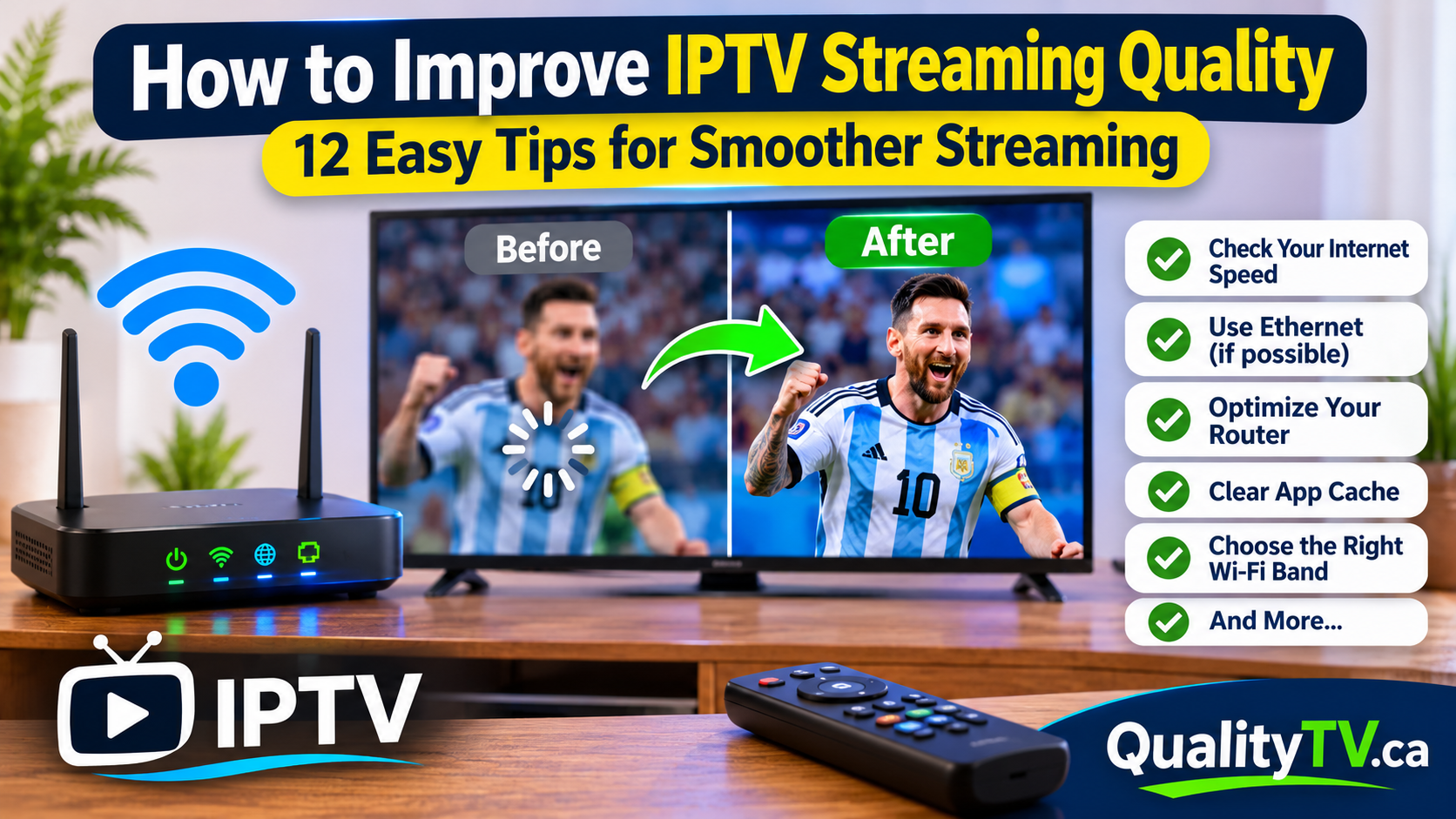
Are you experiencing blurry picture quality, buffering, freezing, or interruptions while watching IPTV? These problems can make it difficult to enjoy your favourite television channels, movies, and live sports.
The good news is that improving IPTV streaming quality does not always require faster internet or a new streaming device.
In many cases, a few adjustments to your internet connection, router settings, IPTV application, and streaming device can make a noticeable difference.
Whether you use an Amazon Firestick, Android TV box, Smart TV, smartphone, or tablet, optimizing your streaming setup can help deliver a smoother viewing experience.
In this guide, we'll explain 12 practical ways to improve IPTV streaming quality, reduce buffering, and get the most out of your home entertainment setup.
Your internet connection is one of the most important factors affecting IPTV streaming quality.
IPTV requires a consistent flow of data to deliver video without interruptions. If your internet connection is too slow or unstable, you may experience buffering, freezing, or reduced picture quality.
Here are some general internet speed recommendations:
| Streaming Quality | Suggested Download Speed |
|---|---|
| SD | 3–5 Mbps |
| HD | 5–10 Mbps |
| Full HD (1080p) | 10–15 Mbps |
| 4K UHD | 25 Mbps or higher |
These are general estimates, not guaranteed minimum requirements. Actual needs depend on the stream, compression, and other devices using your connection.
If several people in your household stream content simultaneously, additional bandwidth may be necessary.
How to improve your connection:
Run an internet speed test.
Pause large downloads while streaming.
Avoid unnecessary background applications.
Check whether other devices are using significant bandwidth.
Contact your internet provider if your connection consistently performs below your plan's advertised speeds.
Remember that a stable connection is just as important as having a high download speed.
If your IPTV device supports a wired internet connection, Ethernet is worth considering.
Wi-Fi is convenient, but wireless signals can be affected by walls, distance, interference, and other connected devices.
Ethernet connects your streaming device directly to your router using a network cable.
Benefits of Ethernet for IPTV:
More consistent network performance.
Reduced wireless interference.
Fewer signal-related interruptions.
Reliable connectivity for stationary devices.
If running an Ethernet cable is not practical, try improving your Wi-Fi signal by moving your router closer to your streaming device.
For a detailed comparison, read our guide: Ethernet vs Wi-Fi for IPTV: Which Connection Is Better?
Your router's location can have a significant impact on IPTV streaming performance.
Even a modern router may deliver poor Wi-Fi performance if it is hidden behind furniture or located too far from your streaming device.
For better wireless coverage:
Place your router in a central location.
Keep it elevated rather than directly on the floor.
Avoid placing it inside cabinets.
Keep it away from large metal objects.
Minimize the number of walls between your router and streaming device.
Avoid placing it near equipment that may cause wireless interference.
If you regularly experience buffering in a particular room, poor Wi-Fi coverage could be contributing to the problem.
Most modern routers offer 2.4 GHz and 5 GHz wireless networks.
Both can work well for IPTV, but they have different advantages.
2.4 GHz Wi-Fi
Better coverage over longer distances.
Generally performs better through walls.
Can experience more interference and congestion.
5 GHz Wi-Fi
Higher potential wireless speeds.
Often less congested.
Works best when your streaming device is relatively close to the router.
As a general rule, choose 5 GHz when you have a strong signal and 2.4 GHz when your device is farther away.
The best option depends on your home layout and wireless conditions.
Streaming devices can sometimes experience temporary software problems after running for extended periods.
Background applications, limited available memory, and temporary system errors may affect playback performance.
Restarting your device can help resolve some of these issues.
How to restart your Firestick:
Open Settings.
Select My Fire TV.
Choose Restart.
Wait for the device to reboot.
Open your IPTV application again.
You can also restart compatible Smart TVs and Android TV boxes through their system settings.
A periodic restart is a simple maintenance step that can help keep your streaming device running smoothly.
IPTV applications store temporary files to help them operate efficiently.
Over time, cached files can accumulate or become corrupted, potentially contributing to application glitches and playback problems.
Clearing the cache may help restore normal performance.
How to clear the cache on Firestick:
Open Settings.
Select Applications.
Choose Manage Installed Applications.
Find your IPTV application.
Select Clear Cache.
Reopen the application and test your channels.
Important: Avoid selecting Clear Data unless necessary. This can remove saved login information and application settings.
Using an outdated IPTV application can sometimes lead to compatibility and playback problems.
Application updates may include:
Bug fixes.
Improved playback compatibility.
Security improvements.
Better device support.
Performance improvements.
Check your application's official source for available updates.
If your IPTV application starts experiencing problems after an update, investigate whether the new version has known compatibility issues with your device.
Keeping your applications updated is a useful part of maintaining your streaming setup.
Some IPTV applications allow you to choose between hardware and software video decoding.
These settings determine how your streaming device processes video.
Hardware decoding uses dedicated video-processing components, while software decoding relies on the device's main processor.
If your device struggles with a particular video stream, switching decoder settings may improve playback.
What to try:
Open your IPTV application.
Navigate to Playback Settings.
Find Decoder or Hardware Decoder.
Try switching between available hardware and software options.
Restart the channel.
Compare playback quality.
Not every application offers both options, and the best setting depends on your device and the video format.
If multiple devices are using your internet connection simultaneously, your IPTV stream may have to compete for available bandwidth.
For example, someone in your household might be downloading large files while another person is watching a 4K movie.
This can affect streaming performance, especially if your internet plan has limited capacity.
Ways to reduce network congestion:
Pause unnecessary downloads.
Limit simultaneous high-resolution streams.
Schedule large downloads for later.
Disconnect devices that are not being used.
Consider a router with better network management features.
You do not need to disconnect every device. The goal is to make sure your network has sufficient capacity for everyone's activities.
Your router plays an important role in delivering internet connectivity throughout your home.
An outdated router may struggle with wireless coverage, multiple connected devices, or modern internet speeds.
If your IPTV frequently buffers despite having a good internet plan, your router could be contributing to the problem.
When considering an upgrade, look for:
Wi-Fi 6 or newer support.
Good wireless coverage.
Gigabit Ethernet ports.
Dual-band or tri-band connectivity.
Regular firmware updates.
Support for multiple connected devices.
You do not necessarily need an expensive router. Choose one that matches your home's size, internet plan, and number of connected devices.
Read our related guide: Does Your Router Affect IPTV Streaming Quality?
Not all IPTV applications perform identically on every streaming device.
Some applications may work better on certain devices because of differences in hardware, operating systems, and video decoding support.
If your IPTV application consistently freezes or struggles to play particular channels, try another compatible IPTV player.
Some popular IPTV player options include:
TiviMate.
IPTV Smarters Pro.
XCIPTV Player.
Other compatible IPTV applications.
Make sure your IPTV subscription supports the application you choose.
You should also check that your streaming device has sufficient available storage and is running a supported operating system.
Sometimes your internet connection and streaming device are working perfectly, but certain IPTV channels still experience problems.
This may happen because of:
Temporary channel interruptions.
Stream encoding problems.
Provider-side server congestion.
Individual channel availability issues.
Incompatible video formats.
Try switching between several channels.
If only one channel has poor picture quality or keeps freezing, the issue may be specific to that stream.
If every channel experiences problems, investigate your internet connection, router, device, and IPTV application.
If the problem continues, contact your IPTV provider with details about the affected channels and the times when interruptions occur.
Amazon Firestick devices are popular among IPTV users, but a few simple adjustments can help maintain good performance.
Consider these tips:
Remove applications you no longer use.
Keep sufficient storage space available.
Clear temporary application caches.
Restart your Firestick periodically.
Keep your Fire OS software updated.
Avoid running unnecessary applications in the background.
Use a stable Wi-Fi connection or compatible Ethernet adapter.
These steps can help reduce device-related performance problems.
Here is a quick reference to help identify common IPTV issues.
| Problem | Possible Solution |
|---|---|
| Frequent buffering | Check internet stability and Wi-Fi signal |
| Blurry picture quality | Check stream quality and device display settings |
| Channels freezing | Test other channels and restart the app |
| IPTV takes too long to load | Check network connection and app performance |
| Sound but no picture | Check video decoder settings |
| Wi-Fi disconnecting | Improve router placement or test Ethernet |
| Problems on one channel | Contact your IPTV provider |
| App keeps crashing | Clear cache and check for updates |
Start by checking your internet speed, improving your Wi-Fi signal, restarting your streaming device, clearing your IPTV application cache, and keeping your software updated.
For general planning, 10–15 Mbps may be sufficient for Full HD streaming, while 4K streaming generally benefits from 25 Mbps or higher. Additional bandwidth may be necessary when multiple devices are streaming simultaneously.
Ethernet can improve connection consistency by avoiding wireless interference and weak Wi-Fi signals. It is often a good choice for stationary streaming devices.
Fast internet does not guarantee stable streaming. Your router, Wi-Fi signal, network congestion, streaming device, IPTV application, and the stream itself can all contribute to buffering.
Yes. A capable router can improve wireless coverage, network efficiency, and performance when multiple devices are connected. However, upgrading your router will not resolve every IPTV problem.
Blurry picture quality may be caused by a low-quality source stream, automatic quality adjustment, device display settings, or a channel that does not provide a high-resolution broadcast.
Yes. Limited device resources, insufficient storage, outdated software, and application problems can contribute to playback interruptions.
A VPN is not automatically necessary for IPTV. In some situations, it may help address certain routing or network restrictions, but it can also reduce connection speed. If you use one, choose a reliable service and compare streaming performance with and without it.
Improving IPTV streaming quality is often about optimizing your entire home entertainment setup rather than simply purchasing a faster internet plan.
Your router, internet connection, streaming device, IPTV application, and video decoder settings all play a role in delivering smooth playback.
Start with the simple solutions, such as improving router placement, checking your internet connection, clearing your application cache, and restarting your device.
If problems continue, test Ethernet, review your router's capabilities, and contact your IPTV provider if specific channels are affected.
With the right setup, you can enjoy a more reliable IPTV streaming experience with fewer interruptions.
Looking for an IPTV streaming option in Canada?
Visit Quality TV to explore our available IPTV plans and find an option that suits your entertainment needs.
Ready to enjoy live TV, sports and entertainment on your favourite devices? Visit our Quality TV Pricing Page to explore available subscription options and find a plan that suits your household.
Other Hellpfull Blogs