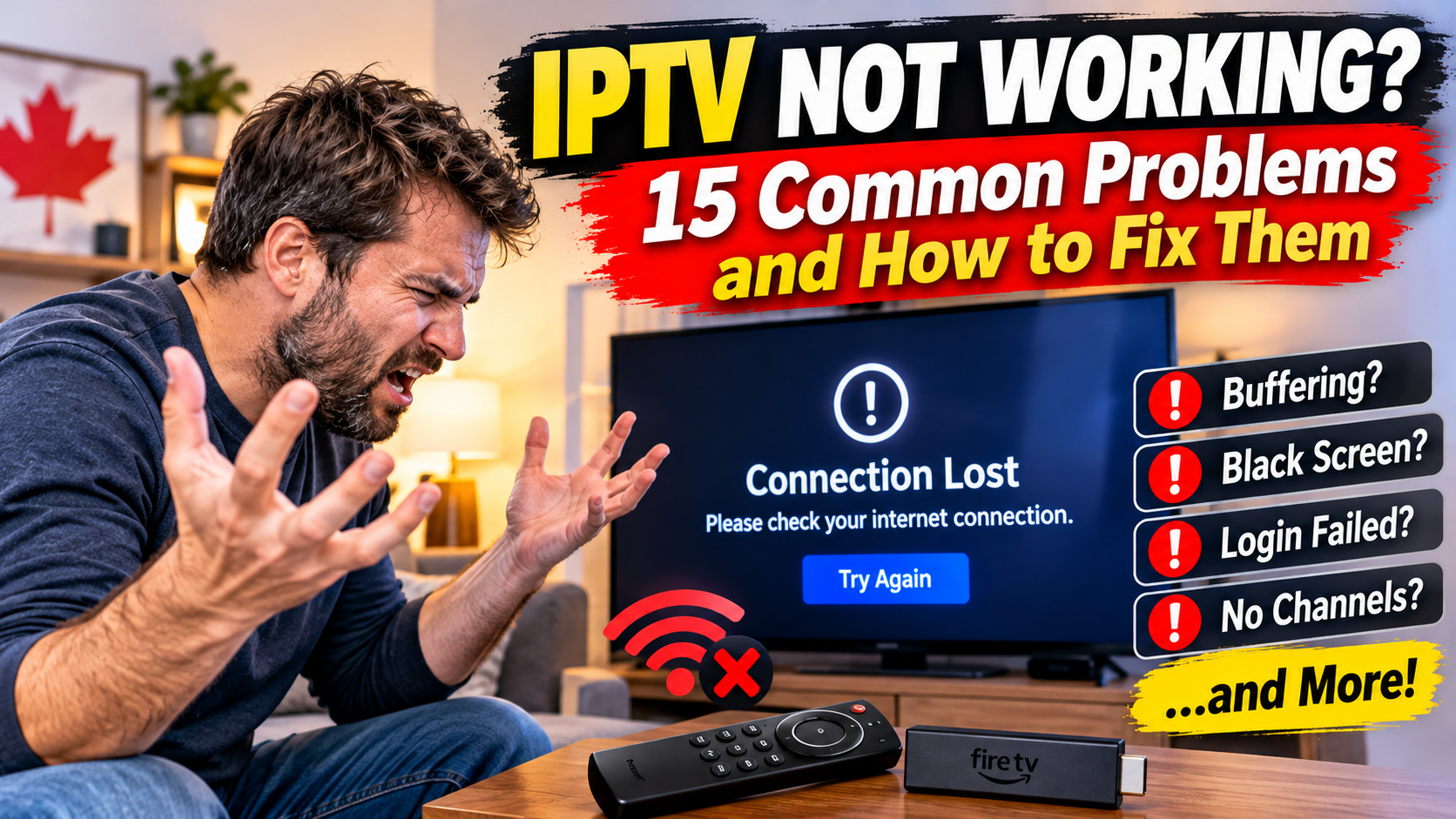
Is your IPTV not working? Are channels failing to load, videos freezing, or your IPTV app showing connection errors? These problems can happen on Firestick, Android TV boxes, Smart TVs, phones and other streaming devices.
The good news is that many IPTV problems can be fixed with a few simple troubleshooting steps. The cause may be your internet connection, streaming device, IPTV player, playlist, login details or the service itself.
In this guide, we'll explain 15 common IPTV problems and how to fix them in 2027, including channel loading errors, black screens, buffering, login failures and connection problems.
Whether you're using IPTV on a Firestick, Android TV, Samsung Smart TV or another compatible device, these steps can help you identify the problem and get your streaming working again.
Before changing any settings, try these basic steps:
Restart your streaming device.
Restart your modem and router.
Check that your internet connection is working.
Close and reopen your IPTV app.
Check whether the problem affects one channel or every channel.
Confirm your subscription or account is active.
Check for available app and device updates.
If IPTV is still not working, use the troubleshooting solutions below to identify the cause.
One of the most common IPTV problems is when channels appear in the playlist but will not start playing.
You might see a loading circle, a blank screen or an error message when selecting a channel.
Possible causes:
Temporary service interruption.
Outdated or expired playlist.
Incorrect account information.
IPTV player issue.
Channel stream unavailable.
How to fix it:
Exit your IPTV application completely.
Reopen the app and refresh your playlist.
Try a different channel.
Check whether your account or subscription is active.
Restart your streaming device.
Contact your provider if multiple channels remain unavailable.
If only one channel is affected, the problem may be with that particular stream rather than your device.
IPTV buffering happens when video playback pauses while the stream loads. It can be especially frustrating when watching live television, movies or sports.
Possible causes:
Weak Wi-Fi signal.
Slow or unstable internet.
Network congestion.
Device performance problems.
Problems with the streaming source.
How to fix it:
Restart your router and streaming device.
Move your device closer to your Wi-Fi router.
Use an Ethernet connection if supported.
Pause downloads and other heavy internet activity.
Close unused applications.
Test your internet speed.
Try another channel to see whether the problem is isolated.
For more detailed instructions, read our guide: How to Stop IPTV Buffering: Fix Freezing & Lag in 2027.
A black screen can appear when you select a channel but no picture loads. Sometimes you may hear audio without seeing video.
Possible causes:
Video decoder compatibility.
Unsupported video format.
Temporary channel stream problem.
HDMI connection issue.
IPTV player error.
How to fix it:
Try another channel.
Close and reopen your IPTV player.
Restart your Firestick, TV or Android TV box.
Check that HDMI cables are securely connected.
Look for hardware or software decoder settings in your IPTV player.
If available, try switching between hardware and software decoding.
Change one setting at a time so you can identify what fixes the problem.
If your IPTV application closes unexpectedly, freezes or returns to your device's home screen, the app or device may be experiencing a performance issue.
Possible causes:
Low available storage.
Outdated application.
Corrupted temporary files.
Device overheating.
Software compatibility problems.
How to fix it:
Restart your streaming device.
Check for app updates.
Open your device settings and find the IPTV app.
Select Force Stop if available.
Clear the app cache.
Check available device storage.
Reinstall the application only if necessary and make sure you have your login information first.
Avoid selecting Clear Data unless you are prepared to set up the application again.
An IPTV app may display messages such as Invalid Username, Password Incorrect, Authentication Failed or Login Failed.
Possible causes:
Incorrect username or password.
Typing mistakes.
Expired account.
Incorrect server address.
Provider account issue.
How to fix it:
Carefully re-enter your login information.
Check for extra spaces when copying credentials.
Confirm the server address or portal URL.
Make sure your account is still active.
Check whether your provider has sent updated login details.
If you use Xtream Codes or an M3U playlist, make sure you are entering the correct information in the correct fields.
Never share your IPTV password publicly or with an untrusted website.
If your IPTV service repeatedly disconnects during playback, the connection may be unstable.
Possible causes:
Weak Wi-Fi.
Router problems.
Network interruptions.
Device overheating.
Service-side interruptions.
How to fix it:
Restart your router.
Restart your streaming device.
Test another application that uses the internet.
Try an Ethernet connection if possible.
Check whether the problem happens on every channel.
Contact your provider if other internet services work normally but IPTV continues disconnecting.
For additional help, see our article: Why Does IPTV Keep Disconnecting? 10 Causes and Fixes (2027 Guide).
Your IPTV application may open normally, but your channel list may be empty or fail to update.
Possible causes:
Incorrect M3U URL.
Expired playlist link.
Incorrect login details.
Playlist server unavailable.
Application configuration problem.
How to fix it:
Check that the playlist URL was entered correctly.
Confirm that the playlist has not expired.
Refresh or reload the playlist inside your IPTV app.
Check your internet connection.
Ask your provider to verify that the playlist is still active.
If you use an M3U playlist, avoid accidentally deleting or changing the original URL.
The Electronic Programme Guide (EPG) displays programme names, descriptions and scheduled broadcast times.
If your IPTV guide is blank or showing incorrect information, the EPG source may not be updating correctly.
Possible causes:
EPG source unavailable.
Incorrect time settings.
Failed guide update.
Missing channel mapping.
Incorrect playlist configuration.
How to fix it:
Open your IPTV player's settings.
Find the EPG or TV Guide section.
Select Update or Refresh EPG.
Check your device's date, time and time zone.
Confirm that your playlist is linked to the correct guide source.
Restart the IPTV application.
For more help, read: How to Fix Common TiviMate EPG Errors & Missing TV Guides (2027).
If the picture works but you cannot hear anything, the problem may be related to audio settings, your TV or the streaming application.
Possible causes:
TV volume or mute settings.
Incorrect audio output.
Unsupported audio format.
HDMI connection problem.
Bluetooth audio delay or connection issue.
How to fix it:
Check that your TV is not muted.
Test another channel.
Check your television's audio output settings.
Disconnect Bluetooth headphones or speakers temporarily.
Restart your streaming device.
Try a compatible audio format, such as PCM or stereo, if your device offers that option.
If the problem affects only one channel, its audio stream may be the issue.
Sometimes the IPTV application opens, but menus take a long time to respond. Channels may also take longer than usual to start.
Possible causes:
Limited device storage.
Too many applications running.
Slow internet connection.
Older streaming hardware.
Temporary application problems.
How to fix it:
Restart your device.
Close unused apps.
Clear the IPTV app cache.
Check available storage.
Update your device software.
Test your internet connection.
If your streaming device is several years old, its hardware may also limit performance.
You may find that IPTV works on your television but not your Firestick, phone or Android TV box.
This does not automatically mean your subscription is faulty.
Possible causes:
Device compatibility.
Different IPTV player settings.
Incorrect login information.
Device-specific app problems.
Simultaneous connection limits.
How to fix it:
Check that the IPTV player supports your device.
Confirm that you are using the correct login details.
Update the application.
Restart the device.
Check your provider's rules for simultaneous connections.
Remember that installing an IPTV application on several devices does not necessarily mean your subscription allows multiple streams at the same time.
A connection timeout happens when the IPTV application cannot establish a connection with the required server within the expected time.
Possible causes:
Internet connection problems.
Incorrect server address.
Temporary server interruption.
Router or DNS configuration.
Provider-side technical problems.
How to fix it:
Open another application to test your internet connection.
Restart your router.
Confirm that the server address is correct.
Restart your IPTV player.
Check whether other channels or services work.
Contact your provider if the connection timeout continues.
Avoid changing advanced network settings unless you understand what they do.
Live sports can be particularly frustrating when the picture freezes during an important moment.
Possible causes:
Network congestion.
Unstable Wi-Fi.
High video bitrate.
Device performance limitations.
Problems with the live stream.
How to fix it:
Use a wired Ethernet connection if supported.
Reduce other network activity.
Restart your streaming device.
Test another available stream.
Make sure your device is not overheating.
Check whether other live channels are affected.
Live streams can behave differently from movies or on-demand content because they are being delivered in real time.
An outdated IPTV player can cause compatibility problems, playback errors or missing features.
Possible causes:
Automatic updates disabled.
Device operating system outdated.
Application no longer supported on your device.
App store or internet connection issue.
How to fix it:
Open your device's official app store.
Search for the IPTV application.
Check whether an update is available.
Install available device software updates.
Restart your device after updating.
Only install applications from official app stores or the verified developer's website. Avoid unknown download links and unofficial installation files.
Sometimes IPTV is not working because the service itself is experiencing an interruption.
You may notice that all channels stop working even though your internet connection is fine.
Possible causes:
Temporary service outage.
Maintenance.
Stream source interruption.
Authentication system problems.
Provider-side technical issue.
How to fix it:
Test your internet connection using another application.
Try multiple IPTV channels.
Restart your IPTV player.
Check your provider's official service updates or support channel.
Contact support and explain when the problem started.
If every channel is unavailable and other internet applications work normally, the issue may be outside your home network.
Do not repeatedly reset your device or delete your IPTV application if the actual problem is a service interruption.
A simple way to troubleshoot IPTV is to check how much of the service is affected.
| What you notice | Possible cause |
|---|---|
| One channel does not work | Individual stream problem |
| All channels fail | Playlist, account or service issue |
| IPTV buffers constantly | Internet or network instability |
| App closes unexpectedly | App or device performance |
| Login is rejected | Credentials or account issue |
| TV guide is blank | EPG configuration |
| IPTV works on another device | Compatibility or device settings |
| Other internet apps also fail | Home internet connection |
This process can help you avoid changing settings that are not related to the problem.
You can reduce many common IPTV issues by maintaining your streaming device and home network.
Follow these simple recommendations:
Keep your IPTV application updated.
Install device software updates.
Restart your router occasionally.
Keep enough free storage on your streaming device.
Avoid installing unnecessary applications.
Use a strong Wi-Fi connection or Ethernet where possible.
Keep your Firestick or Android TV box properly ventilated.
Use a reliable IPTV player compatible with your device.
Keep your account and playlist information secure.
Use authorized IPTV content sources.
Good device maintenance and a stable internet connection can help improve your overall streaming experience.
IPTV can suddenly stop working because of an internet interruption, expired playlist, login issue, application error or service outage. Check your internet connection first, then restart your IPTV app and device.
If every channel displays a black screen, check your internet connection, playlist, IPTV player and device settings. If only one channel is affected, the individual stream may be unavailable.
The issue may be related to the Firestick application, device compatibility, storage or settings. Update the IPTV app, restart your Firestick and check that your player supports your device's operating system.
Your required speed depends on video quality, the number of devices streaming and network stability. A reliable connection is just as important as the advertised download speed.
Clearing the application cache can help resolve temporary app problems. It is generally safer to try clearing the cache before clearing app data, which may remove saved settings and login information.
Repeated login requests may indicate an expired session, incorrect account information, application problems or an issue with the authentication server. Confirm your credentials and check with your provider if the issue continues.
Yes. A provider-side outage, unavailable stream or account issue can prevent channels from loading even when your home internet connection is working normally.
IPTV technology and IPTV player applications are not automatically illegal. The important issue is whether the service has authorization to distribute the television channels and other content it offers. Choose services that have the appropriate rights to provide their content.
When IPTV is not working, the problem is not always your subscription or streaming device. It could be something as simple as a weak Wi-Fi signal, an outdated playlist, an application error or a temporary service interruption.
Start with the basic troubleshooting steps, identify whether one channel or the entire service is affected, and work through the solutions in this guide.
Whether you watch IPTV on Firestick, Android TV, Smart TV or another compatible device, understanding these common problems can help you get back to watching with fewer interruptions.
Remember: Always use authorized IPTV services and compatible applications for a safer and more reliable streaming experience.