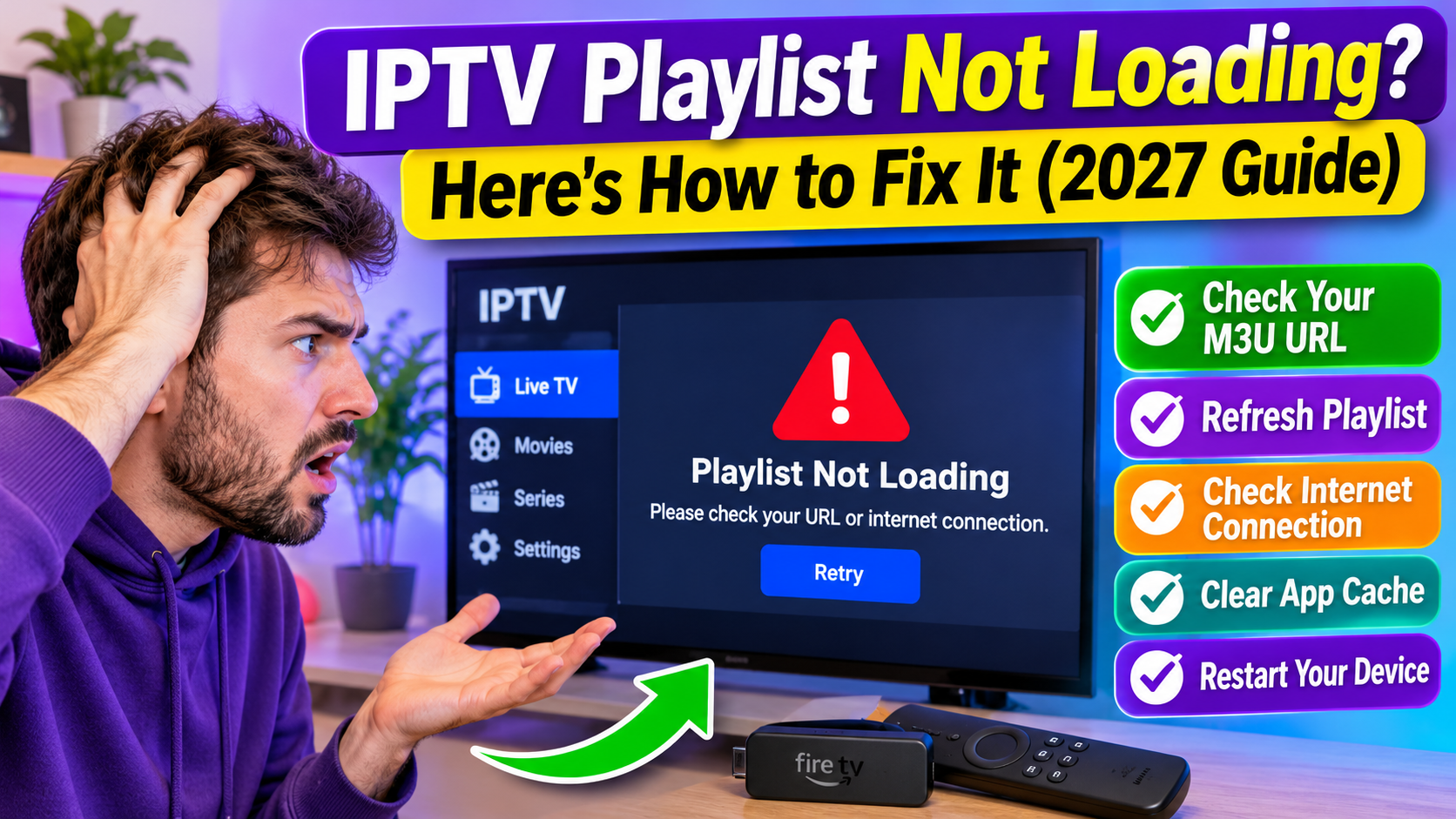
Trying to watch IPTV but your playlist won't load? Maybe your channels have disappeared, the app is stuck on a loading screen, or you're getting an error saying the playlist is invalid.
This is a common IPTV problem that can happen on Amazon Firestick, Android TV boxes, Smart TVs, iPhones, iPads and other compatible devices.
The good news is that a playlist problem doesn't always mean your IPTV subscription has stopped working. The cause could be an incorrect M3U URL, an expired account, a slow internet connection, an outdated playlist or a temporary server problem.
In this guide, we'll explain why an IPTV playlist is not loading and show you how to troubleshoot it step by step in 2027.
An IPTV playlist contains information that helps your IPTV player access available television streams and organize channels.
If the playlist cannot be retrieved or processed, your app may display an error or show an empty channel list.
Common causes include:
Incorrect or incomplete M3U playlist URL.
Expired or inactive IPTV subscription.
Temporary IPTV provider server problems.
Unstable internet connection.
Outdated playlist information.
Incorrect login details.
An IPTV app that does not support the playlist format.
Too many active connections.
Corrupted temporary app files.
A provider-side change to the playlist address.
Before changing your device settings, try to identify whether the entire playlist is failing or only certain channels are missing.
One of the most common reasons an IPTV playlist won't load is an incorrect M3U URL.
If even one character is missing, the IPTV player may not be able to retrieve the playlist.
Check the URL supplied by your authorized IPTV provider.
Look for:
Missing letters or numbers.
Extra spaces before or after the URL.
Incorrect punctuation.
A missing part of the web address.
An outdated playlist link.
A copied URL that was accidentally cut off.
How to fix it:
Find the original playlist information from your provider.
Open your IPTV player.
Go to the playlist or account settings.
Check the saved M3U URL.
Re-enter the complete address if necessary.
Save the playlist and try loading it again.
Be careful when copying long playlist URLs. Some may contain account-specific information.
Never share your complete playlist URL publicly because it may contain credentials that provide access to your subscription.
An expired subscription can prevent your IPTV playlist from loading.
Even if the IPTV application opens normally, it may be unable to retrieve channels if your provider has disabled or expired the account.
Check:
Your subscription expiration date.
Whether your account is active.
Whether your provider has sent an account notification.
Whether your subscription renewal was completed.
If your subscription should still be active, contact your provider through its official support channel.
Don't purchase another subscription until you've confirmed what happened to your existing account.
Sometimes the playlist stored in your IPTV application is outdated.
Your provider may update channel information, replace stream addresses or reorganize categories. Refreshing the playlist can help retrieve the latest available information.
General steps:
Open your IPTV player.
Find Settings or Playlist Management.
Select the playlist you want to update.
Choose Refresh, Reload or Update Playlist.
Wait for the process to finish.
Return to the channel list.
The exact menu names depend on the IPTV application.
If the playlist still refuses to load, ask your provider whether the playlist address has changed.
Your IPTV player needs an internet connection to retrieve playlist information from the provider.
If your connection is unstable, the app may time out before the playlist finishes loading.
Try these steps:
Open another streaming app.
Check whether websites load normally.
Restart your Wi-Fi router.
Reconnect your streaming device.
Test the IPTV playlist again.
If possible, try an Ethernet connection or move your device closer to your wireless router.
You can also test the playlist on another compatible device, provided your subscription allows it.
If it loads on another network but not your home Wi-Fi, the problem may involve your router, DNS configuration or network restrictions.
An IPTV app can occasionally become stuck while retrieving playlist information.
Closing and reopening it may clear a temporary problem.
Try this:
Exit your IPTV application.
Close it completely if your device supports that option.
Wait 10–15 seconds.
Open the app again.
Select your playlist.
Wait for the channel list to load.
If the app remains stuck, restart your streaming device before trying again.
Temporary files stored by your IPTV application can sometimes cause loading problems.
Clearing the cache may help if the app repeatedly freezes, displays an empty playlist or takes too long to load channels.
Open Settings.
Select Applications.
Choose Manage Installed Applications.
Find your IPTV player.
Select Clear Cache.
Reopen the app.
Try refreshing the playlist.
On Android TV, the cache option is generally available under Settings, Apps and the selected application's storage settings.
Important: Clear Cache is different from Clear Data. Clearing data may remove saved accounts, playlists and login information. Try clearing the cache first.
Not every IPTV player supports every playlist format.
Some apps accept M3U playlist URLs, while others may support Xtream Codes-style login details, local playlist files or specific streaming formats.
If you're entering the correct information but the playlist still fails, check the app's supported formats.
For example:
An M3U playlist URL belongs in the playlist or M3U field.
Xtream Codes-style details generally use separate username, password and server URL fields.
A local playlist file may need to be imported rather than entered as a web address.
Do not paste an entire M3U URL into a server address field unless the app specifically instructs you to do so.
Sometimes the playlist is correct, your subscription is active and your internet is working, but the provider's server is temporarily unavailable.
Possible signs include:
The playlist worked previously but suddenly stopped.
Multiple devices cannot load the same playlist.
The app displays a connection timeout.
The channel list remains empty.
Other internet services work normally.
If you suspect a server issue, contact your provider and ask whether its playlist or authentication server is experiencing problems.
Changing your Firestick settings will not fix a provider-side outage.
Incorrect date and time settings can occasionally cause authentication or connection problems with apps and network services.
Check that your device is using the correct date, time and time zone.
On many streaming devices, you can find these options under Settings and System or Device Preferences.
If automatic time settings are available, enable them and restart the IPTV application.
This is not the most common cause of playlist problems, but it is worth checking if other fixes have failed.
If the playlist still won't load, restart your streaming device.
A restart can refresh the device's network connection and clear temporary system problems.
Open Settings.
Select My Fire TV.
Choose Restart.
Wait for the device to reboot.
Open your IPTV player.
Refresh your playlist.
Open Settings.
Find System or Device Preferences.
Select Restart if available.
Wait for the device to restart.
Open your IPTV application again.
For Smart TVs, use the manufacturer's recommended restart procedure.
If the playlist still fails after refreshing it, the saved playlist profile may be outdated or corrupted.
Removing and adding it again may help.
Before doing this, make sure you have your current playlist URL or login details.
Then:
Open your IPTV application.
Find Playlist Management.
Select the affected playlist.
Remove it if the app provides that option.
Choose Add Playlist.
Select the correct playlist format.
Enter the current information supplied by your provider.
Save and wait for the playlist to load.
Menu names vary between apps.
Do not delete your playlist if you do not have the information needed to restore it.
If none of these fixes work, your provider may need to investigate the playlist or account.
Ask them to confirm:
Whether your subscription is active.
Whether your M3U URL is still valid.
Whether the server address has changed.
Whether the playlist service is online.
Whether your account has reached a connection limit.
Whether the provider has changed its supported login method.
When contacting support, explain what you have already tried and include the exact error message.
Avoid sharing your full playlist URL or password in public forums or with unverified contacts.
Firestick users can experience playlist problems because of network instability, app cache issues, outdated app versions or incorrect login information.
If your IPTV playlist won't load on Firestick, try this order:
Check your M3U URL or login details.
Confirm your subscription is active.
Restart your Firestick.
Check your internet connection.
Clear the IPTV app cache.
Refresh the playlist.
Check for an app update.
Contact your provider if the problem continues.
Also confirm that your Fire TV model and operating system support the IPTV application you're using.
If your playlist won't load on a Samsung, LG or another Smart TV, the problem may be related to the app, television compatibility or network connection.
Try:
Restarting your television.
Checking your Wi-Fi connection.
Confirming the playlist URL.
Refreshing the playlist.
Checking for an app update.
Confirming that your TV app supports your playlist format.
If the playlist works on another compatible device, the problem may be specific to your television or its IPTV application.
An empty playlist means the IPTV player has not displayed the expected channel information.
Possible reasons include:
The playlist URL is incorrect.
The provider's server is unavailable.
The playlist has not finished loading.
The subscription is inactive.
The playlist format is unsupported.
The provider has changed the channel list.
Try refreshing the playlist and checking your account before deleting the saved profile.
Use this checklist before contacting your provider.
Check the complete M3U playlist URL.
Confirm your subscription is active.
Refresh the playlist.
Restart the IPTV application.
Check your internet connection.
Clear the app cache.
Confirm the app supports your playlist format.
Restart your streaming device.
Check whether the provider's server is available.
Contact your provider if the playlist still won't load.
Common reasons include an incorrect M3U URL, expired subscription, internet connection problems, outdated playlist information or a temporary provider server issue.
The playlist may not have loaded correctly, the URL may be invalid, or the provider may have changed the channel information. Refresh the playlist and confirm your account is active.
The URL may be incomplete, expired or entered into the wrong field. Check the original information supplied by your provider and confirm that your IPTV player supports M3U playlists.
The problem may involve the Firestick app, device compatibility, saved playlist information or network connection. Test the same playlist on another compatible device to narrow down the cause.
Usually, refreshing a playlist does not intentionally remove favourites, but behaviour varies by app. Some players may reorganize channels or require favourites to be restored after a playlist change.
Reinstalling should be a later troubleshooting step. First check your URL, subscription, connection, cache and app compatibility. Before reinstalling, make sure you have your login details and can obtain the app from a trusted source.
Yes. If your provider has disabled an expired account, the playlist may no longer be accessible. Confirm your account status with the provider.
No. An M3U playlist is a file or URL containing streaming information. The subscription or authorized content provider supplies access to the channels and programming.
When your IPTV playlist is not loading, the problem is often related to the playlist URL, subscription status, internet connection or IPTV application.
Start by checking your M3U URL and account details. Then refresh the playlist, restart your app, clear the cache and test your internet connection.
If the playlist still fails on multiple compatible devices, contact your provider to check the server and account.
Working through these steps one at a time can help you identify the cause without unnecessarily resetting your Firestick, Smart TV or Android TV box.
Other Blogs You May Like
Ready to enjoy live TV, sports and entertainment on your favourite devices? Visit our Quality TV Pricing Page to explore available subscription options and find a plan that suits your household.