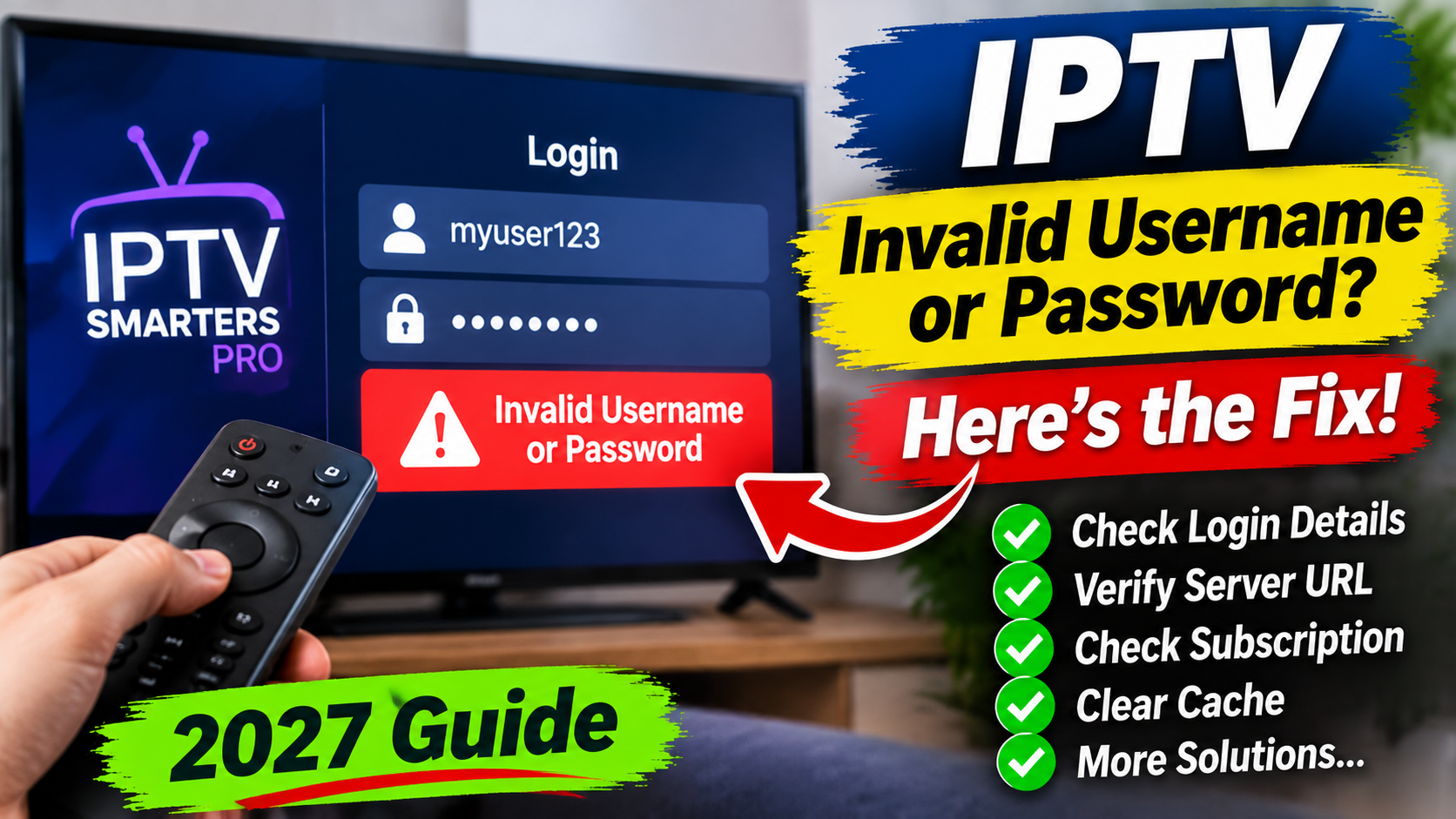
Are you trying to watch IPTV but keep seeing an "Invalid Username or Password" error? This is one of the most frustrating IPTV problems, especially when your subscription was working perfectly before.
The good news is that this error does not always mean your account has been cancelled. It can be caused by a typing mistake, an incorrect server address, expired subscription details, a provider-side issue or an IPTV app problem.
Whether you're using IPTV Smarters Pro, TiviMate, a Firestick, Android TV or a Smart TV, this guide explains how to troubleshoot incorrect IPTV login details and get your service working again.
When an IPTV app displays an invalid username or password message, it usually means the login information was rejected or the app could not complete authentication.
Some common causes include:
Incorrect username or password.
Extra spaces when copying login information.
An incorrect server URL or port.
An expired IPTV subscription.
Login details that have been changed by the provider.
Too many active connections.
A temporary IPTV server problem.
An outdated or malfunctioning IPTV app.
Before resetting your device or reinstalling your IPTV player, work through the fixes below.
A simple typing mistake is one of the most common reasons IPTV login information fails.
Usernames can contain a combination of letters, numbers and special characters. One incorrect character can prevent your account from connecting.
Check for these common mistakes:
Mixing up the number 0 and the letter O.
Confusing lowercase l with the number 1.
Missing a letter or number.
Accidentally adding a space.
Using an old username from a previous subscription.
How to fix it:
Find the original login information supplied by your IPTV provider.
Open your IPTV application.
Select the username field.
Delete the existing information.
Carefully enter the correct username.
Save the details and try again.
If possible, copy the username directly from your original account information rather than typing it from memory.
Passwords are often case-sensitive. This means uppercase and lowercase letters may be treated differently.
For example, Stream123 and stream123 may be considered two different passwords.
When entering your IPTV password, check:
Capital letters.
Lowercase letters.
Numbers.
Special characters.
Spaces at the beginning or end.
If your password contains special characters, make sure your device's keyboard is entering the correct symbol.
If you are unsure whether the password is correct, ask your provider to verify your current credentials or issue new ones through its official support process.
Even when your username and password are correct, an incorrect server address can cause a login failure.
Many IPTV applications use an Xtream Codes-style login with three fields:
Username
Password
Server URL
The server URL must match the address supplied by your provider.
For example, a server address could look like:
http://server.example.com:8080
This is only an example and is not a working IPTV server.
Check the following:
Is the server address spelled correctly?
Is the port number correct?
Is the address missing part of the domain?
Did you accidentally add an extra space?
Are you using the current server address from your provider?
Do not guess the server URL or change the port number without confirmation.
Important: An M3U playlist URL and an Xtream Codes server URL are not necessarily interchangeable. Make sure you are entering the information in the correct login fields.
Sometimes your IPTV login stops working because the subscription has reached its expiration date.
This can happen even if the IPTV application still opens normally.
Check your subscription details for:
Expiration date.
Account activation status.
Outstanding renewal requirements.
Any account suspension notification.
If your subscription has expired, contact your provider through its official support channel to confirm your options.
Do not immediately purchase another subscription. First, make sure the existing account cannot be restored.
Temporary software problems can interfere with an IPTV application's connection.
Restarting your device is a simple way to refresh its system and network connection.
Open Settings.
Select My Fire TV.
Choose Restart.
Wait for the Firestick to reboot.
Open your IPTV application.
Try logging in again.
Open Settings.
Find System or Device Preferences.
Select Restart if available.
Wait for the device to restart.
Open your IPTV player again.
For Samsung, LG and other Smart TVs, use the restart procedure recommended for your model.
An unstable internet connection can prevent an IPTV application from reaching its authentication server.
Although a connection problem is not necessarily the same as an incorrect password, some apps display confusing or generic login errors.
Try these steps:
Open another streaming application.
Check whether websites load correctly.
Restart your Wi-Fi router.
Reconnect your streaming device to Wi-Fi.
Test your connection using another device.
If you are using Wi-Fi, try moving your Firestick or television closer to the router.
You can also test the login using another compatible network, provided your provider allows it.
If the login works on another network, the issue may involve your router, DNS configuration or network restrictions.
An IPTV application may store temporary information that becomes outdated or corrupted.
Clearing the cache can help resolve certain app performance and connection problems.
Open Settings.
Select Applications.
Choose Manage Installed Applications.
Find your IPTV application.
Select Clear Cache.
Reopen the application.
On Android TV, the option is usually available under Settings, Apps and the selected app's storage settings.
Important: Clearing the cache is not the same as clearing app data. Clearing data may remove saved login details and profiles. Try clearing the cache first.
Some IPTV providers limit how many devices can use the same account simultaneously.
For example, a subscription might allow one active stream at a time.
If another television or streaming device is already using the account, your provider may reject an additional connection or prevent playback.
Try this:
Close the IPTV application on other devices.
Stop any streams currently playing.
Wait briefly for previous sessions to disconnect.
Try logging in again.
Check your subscription terms to understand how many simultaneous connections are allowed.
Remember that the number of registered devices and the number of simultaneous streams may be different.
An outdated IPTV player can sometimes develop compatibility or connection problems.
Check whether an update is available through the official app store or the application's trusted distribution source.
After updating:
Restart your streaming device.
Open the IPTV application.
Check your saved account information.
Try connecting again.
Avoid downloading modified applications or APK files from unknown websites. These can create security risks and may not solve the login issue.
If your username and password appear correct but the application still displays an error, the saved account profile may be outdated.
Removing and adding the account again can help.
Before doing this, make sure you have your current login information.
Steps:
Open your IPTV application.
Find the account or profile management section.
Select the account that is experiencing problems.
Remove the profile if the app provides that option.
Return to the login screen.
Choose the correct login method.
Enter your current username and password.
Enter the correct server URL if required.
Save the account and allow it to connect.
Menu names differ between IPTV players, so the exact steps may vary.
Do not remove your profile if you do not have the information required to restore it.
If none of the previous fixes work, the problem may be with your account or provider.
Your provider may need to check whether:
Your account is still active.
Your username or password has changed.
Your server address has been updated.
Your account has been temporarily restricted.
The authentication server is experiencing an outage.
When contacting support, explain the exact error message and mention which device and IPTV application you are using.
Never share your password publicly or send account information to unverified support contacts.
Firestick users sometimes experience login errors because of incorrect credentials, outdated app information or network problems.
If IPTV says invalid username or password on your Firestick, try this order:
Verify your username.
Re-enter your password.
Confirm the server URL.
Restart your Firestick.
Check your internet connection.
Clear the IPTV app cache.
Confirm your subscription is active.
Contact your provider if the problem continues.
This order helps you check the simplest causes before making bigger changes to your device.
If your IPTV login works on another device but fails on your Smart TV, the problem may be related to the television app or its compatibility.
Try:
Restarting your television.
Checking the TV's internet connection.
Confirming the installed app is compatible with your TV model.
Re-entering your login details.
Checking for an application update.
Confirming the server address with your provider.
Samsung and LG televisions use different operating systems, so app availability and features can vary by model and region.
One of the easiest troubleshooting methods is to test your login on another compatible IPTV player or device, if your subscription permits it.
| What happens | Possible explanation |
|---|---|
| Login fails on every device | Account, credentials or provider issue |
| Login works on another device | Original app or device problem |
| Login works on mobile data but not Wi-Fi | Router or network issue |
| Login works but channels do not play | Playback or stream problem |
| Login stopped after subscription expiration | Account renewal issue |
This test can help you identify where the problem is without repeatedly changing settings.
The problem may involve an incorrect server URL, expired subscription, provider-side authentication issue or saved app profile. Confirm all three login fields if you are using an Xtream Codes-style login.
A provider may update account credentials or server information. If your previous login suddenly stops working, contact the provider through its official support channel.
The issue may be related to the Firestick application, saved profile, device compatibility or network connection. Check that the same login method is supported by both players.
It can. Some applications display a general login error when an account is expired or disabled. Confirm your subscription status with your provider.
Usually not. A factory reset should be a last resort because it removes device settings and installed applications. Check your credentials, subscription, server URL and app cache first.
Normally, clearing the cache does not delete saved account information. Clearing app data may remove login details and settings, so keep your credentials before making changes.
This usually indicates that the login request was not accepted or could not be completed. Check your account status, credentials, server address and internet connection.
Seeing an IPTV invalid username or password error does not necessarily mean your subscription is gone.
Start by checking your username, password and server URL. Then verify your subscription, restart your device, check your internet connection and clear the app cache.
If the login still fails on multiple compatible devices, contact your IPTV provider to check your account and authentication server.
Following these troubleshooting steps can help you identify the cause and get back to watching your favourite authorized IPTV content.
Ready to enjoy live TV, sports and entertainment on your favourite devices? Visit our Quality TV Pricing Page to explore available subscription options and find a plan that suits your household.