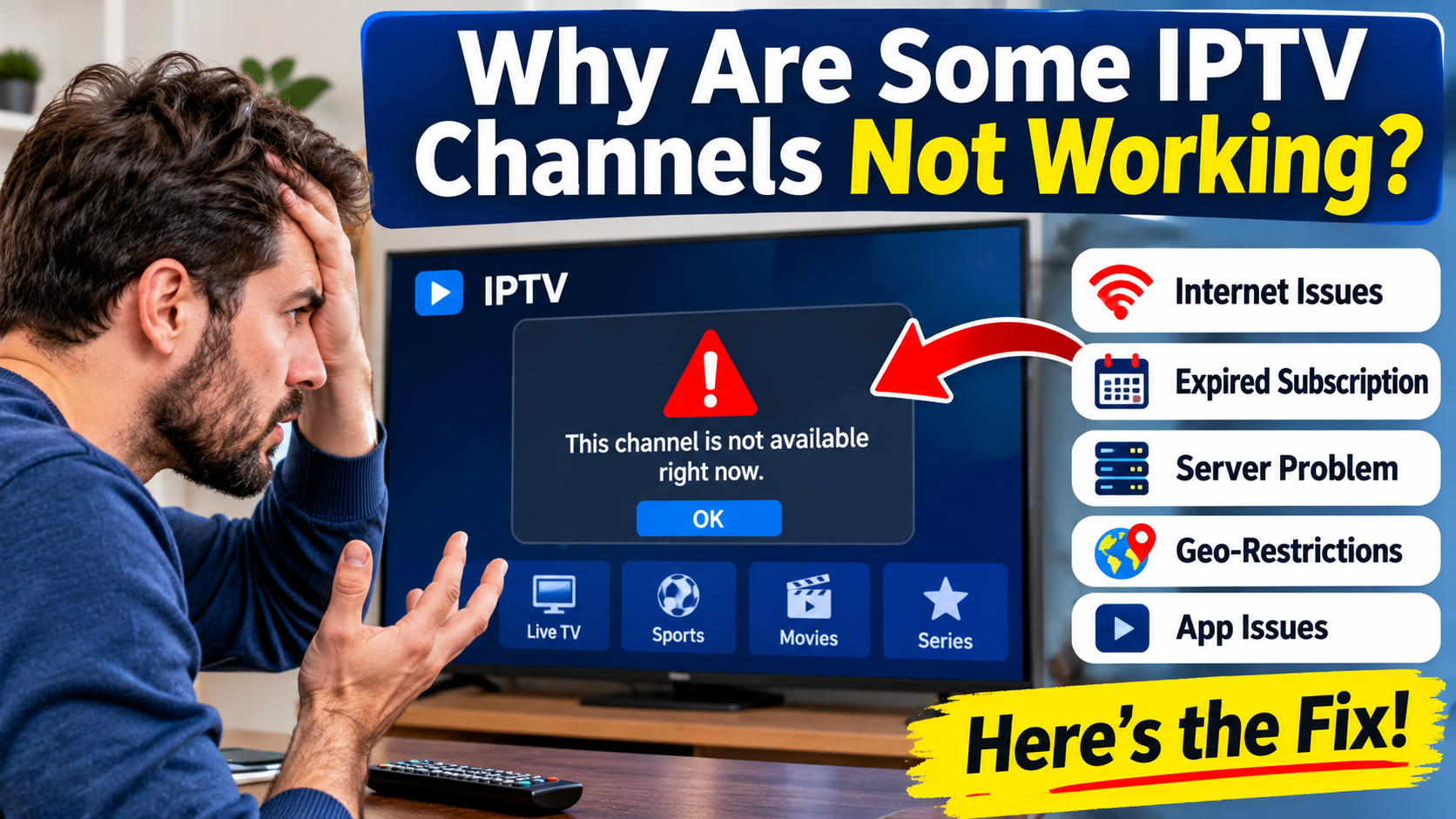
Are some of your IPTV channels working perfectly while others show a black screen, keep buffering or refuse to load? This is a common problem for IPTV users, whether they're watching on a Firestick, Android TV box, Smart TV or another streaming device.
The frustrating part is that your internet connection and IPTV subscription may appear to be working normally, but certain channels still won't play.
There are several possible reasons. A channel may be temporarily offline, the stream source may have changed, your playlist may need refreshing, or the IPTV provider may be experiencing technical problems.
In this guide, we'll explain why some IPTV channels are not working and show you how to troubleshoot the problem step by step in 2027.
When only certain IPTV channels fail, the problem may not be your entire IPTV setup.
For example, you might be able to watch movies, sports and most live television channels while a few specific channels refuse to load.
Common causes include:
Individual channel streams are temporarily offline.
The IPTV provider has changed a stream URL.
Your channel playlist is outdated.
The channel is experiencing a server-side problem.
Your IPTV player cannot decode a particular video format.
The channel requires a different stream source.
Your electronic programme guide is displaying outdated information.
The provider has removed or changed a channel.
Network congestion is affecting certain streams.
The first step is to determine whether the issue affects one channel, several channels or an entire category.
One of the most common explanations is that the individual channel stream is temporarily unavailable.
IPTV services rely on streaming sources to deliver television programming. If a particular source goes offline, the channel may stop working even though the rest of your playlist remains available.
Signs of a temporary channel outage include:
One channel displays a black screen.
The channel keeps loading without starting.
Other channels play normally.
The same channel fails on another compatible device.
How to fix it:
Exit the channel.
Select another channel.
Return to the original channel after a short wait.
Restart your IPTV player.
Contact your provider if the channel continues to fail.
If the issue is on the provider's side, changing settings on your Firestick or television may not help.
Sometimes an IPTV application experiences a temporary playback problem.
Restarting the app can refresh its connection and clear minor glitches.
Try these steps:
Exit your IPTV application.
Close it completely if your device allows it.
Wait approximately 10–15 seconds.
Open the app again.
Select the channel that was not working.
If the channel still refuses to load, continue with the next troubleshooting steps.
An outdated IPTV playlist can cause certain channels to stop working.
Your provider may update channel information, replace stream addresses or reorganize categories. If your player is still using an older playlist, some channels may fail to load.
How to refresh your playlist:
Open your IPTV player.
Go to Settings or Playlist Management.
Find the playlist update or refresh option.
Select Update Playlist or Refresh.
Wait for the update to finish.
Return to Live TV and test the channel.
The exact menu depends on the application.
If refreshing the playlist does not help, ask your provider whether the affected channel has been moved or updated.
Even if most IPTV channels are working, an unstable internet connection can still cause playback problems.
Some streams may use different bitrates or video formats. A connection that handles one channel may struggle with another stream that requires more consistent bandwidth.
Try the following:
Restart your Wi-Fi router.
Move your streaming device closer to the router.
Disconnect devices that are using large amounts of bandwidth.
Test your internet speed.
Use an Ethernet connection if your device supports it.
Here are practical internet speed estimates for planning:
| Streaming quality | Suggested speed |
|---|---|
| SD | 5–8 Mbps |
| 720p HD | Around 10 Mbps |
| 1080p Full HD | 10–15 Mbps |
| 4K Ultra HD | 25–35 Mbps |
These are general estimates rather than guaranteed requirements. Stream quality, network congestion and provider performance also affect playback.
For more help, see our guide on How Much Internet Speed Do You Need for IPTV in 2027?
Temporary files stored by your IPTV application can sometimes cause playback glitches.
Clearing the cache may help if channels freeze, load slowly or display unexpected errors.
Open Firestick Settings.
Select Applications.
Choose Manage Installed Applications.
Find your IPTV player.
Select Clear Cache.
Reopen the application.
Test the affected channels.
On Android TV, the cache option is generally available under Settings, Apps and the selected application's storage settings.
Important: Clear Cache is different from Clear Data. Clearing data may remove saved profiles, playlists and login information. Try clearing the cache first.
Testing nearby channels can help identify whether the problem is limited to one stream or affects an entire category.
For example:
If one sports channel fails but other sports channels work, the issue may be specific to that stream.
If every sports channel fails, the category or provider's sports streams may be experiencing a problem.
If every channel fails, investigate your internet connection, account and provider service.
This simple test helps narrow down the cause without changing unnecessary settings.
Television channels sometimes change names, frequencies, distribution arrangements or streaming sources.
Your IPTV provider may need to update its playlist when a channel changes.
This can result in:
Old channel names appearing.
Duplicate channel listings.
Channels that no longer load.
Incorrect logos or programme information.
A channel appearing in the wrong category.
What you can do:
Refresh your IPTV playlist.
Check whether the channel appears under another category.
Search for the channel by name.
Ask your provider whether the channel listing has changed.
Avoid repeatedly deleting your entire playlist. A simple refresh may be all that is needed.
Some IPTV channels use video formats or encoding settings that may not work properly with your device's current playback decoder.
This can result in a black screen, freezing or a playback error.
Certain IPTV players provide decoder options such as:
Hardware decoder.
Software decoder.
Automatic playback mode.
If your player offers these settings, try switching to another supported decoder.
General troubleshooting steps:
Open your IPTV player settings.
Find Playback or Decoder Settings.
Check the current decoder.
Try another available option.
Restart the affected channel.
The available settings vary by app and device. If changing the decoder makes playback worse, return to the original setting.
An Electronic Programme Guide (EPG) displays television schedules and programme information.
Sometimes users assume a channel is broken because the TV guide shows incorrect information, an empty schedule or an outdated programme listing.
However, an EPG problem does not always mean the actual video stream is offline.
To check:
Open the channel directly instead of selecting it through the programme guide.
See whether the video plays.
Refresh the EPG if the programme information is missing.
Check whether your provider supplies an updated guide source.
If the channel plays normally but the programme schedule is missing, the issue is probably related to the EPG rather than the stream.
An outdated IPTV player can sometimes have compatibility problems with certain streams.
Check whether an update is available through the official app store or trusted distribution source for your device.
After updating:
Restart your streaming device.
Open your IPTV application.
Refresh your playlist if necessary.
Test the channels again.
Avoid unofficial modified applications or downloads from unknown websites. They may create security risks and are not a reliable troubleshooting solution.
Not every IPTV subscription includes the same channels or content.
A channel may be unavailable because:
It is not included in your subscription.
Your provider has changed its channel package.
The channel has been removed.
Access is restricted by location or licensing.
The provider's rights to distribute the content have changed.
Check your subscription details and ask your provider whether the channel is currently included and available in your region.
A missing channel is not necessarily a problem with your IPTV application.
If you've tried the basic fixes and certain channels still won't work, the problem may be with the provider's streaming source.
Before contacting support, gather a little information:
Which channels are not working?
When did the problem start?
Are other channels working?
Does the same issue happen on another compatible device?
What error message appears?
Have you refreshed your playlist?
This information helps support identify whether the problem affects an individual stream, a category or the entire service.
Never share your password publicly or send account information to unverified contacts.
Firestick users may experience channel problems because of app cache, network instability, device performance or stream compatibility.
If some IPTV channels are not working on your Firestick, try this order:
Restart your Firestick.
Restart your IPTV application.
Test several channels.
Check your internet connection.
Clear the IPTV app cache.
Refresh your playlist.
Check for an app update.
Contact your provider if individual streams remain unavailable.
Also make sure your Fire TV device supports the IPTV application you are using. Compatibility can vary between Fire TV models and operating systems.
If some channels fail on a Samsung, LG or other Smart TV, first check whether the problem is limited to the television.
Try:
Restarting your television.
Checking your Wi-Fi connection.
Closing and reopening the IPTV application.
Refreshing the playlist.
Checking for app updates.
Testing the same channel on another compatible device.
If the channel works on another device, the problem may involve your television app, device compatibility or local network connection.
Use this quick checklist before contacting your provider.
Test several channels.
Check whether the problem affects one channel or an entire category.
Restart your IPTV player.
Restart your streaming device.
Check your internet connection.
Refresh your IPTV playlist.
Clear the app cache.
Check your decoder settings if available.
Confirm the channel is included in your subscription.
Contact your provider if the stream remains unavailable.
This usually means the problem is limited to specific streams, channel sources or categories. Your provider may be experiencing an outage, or your playlist may need updating.
A black screen can be caused by an unavailable stream, unsupported video format, decoder issue or temporary provider problem. Try another channel and restart your IPTV player.
Certain channels may use higher bitrates or different streaming sources. Weak Wi-Fi, network congestion or provider-side problems can also cause buffering.
Sports streams may experience temporary outages, high demand or source changes. Test other channels in the same category and contact your provider if the problem continues.
Usually not. Restarting the app, refreshing the playlist and clearing the cache should be tried first. Reinstalling should be a later troubleshooting step.
Yes. If your provider changes channel information or stream addresses, an outdated playlist may contain links that no longer work. Refresh the playlist to retrieve the latest available information.
The problem may involve the TV's IPTV app, device compatibility, decoder settings or network connection. Test the same channel on another compatible device to narrow down the cause.
Yes. Channel availability can change because of licensing, distribution arrangements, package changes or provider decisions. Contact your provider to confirm whether the channel is still included.
When some IPTV channels are not working, it doesn't automatically mean your entire subscription or streaming device is broken.
The problem could be as simple as an outdated playlist, a temporary channel outage, an app cache issue or an incompatible video stream.
Start by testing several channels, restarting your IPTV player and refreshing your playlist. If the same channels continue to fail across multiple compatible devices, contact your provider to check the affected streams.
With a little troubleshooting, you can usually narrow down the cause and avoid making unnecessary changes to your IPTV setup.
Ready to enjoy live TV, sports and entertainment on your favourite devices? Visit our Quality TV Pricing Page to explore available subscription options and find a plan that suits your household.